
Form designer
Design forms by drag and drop, without writing code. The designer is based on the open-source form-create designer (MIT license). Its UI language follows the language selected in the admin console and changes immediately when you switch between Chinese and English.
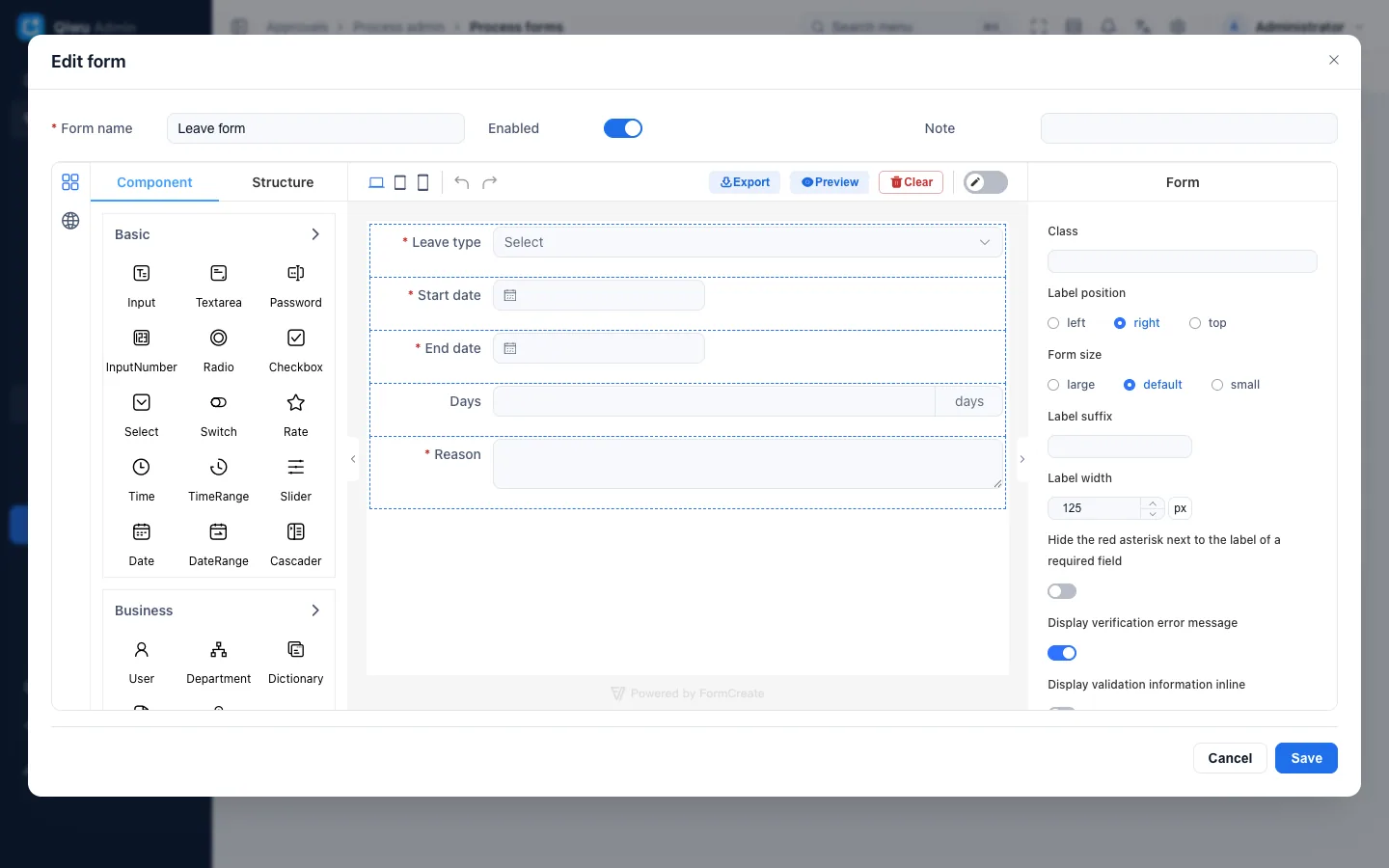
The same designer appears in three places:
| Location | Purpose |
|---|---|
| System tools → Form builder | Design, preview and export code. Forms are not saved here |
| Approvals → Process admin → Process forms | Design and save forms for approvals; see Workflow · Dynamic forms |
| Approvals → Process admin → New approval | Step 2 of the wizard, Form; see No-code approvals |
Who can see these menus
Form builder has no button permissions: assign the menu to a role in System → Roles, and the role's users can see it. Process forms and New approval are available only to the super administrator by default, because a saved form is a piece of configuration that runs in other people's browsers.
Available components
The component list on the left has three groups.
Basic components (15): Input, Textarea, Password, InputNumber, Radio, Checkbox, Select, Switch, Rate, Time, TimeRange, Slider, Date, DateRange, Cascader.
Business components (the project's own components, the same ones the other admin pages use):
| Component | Stored value | Notes |
|---|---|---|
| User | User ID | An input with a picker dialog that lists all enabled users; ordinary staff can pick too |
| Department | Department ID | A department tree that lists all enabled departments, not limited by data scope |
| Dictionary | The value of the dictionary entry (an array with multiple selection) | Pick a dictionary in the settings, such as "Leave type". On submit, the server verifies that the value is an enabled dictionary entry |
| Attachments | One file per line | Uploaded as private files. You can set the maximum number of files (1–50), a size limit per file and the allowed file types |
| Region | A region code path, such as province, city and district | A three-level province, city and district picker (region names are in Chinese only) |
Calculated components:
| Component | Purpose |
|---|---|
| Days (calculated) | A read-only number box that computes the number of days from a start date and an end date; see below |
| Detail table | A table where rows can be added and deleted, with number columns totaled automatically at the bottom; see below |
Components missing from the list (color picker, transfer, tree, rich text, handwritten signature, subform, layout and helper components, and so on) are hidden on purpose: they either need to run code, or the security allowlist would reject them on save. The designer's own Upload is hidden too; use the Attachments component above for all attachments.
Since there are no layout components, forms are flat, with each field on its own row (label width can be set per field).
Calculated components
Days (calculated)
In the settings, fill in Start date field name and End date field name. Both must be single-date components in this form. How it calculates:
- The start day and the end day both count, so the 3rd to the 5th is 3 days.
- You can also set Start AM/PM field name and End AM/PM field name (those fields hold
amorpm). Starting in the afternoon subtracts half a day, and so does ending in the morning, which makes half-day leave possible. - Weekends and holidays are not deducted.
- If a date is missing, or the end is before the start, the result is empty.
Detail table
In the settings, edit the table's columns: column name, title, and Total field name. A column with a total field name is a number column. Its total shows at the bottom of the table and is also written to the field named by the total field name.
- At most 20 columns and 100 rows; text cells hold at most 500 characters.
- Empty rows are removed automatically.
- The total field is a number field, so it can be used as a branch condition in an approval process, for example "add another approval level when the claim is over 5000 yuan".
The server's result counts
In approval forms, days and totals are recalculated by the server with the same code on start, on edits during approval and on resubmit, overwriting the values the browser submitted. So even if someone changes the numbers in their browser, branch conditions follow the real days and amounts.
Exporting JSON and Vue code
The Export button above the designer opens a dialog with two files, which you can copy or download:
form.json: the form's structure (field rules and form options);form.vue: a Vue single-file component that renders the form with form-create and the project's business components.
The export contains what is left after the security allowlist filter, that is, what saving would keep. If the form contains settings that are not allowed, you get "The form cannot be exported: …" with the reason.
form.vue depends on the path aliases and business components of the project frontend, so use it under apps/web/src/views/ in this project. It only displays the form and contains no submit logic: you read the form data and call your own API.
Security
The form schema is rendered in other people's browsers, so it is treated as code:
- Every designer entry point that would execute user input is hidden, including component events, linkage rules, custom attributes, JSON editing, function validation and remote option loading. The frontend uses a strict Content Security Policy (CSP, no
eval), so these features could not run anyway. - On save, the frontend and the server check the whole form schema against the same allowlist:
- Functions, strings that would be executed as code (such as values starting with
$FN:), event and linkage settings, and unknown components are rejected outright with a 400 that names the field. - Ordinary settings outside the allowlist are removed. When you save in Process forms, the page first lists them for you to confirm; the New approval wizard removes them without asking.
- The server stores only the filtered result.
- Functions, strings that would be executed as code (such as values starting with
- A form has at most 200 fields, and each option list at most 500 options. Field names may contain only letters, digits and underscores, must start with a letter, and must be unique.
For more security measures, see Security baseline.