
Workflow
The project ships with a tree-based approval engine, similar in spirit to DingTalk approvals (DingTalk is a workplace app widely used in China): a process is a tree of nodes that runs from top to bottom. This covers most approval scenarios, and business users find it easier to understand.
You can also draw a process as a standard BPMN diagram (see BPMN designer). But BPMN is only a way of drawing: on publish, the server converts the diagram into the same node tree, and the same tree-based engine runs it.
Why a custom engine
- Off-the-shelf BPMN engines either need a JVM (Flowable), need a commercial license in production, or depend on MongoDB.
- Each action of the custom engine is one row change in the to-do table, so it can be committed in the same transaction as your business data.
- The JSON saved by the tree designer is the JSON the engine executes; there is no conversion step in between.
- A BPMN diagram is converted only once, on publish, into the same kind of tree the tree designer produces. The server trusts only the tree it derives from the diagram itself, never a result sent by the browser.
- Branch conditions are structured rules, not an expression library, so there is no risk of arbitrary code execution. Scripts, expressions and listeners in BPMN diagrams are always rejected.
No-code approvals
You can create an approval without writing any code: in Approvals → Process admin → New approval, follow the four steps of the wizard.
- Basics: name, category, icon, description, and who may start it (users, departments, roles; leaving them all empty means everyone).
- Form: build the request form with the form designer.
- Flow: draw the approval flow in the tree designer. Branch conditions, approvers such as User in a form field, and field access can all use the fields of the form from the previous step.
- Advanced: process managers (changing them needs a separate permission, see Field access in approval data), and whether the initiator may cancel and approvers may withdraw.
The wizard and the built-in templates only create tree processes. To draw a BPMN diagram, create a model in Process models; see BPMN designer.
You can Save draft at any time. Publish saves the form, saves the model and publishes a new version, in that order. If one step fails, the steps already done are kept, and Retry continues from the step that failed.
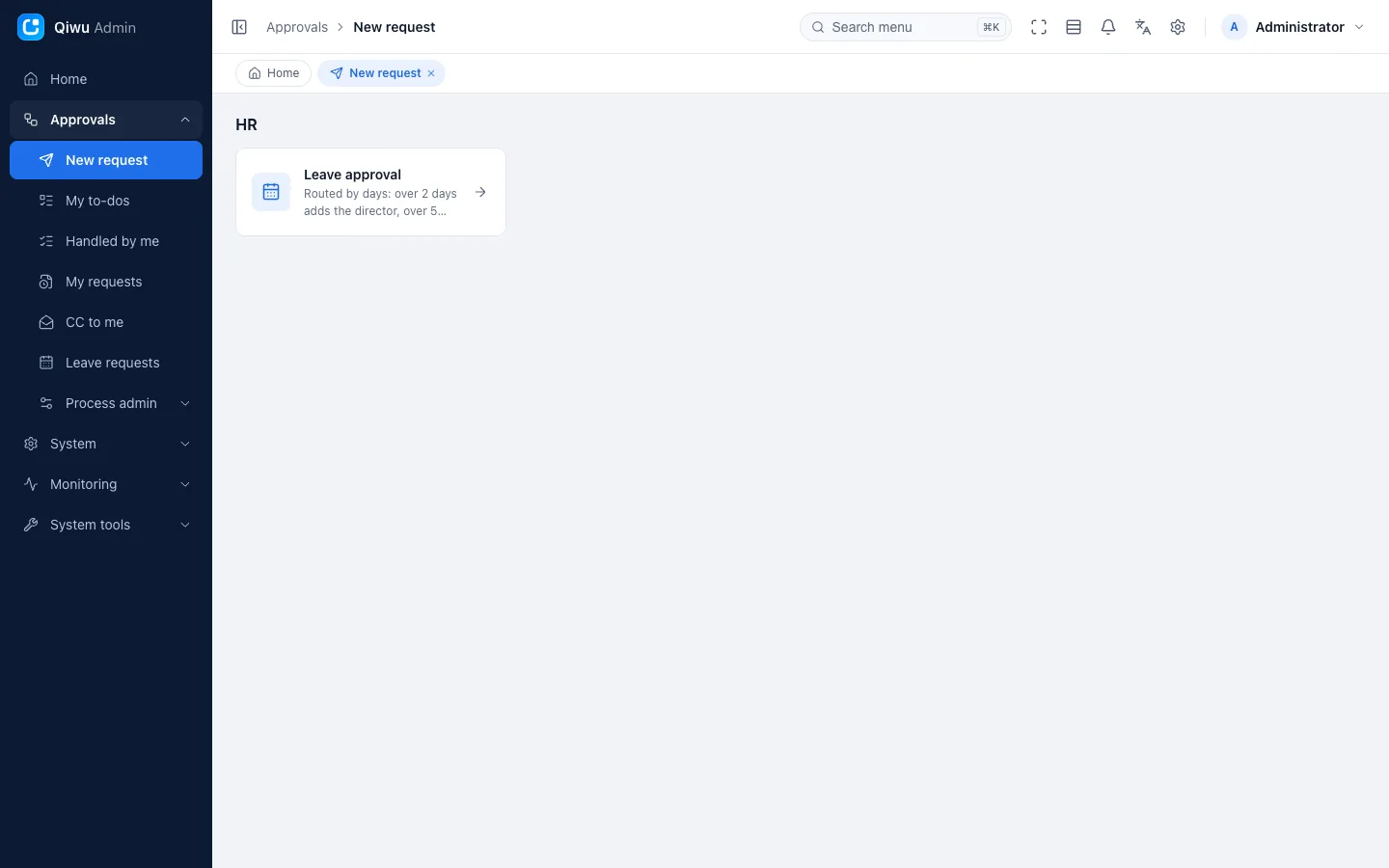
From template
From template in the wizard copies a built-in template, which you then adapt. The project includes four templates:
| Template | Form | Flow |
|---|---|---|
| General approval | Subject, Details, Attachments | The initiator's department head approves |
| Leave | Leave type, Start date, End date, Days (calculated), Reason | Over 3 days: two levels of supervisors approve one after another; otherwise the direct supervisor approves |
| Expense claim | Purpose, Items (a detail table with amounts totaled automatically), Receipts | Total over 5000: two levels of supervisors approve one after another; otherwise the direct supervisor approves |
| Overtime | Start time, End time, Hours, Reason | The supervisor approves |
The templates themselves are disabled and unpublished. They never appear in New request and exist only to be copied.
Designing and publishing processes
Processes are managed in Approvals → Process admin → Process models:
- Models are grouped by category. You can create, edit, enable and disable them, change their order, view earlier versions, and set who may start them, who the process managers are (this needs a separate permission, see Field access in approval data), and whether withdrawing and canceling are allowed.
- When you create a model, pick its Process type: Tree or BPMN. It cannot be changed later; see BPMN designer.
- Models with a dynamic form (tree or BPMN) can pick a Form. Tree models also have Wizard, which edits them in the new-approval wizard.
- Design opens the designer: the tree designer for tree models, the BPMN designer for BPMN models. You can save changes as a draft at any time; once they are right, publish them as a new version. Every process instance remembers the version it started with, so publishing a new version does not affect processes already running.
- Before publishing, the designer checks the whole process with the same code as the server (for example, a conditional branch without a default path). Errors are listed above the diagram and point to the node at fault. The server checks again on publish.
- Every version can be exported as a JSON file. Tree models can also import a JSON file as the next version, which makes it easy to move processes between test and production environments; imports go through the same checks as publishing. For import and export of BPMN models, see below.
- If the design page has unsaved changes, you are asked to confirm before you leave.
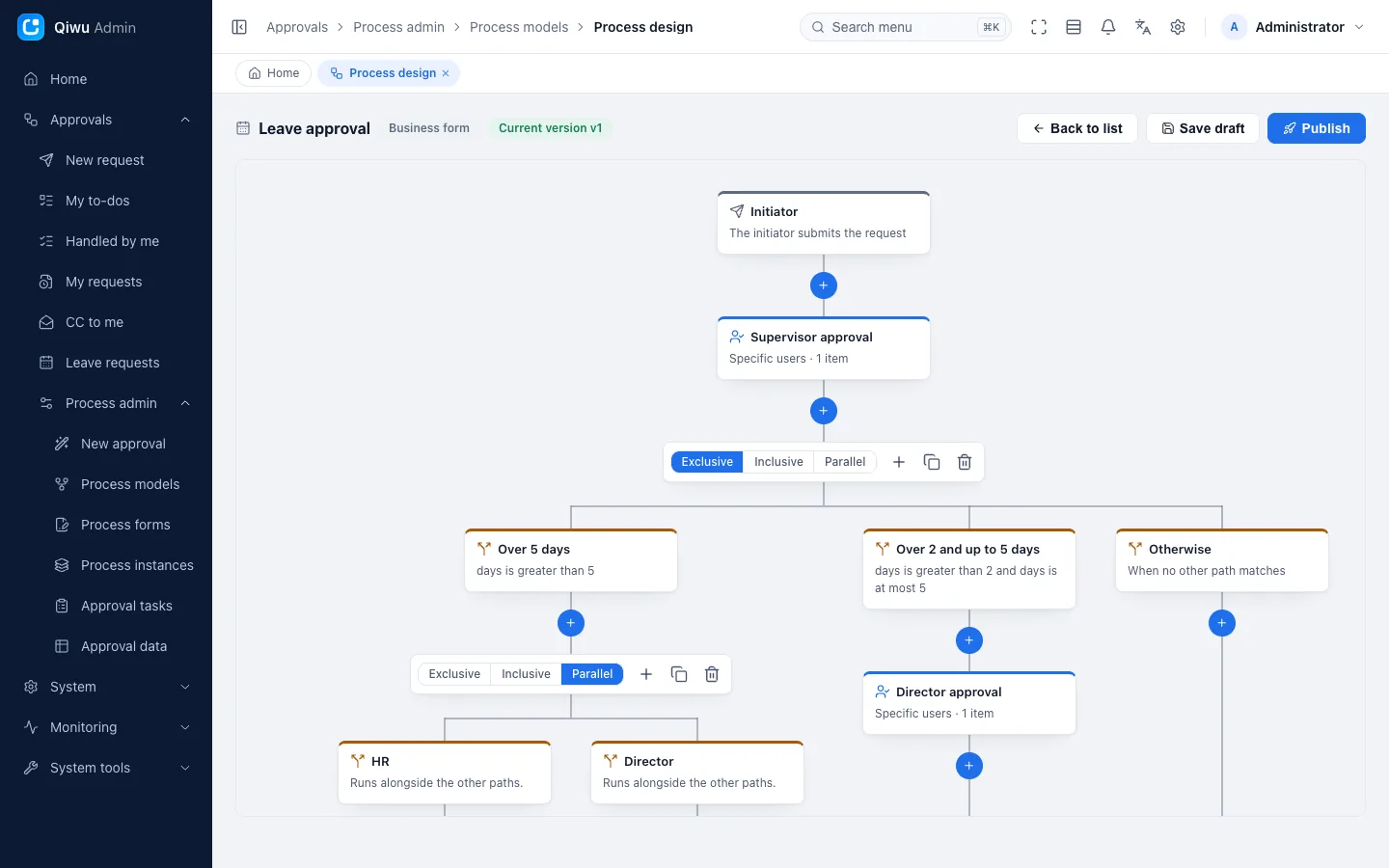
When there are many models
The model list shows at most 200 models at once. Beyond that, the page tells you so, and you cannot change the order.
BPMN designer
Besides drawing a process in the tree designer, you can draw it as a standard BPMN diagram. Node settings are the same in both, and so are approval actions, the approval center, notifications, timeout handling, dynamic and business forms, and approvals on mobile.
Choosing a process type
When you create a model in Process models, pick its Process type:
| Process type | Best for |
|---|---|
| Tree | Business users. Add approvals, CCs and branches on a node tree: simple and clear, and you cannot draw a shape that fails to publish |
| BPMN | People who know BPMN. Draw standard diagrams, and import and export .bpmn files |
The process type cannot be changed after the model is created; the model list has a Process type column. If unsure, choose Tree. BPMN models have no Wizard button; you edit them on the design page.
Canvas and properties panel
Design opens the BPMN designer: the toolbar on the left, the canvas in the middle, and the Properties panel docked on the right.
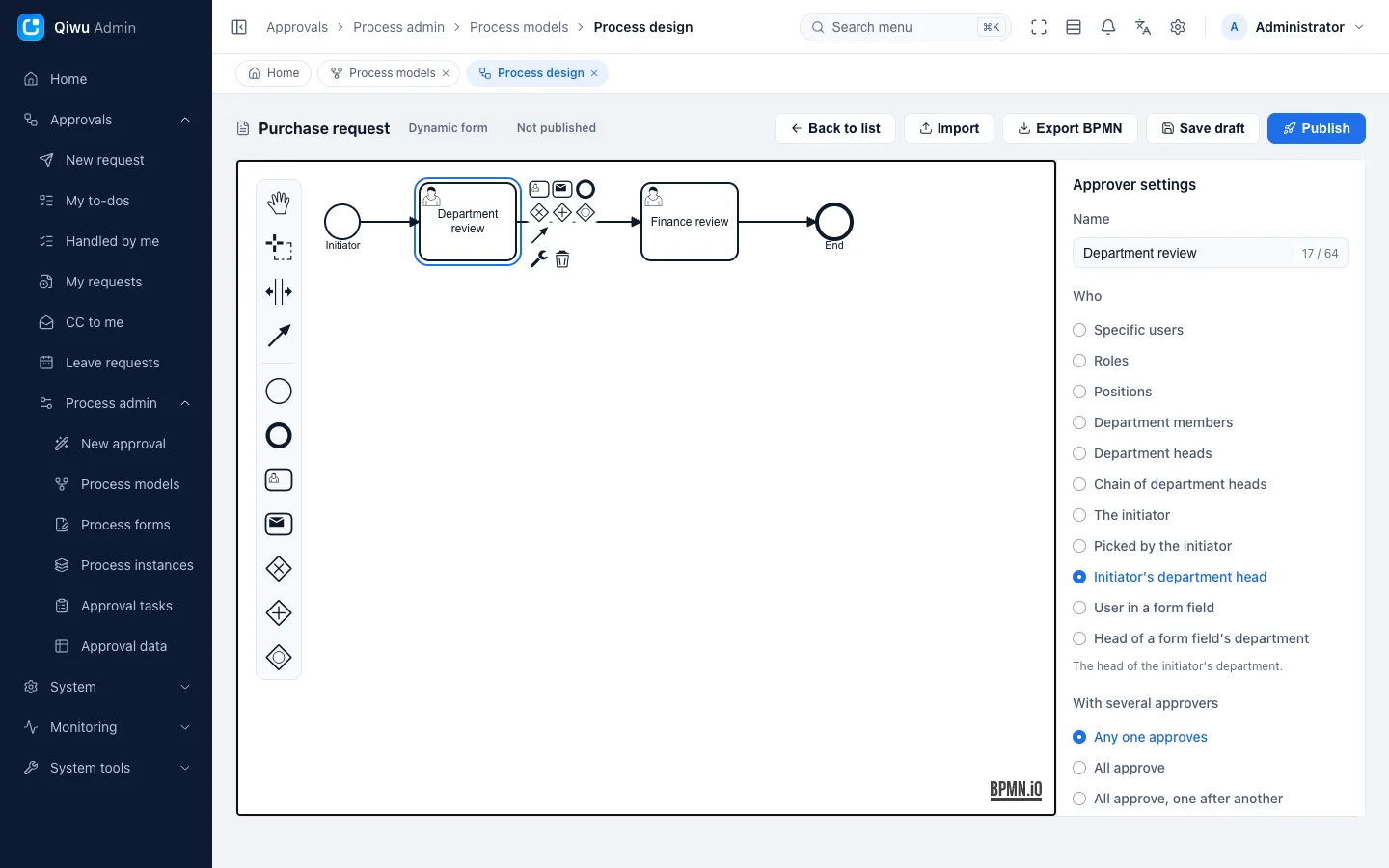
- The toolbar, the context menu next to an element and the Change type menu offer only elements that can be published (see the next section).
- Select an element to set it up in the Properties panel. Approval steps and CC steps use the same settings as in the tree designer: approvers, With several approvers, field access, On rejection, Overdue reminder and so on.
- With a branching gateway selected, you can Add a path and reorder the paths with Move up and Move down. With one of its outgoing flows selected, you can set conditions or Make default path. Flows with conditions are drawn as dashed lines on the canvas.
Keep the bpmn.io logo
Diagrams are drawn with the open-source bpmn-js. Its license requires the bpmn.io logo in the lower-right corner of the canvas to stay visible, unobscured and unchanged. The designer, the read-only diagram in instance details and printed diagrams all keep the logo. In the dark theme it gets a light backing, and turning on Show watermark in Page settings does not cover it either. Projects built on this template must follow the same rule: do not hide or change it with styles, and do not place anything permanent in the lower-right corner of the canvas.
Available elements
| Element | Purpose |
|---|---|
| Start event | The initiator; exactly one |
| End event | End of the process; there can be several |
| Approval step | Same as an approval node in the tree |
| CC step | Same as a CC node in the tree |
| Exclusive gateway | Conditional branch: takes the first path, in path order, whose conditions hold, and the default path when none do |
| Inclusive gateway | Inclusive branch: takes every path whose conditions hold |
| Parallel gateway | Parallel branch: all paths run at the same time |
| Sequence flow | Each outgoing flow of a branching gateway is one path. Conditions can only be set on flows leaving an exclusive or inclusive gateway |
No other elements are supported, for example subprocesses, script tasks, service tasks, intermediate events, pools and lanes.
Follow a few rules when drawing:
- Splits and joins come in pairs: the paths leaving a branching gateway must finally meet at one joining gateway of the same type. Several flows can only merge through a joining gateway, never by connecting directly to the same node. Insert an exclusive branch block after it in an element's context menu (and its parallel and inclusive counterparts) draws a matching split and join in one go. Add a path in the Properties panel connects the new path to the joining gateway automatically. Changing the type of a branching gateway changes its joining gateway too.
- A branch whose paths each run straight to an end, without merging again, can only sit at the end of the process.
- No loops: use Send back or Reject when work needs redoing.
- Names are at most 64 characters.
Checks on publish
The designer checks before publishing, and the server checks again on publish, with the same rules. When a check fails, the errors are listed above the canvas and the elements at fault are marked red on the canvas. These are rejected:
- Loops, unpaired splits and joins, more than one start event, unreachable elements, and wrong numbers of flows (for example two flows going straight into the same approval step).
- Pools, lanes, and any element not in the table above.
- Scripts, expressions (such as
${...}), listeners, and other tool-specific BPMN extensions (such as attributes starting withcamunda:orflowable:). Conditions can only be set with the condition builder. - Files with a DOCTYPE or entity declarations, and diagrams over 80 KiB (about 90 elements).
Saving a draft only checks the size, the DOCTYPE, and whether the file is readable BPMN XML, so you can save a half-finished diagram.
The engine runs the tree derived from the diagram, so what the diagram shows must be exactly what runs. Publishing therefore also checks the layout:
- Every node is at least 10 × 10, and nodes do not overlap.
- Every flow has at least two distinct points, starts on its source node and ends on its target node.
- Flows do not cross other nodes or come close to them (within 5 px).
- Elements carry no custom colors.
A flow crosses another node
The designer draws straight lines by default. A straight line that crosses another node is marked red; redraw it as a bent line that goes around the node.
Import and export
- Export BPMN on the design page exports the diagram currently on the canvas, including unsaved changes; Export BPMN in the version list exports the selected version. Exported files carry the node settings.
- Import on the design page takes .bpmn and .xml files, as well as process JSON exported from the version list. So you can export a tree model as JSON and import it into a BPMN model, but not the other way round. Importing replaces the diagram on the canvas, and the result is not saved yet. The check results show right away; once everything is right, save a draft or publish.
- The version list of a BPMN model has no Import JSON.
- Only the elements above are supported. Files exported from other BPMN tools usually contain expressions, listeners, proprietary extensions, pools or subprocesses, and cannot be published until these are removed. After import the check results show right away: problems are listed above the canvas, the matching elements are marked red, and one click takes you to each of them. Delete these parts on the canvas (or remove them in the original tool first) before publishing; if needed, redraw the original process.
If a saved draft cannot be drawn, the design page shows a new diagram with only a start event instead, and suggests importing a .bpmn file or redrawing. Saving a draft then replaces the old one.
Node types
| Node | Purpose |
|---|---|
| Initiator | The initiator; field access for the form can be set here |
| Approver | Sets the approvers, how several approvers decide, the rejection policy, the overdue reminder and automatic handling when overdue |
| CC | Notifies the people concerned; they do not need to act |
| Branch | Conditional, parallel and inclusive branches |
Approvers
An approver can be: Specific users, Roles, Positions, Department members, Department heads, Chain of department heads, The initiator, Picked by the initiator, Initiator's department head, User in a form field, or Head of a form field's department.
With several approvers: Any one approves (one approval is enough), All approve (countersign: everyone must approve), or All approve, one after another (sequential).
Special cases: when no approver is found, the step can approve automatically, hand over to the process managers, or go to a specific user. When the approver is the initiator, the initiator can approve it, the step can be skipped, or it goes to the department head.
Branches
- Conditional branch: takes the first path, in order, whose conditions hold, and the default path when none do.
- Inclusive branch: takes every path whose conditions hold.
- Parallel branch: all paths run at the same time and join again once they are all done.
Conditions can use form fields (equals, is greater than, contains, …), as well as the initiator's department (including sub-departments) and roles.
Approval actions
Approve, Reject, Send back (to any step already passed, or to the initiator, who edits and resubmits), Transfer, Delegate, Add signers (Before me and After me), Remove signers, Copy to, Withdraw (right after approving, while the next person has not acted yet), Cancel process (the initiator cancels the whole process), Comment, and Send reminder (at most once an hour).
Admins can also terminate a process instance or reassign a task to someone else (for example, when an employee leaves and hands over their work).
Automatic timeout handling
After you turn on Overdue reminder on an approval step, fill in Due in (hours), optionally set Then remind every (hours), and choose what happens When overdue:
| When overdue | What the system does |
|---|---|
| Remind only (default) | Only reminds the assignee; never approves or rejects automatically |
| Approve automatically | Approves on the assignee's behalf. With all-must-approve, each person's to-do falls due and is handled on its own; with sequential approval, the next person's clock starts at that moment |
| Reject automatically | Rejects on the assignee's behalf, then follows the step's On rejection setting: end the process, or send it back to the previous approval step |
| Hand to the manager | Hands the to-do to the assignee's manager; the new to-do starts a new clock |
Who counts as the manager:
- The head of the assignee's department. If the assignee is that head, the head of the parent department.
- If nobody is found (for example, no department, no head, or the head is disabled), or that person has already handled this step in this round, or that person is the initiator and the step does not let initiators approve their own requests, then the first suitable, enabled process manager in list order.
- If there is still nobody, only the assignee is reminded, and this is recorded in the approval history.
If the new assignee is also overdue, the to-do goes to their manager by the same rules. Each handover only goes to someone who has not handled the step in this round, so a to-do never bounces back and forth. On an any-one-approval step, if the manager or the process manager already has a to-do on this step, only a reminder is sent and nobody else is pulled in.
Two different handovers
Hand to the manager here looks for the assignee's manager. Hand to the process managers, which Approvers uses when no approver is found, looks for the process managers of this model.
How time is counted: both the time limit and the reminder interval count calendar hours, including nights, weekends and holidays. With sequential approval, people whose turn has not come yet have no due time; their clock starts when their turn comes.
When it is handled: by the built-in scheduled task Send overdue to-do reminders, which runs every 5 minutes. In normal operation, a to-do is therefore handled about 5 minutes after it falls due (see Scheduled tasks · Built-in tasks (Chinese)). If the task is disabled, backed up or failing, it takes longer, so do not treat it as a deadline accurate to the minute.
- Each to-do is handled only once, even when a person acts at the same moment: if the person acts first, the system skips it; if the system acts first, the person's action fails. This also holds in multi-instance deployments.
- Only the assignee's own to-dos are handled. To-dos that were delegated or had signers added, and to-dos created by delegating or adding signers, only get reminders when overdue.
- Once a to-do has gone through automatic handling (including a handover to the manager that found nobody and only reminded the assignee, and an attempt that failed), it only gets ordinary reminders; nothing more happens automatically.
- On steps with automatic handling, a to-do that reappears after a transfer, a reassignment or a withdrawal starts a new clock from that moment.
- An automatic approval cannot be withdrawn, and the detail page does not show Withdraw for it.
- When an automatic rejection sends a request back to the previous approval step, it skips steps that were approved automatically in this round, and goes back to the initiator if all of them are skipped. So automatic approval and automatic rejection never loop.
Nothing happens silently:
- Each automatic action writes a Timed out entry to the approval history with System as the operator. The comment says whose to-do it was and what the system did, for example "Zhang San's to-do: Not handled in time; approved automatically".
- The initiator and the enabled process managers of the model receive the Approval to-do timed out notification (inbox message and email). After an automatic approval, an automatic rejection or a handover, the original assignee receives it too; the new assignee receives the usual new to-do notification.
- The Handled by me list does not count the system's actions under the original assignee.
When handling fails: for example, after an automatic approval, the next approval step finds no approver. The whole automatic action is then rolled back, the approval history records the failure, the assignee gets an overdue reminder, and the initiator and the process managers are notified. After fixing the process or the organization structure, reassign the to-do once in Approvals → Process admin → Approval tasks: it starts a new clock and goes back into automatic handling.
Permissions process managers need
Process managers are only notification recipients; being one does not let them view or reassign process instances. For them to act on these notifications, also grant their role Browse on Process instances and View on Approval detail below it, plus Browse and Reassign and terminate on Approval tasks, with a data scope that covers the initiator's department.
Tracking progress
The detail page of a process instance has a Progress section. Nodes are colored by state, with a legend: Done, In progress, Not reached, Not taken, Ended here. The paths of a parallel branch are colored at the same time.
- Tree models show a read-only progress tree, shaped like the one in the designer.
- BPMN models show a read-only diagram that you can pan and zoom, colored from the same data as the progress tree.
If a process version no longer passes the checks because the rules changed, the detail page still opens but leaves out the progress; the approval history shows as usual.
The approval detail page in the mobile app does not show progress (no progress tree and no diagram); the approval history shows as usual.
Print on the detail page prints the request and its approval history. Navigation and action buttons are not printed. The progress tree of a tree model is not printed, while the diagram of a BPMN model is. Pages in the dark theme print in light colors.
Notifications
New to-dos, approvals, rejections, CCs, send-backs, reminders, overdue reminders, timeout handling and other events notify the people concerned through inbox messages, email and realtime push, each in the recipient's language.
Two kinds of forms
- Business form: a business page you write yourself. You implement a business handler that tells the engine which fields can be used in branch conditions, what to check before a process starts, and what to update when it ends. The built-in leave example (menu Approvals → Leave requests) is a complete business form integration; its source is in the server's
modules/biz/leavedirectory. - Dynamic form: built by drag and drop in the form designer, with no code; see the next section.
Dynamic forms
Forms are designed and saved in Approvals → Process admin → Process forms (or directly in the New approval wizard). Then pick the Form for a model in Process models. On publish, the system derives the field list from the form and stores both in that version. Later changes to the form take effect only after you publish again; processes already started are not affected. A form bound to a model cannot be deleted.
Field access
On the Initiator node and on each approval step in the process designer, every field can be set to Editable, Read-only or Hidden (fields left unset count as read-only):
- When starting a process, all fields can be filled in.
- Approval details are shown according to the reader's field access. Hidden fields are not sent to the browser at all, values included. Only fields set to Editable on the current to-do step can be changed, and the changes are submitted together with Approve.
- A field that was once hidden from someone stays hidden from them (even after they have handled their to-do).
- When resubmitting after a send-back, the initiator can only change fields set to Editable on the Initiator node.
- CC steps have no field access: people copied by a CC step, and admins with permission to view instances, see all fields (read-only). If they are also the initiator or an approver of this process, though, they still see it with their own step's access. People copied in manually by an approver see it with the access of the step that sent the copy.
Users and departments in forms
An approver can be User in a form field (the person picked in a user field) or Head of a form field's department (the head of the department picked in a department field). If that person is disabled, they are skipped; if nobody is found, the rule for When nobody is found applies.
Attachments
Attachment fields upload private files, which are bound to the process instance when it starts. Attachments added while editing during approval or when resubmitting are bound too. Only files you uploaded yourself and that are not used anywhere yet can be attached.
Who can download an attachment: anyone who can view this process instance and can see the attachment field (no download when the field is hidden from them). The uploader, the super administrator, and anyone with the View permission of System → Files → Files (storage.object.view) can always download it; once a file is removed from the form, only they can.
Server-side validation
Validation in the browser can be bypassed, so the server validates again against each component's value format, on start, on edits during approval and on resubmit:
- Required fields, options (radio, select and checkbox values must be among the options), dictionaries (the value must be a currently enabled dictionary entry).
- Number ranges, rate and slider ranges, text length (at most 5000 characters when no limit is set), number of attachments, the maximum number of checkbox selections.
- Single dates and date-times must be in ISO format (date-times with a time zone). Months, years, weeks, multiple dates and times are treated as text, and their format is not checked.
- Days and detail totals are recalculated by the server, overwriting the values the browser submitted. Branch conditions use the recalculated values.
Dynamic forms on mobile
The mobile app can also fill in and view dynamic forms. Field access, which fields are submitted and server-side validation are the same as on desktop. The differences (attachments, a few components, extra validation rules set on fields) are described below and under "Known limitations" on this page:
- Start: in the mobile app, tap a process with a dynamic form in Workbench → New request. If a form is bound, a form page opens for you to fill in; if steps use Picked by the initiator, you pick the people on the same page. Without a bound form, you start the process in a bottom sheet (picking people for Picked by the initiator steps there too).
- Approval details: the form shows right in the details, according to the field access of your step: hidden fields are not shown, Editable fields can be changed, and the rest are read-only.
- Approve and resubmit: only Editable fields are submitted. Before submitting, the phone checks them against the server's rules (required, type, options, range, length, date format and so on).
- Calculated values (days, detail totals) are for display only; the server's recalculated result is what counts.
- Detail tables: each row is a card. You can Add item and delete a row, and the total shows below.
- Attachments: can be uploaded. Existing attachments show only their file names and cannot be opened or downloaded on the phone.
Some components cannot be filled in on a phone. Those fields are read-only and show "Fill this in on a computer": pickers for several dates, dates picked by week or by several years or months, dates whose value format uses anything other than year, month, day, hour, minute, second and time zone, multi-select cascaders, and the designer's own Upload component (use the Attachments component for attachments; see Form designer). When a whole form cannot be shown on a phone, the start page says "This form can't be shown on a phone; start it on a computer", and the form section of the approval details says "View it on a computer", but you can still approve or reject.
Fields usable in branch conditions
Numbers (InputNumber, Rate, Slider, Days (calculated), detail totals), dates, users, departments, and fields whose value is a piece of text can be used in conditions. Checkboxes, cascaders, regions, date ranges, switches, and radios and selects with numeric option values never match any condition, so the process takes the default path.
Known limitations
- The server does not validate these yet: number step and precision, half stars in Rate, whether cascader values are among the options, the minimum number of checkbox selections, and the dates inside a range.
- Rate and regular Slider values are treated as numbers and can be compared (the value of a range slider is a pair of numbers and never matches any condition). Month, year and week dates are treated as text: they support only equals, does not equal, is one of and contains, and cannot be compared by date.
- When a detail table is hidden but its total field is visible, the total is not shown.
- Mobile: a few components are read-only (showing "Fill this in on a computer"), and attachments cannot be opened or downloaded; see Dynamic forms on mobile. Extra validation rules set on fields (regular expressions, email and so on, except required) are checked only by desktop forms; neither the phone nor the server checks them.
Approval data
In Approvals → Process admin → Approval data, you can view all requests of one approval, with one column per form field:
- The fixed columns are No., State, Initiator, Dept, Started at and Ended at, followed by the fields of the selected version's form.
- You can filter by state, initiator and start time, and also by field value (up to 10 filters), for example "Days is greater than 3". The available comparisons depend on the field type.
- Switching versions only changes the columns shown and the fields you can filter on; the list still holds the requests of all versions of this approval.
- You can export to Excel. The export uses the same columns, filters and sort order as the page, and is recorded in the action log.
- User and department fields show names. Dictionary fields show the stored value (such as
annual), not the translated dictionary label. Detail tables show as JSON text. Attachments show the stored raw text, one "file ID/file name" per file (such as12/contract.pdf).
The permissions are wf.data.browse (browse) and wf.data.export (export), granted only to the super administrator by default. The results are also filtered by data scope, based on the initiator's department.
Field access in approval data
Approval data is filtered by field access:
- The super administrator and the process managers of this approval (set in the edit dialog of Process models or in the wizard's Advanced step) see all fields. The description of Process managers in the dialog says so too.
- Others with
wf.data.browse/wf.data.exportdo not see fields set to Hidden on any step (including the initiator node): neither the page nor the export has that column, and filtering on it fails with the same error as a field that does not exist. The top of the page says "N fields hidden in the process are visible to its process admins only". - Each row is judged by its own version: if a field is hidden in that row's version, the row does not return its value, and filtering on that field never matches the row. This way, nobody can read that field's data from newer versions by switching to an older version in which the field was not hidden.
- When a version of the process no longer passes the checks, all fields of that version are treated as hidden.
Because process managers see all fields, changing the list of process managers needs a separate permission: Appoint process managers (wf.model.managers) under Process models, which only the super administrator has by default. For people who have only the Edit permission, Process managers is read-only in the edit dialog of Process models and in the wizard's Advanced step, with the note "You may not change the process managers (wf.model.managers): they stay as they are." Changing the list by calling the API directly, bypassing the UI, returns 403.
So, to let a role such as department manager view approval data, grant wf.data.browse in System → Roles (plus wf.data.export if they need to export). They see requests within their role's data scope (see Permissions · Example). For people who need to see sensitive fields (such as HR), ask someone with the Appoint process managers permission to make them process managers of this approval.
Note
Field access is computed per field, and visible fields can indirectly reveal hidden ones. For example, Days may be hidden while Start date and End date are visible.
Security
- Only the initiator, the assignees, the CC recipients and admins with permission can view a process instance; everyone else gets 404.
- You can only handle tasks assigned to you.
- Form field access (editable, read-only, hidden) is enforced by the server. Hidden fields in approval details are never sent to the frontend, and the Approval data page is filtered by field access too (except for process managers; appointing process managers needs a separate permission). Attachments can only be downloaded by people who can see their field (except the uploader, the super administrator and people with View on the file list).
- The schema of a dynamic form passes a security allowlist check on save and cannot contain functions, scripts or event settings; see Form designer · Security.
- BPMN diagrams are treated as data only: scripts, expressions, listeners, other tools' extensions and DOCTYPE are always rejected, and the size is capped. The server runs only the tree it derives from the diagram itself; see Checks on publish.
- In demo mode (
APP_DEMO_MODE=true, see Environment variables (Chinese)), starting, approving, designing, publishing and other write operations are rejected; only marking CCs as read still works.