
Getting started
Goal: get it running on your machine in 10 minutes.
Starting your own project?
This page gets the template itself running. When you are ready to build your own business system on the template, we recommend initializing it with the new project script that ships with the repository, so the new project uses its own database, Redis database number and secrets. See Create your own project.
Requirements
| Software | Version | Notes |
|---|---|---|
| Node.js | ≥ 22.22.1 | 22 LTS recommended |
| pnpm | 11 | Install with npm install -g pnpm@11; the repository's packageManager pins 11.28.3 |
| MySQL | 8.4 or later | Single data source |
| Redis | 7.0 or later | Must support ACL, GETDEL, the NX/XX/GT options of PEXPIRE, and the sharded pub/sub used by realtime push (SSUBSCRIBE, SPUBLISH); on Windows, Memurai 4.x or later is recommended |
macOS
Homebrew is the easiest way: brew install mysql redis, then start the services with brew services start mysql and brew services start redis.
Windows
Use the built-in Windows PowerShell 5.1 in Windows Terminal or the VS Code terminal; development and all check commands have been verified on Windows 11. First follow Installing the development tools (Windows) (Chinese) to install Git, Node.js, MySQL and Memurai, allow running scripts, and then install pnpm. Start and stop MySQL and Memurai in Services (services.msc); use the service names chosen at install time.
1. Get the code
git clone https://github.com/732124645/qiwu-vue-admin.git
cd qiwu-vue-admin
pnpm i
2. Prepare the database and Redis
Create a development database and a dedicated account. On Windows, connect to the local database as root in MySQL Workbench, paste the SQL below into a query window and run it; on macOS, run it after signing in with mysql -u root -p. When it succeeds, on Windows click the refresh button of the SCHEMAS panel on the left of Workbench and you should see qiwu_dev; on macOS, run SHOW DATABASES; and the result should include qiwu_dev.
Why the development database is called qiwu_dev
db:reset drops every table in the database and rebuilds it. To prevent deleting real data by mistake, it only runs when the database name ends in _dev, _test or _e2e. This rule applies only to the db:reset command; the service itself, db:migrate and db:seed do not check the name, so a production database can be named anything.
CREATE DATABASE qiwu_dev CHARACTER SET utf8mb4 COLLATE utf8mb4_0900_ai_ci;
CREATE USER 'qiwu'@'localhost' IDENTIFIED BY 'your-password';
CREATE USER 'qiwu'@'127.0.0.1' IDENTIFIED BY 'your-password';
GRANT ALL ON qiwu_dev.* TO 'qiwu'@'localhost';
GRANT ALL ON qiwu_dev.* TO 'qiwu'@'127.0.0.1';
Every Redis key has the qw: prefix, so you can share one Redis with other projects. To restrict access, create an ACL user that can only touch qw:* keys and qw:* channels (keys as ~qw:*, channels as &qw:*), and do not give it admin commands such as FLUSHDB, KEYS or CONFIG.
3. Configure environment variables
The server configuration is split across two files, and neither is committed to git:
cd apps/servercp .env.example .env # dev config: port, database name, Redis database number...
touch .env.local # accounts and secrets: database and Redis accounts, APP_SECRETCopy-Item .env.example .env
notepad .env.localOpen .env.local in an editor (on Windows, notepad .env.local asks whether to create the file; choose "Yes") and save it as UTF-8 (without BOM); on Windows you can also use VS Code. When using Save As in Notepad, choose "All files" and make sure the file name is .env.local, not .env.local.txt. Do not write these files with >, Out-File or Set-Content in Windows PowerShell 5.1: > and Out-File write UTF-16 by default, so the whole file cannot be read; Set-Content uses the system's local encoding by default (GBK on Chinese Windows), so values with Chinese or other non-ASCII characters get garbled; adding -Encoding UTF8 writes a BOM, and the variable on the first line may then not be read.
Fill in .env.local:
DB_USER=qiwu
DB_PASSWORD=your-password
REDIS_USERNAME=           # leave empty if Redis has no ACL user
REDIS_PASSWORD=
APP_SECRET=a-random-string-of-at-least-32-characters
You can generate APP_SECRET with this command (the same on macOS and PowerShell). Paste the 43 characters it prints after APP_SECRET= in .env.local and save:
node -e "console.log(require('crypto').randomBytes(32).toString('base64url'))"Do not put accounts and secrets in .env
The server reads .env first and then .env.local. For a variable in both files, .env wins, even if it is empty (KEY=). So write these variables only in .env.local; if one appears in .env, even with an empty value, the value in .env.local is ignored.
The configuration is validated at startup. If a value is missing or malformed, the service refuses to start and tells you which one is wrong. For what each setting means, see Environment variables (Chinese).
4. Initialize the database
cd ../..                               # back to the repository root
pnpm --filter @qiwu/shared build       # build the shared package first; the server depends on its output
pnpm db:reset                          # empty the dev database → run migrations → write seed data
When it finishes, the terminal prints the admin password:
seed: admin password (shown once, must be changed at first sign-in): xxxxxxxxThis password is shown only once, so write it down. The username is admin, and you must change the password at first sign-in. To use a fixed password, set SEED_ADMIN_PASSWORD in .env.local.
WARNING
db:reset drops every table in the database, so use it only on development and test databases. For a database that already has data, use pnpm db:migrate (runs only new migrations) and pnpm db:seed (adds missing seed data).
5. Start
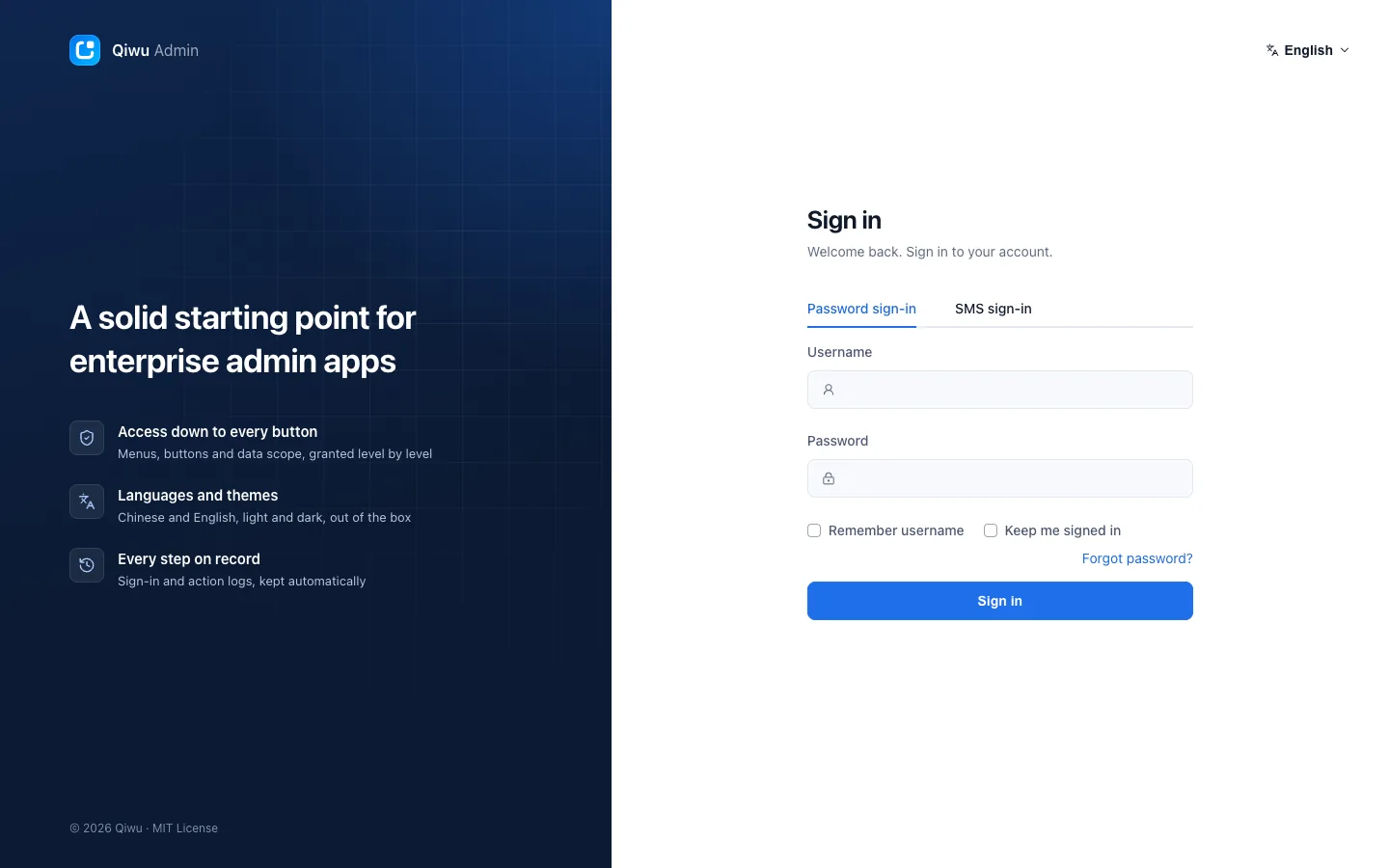
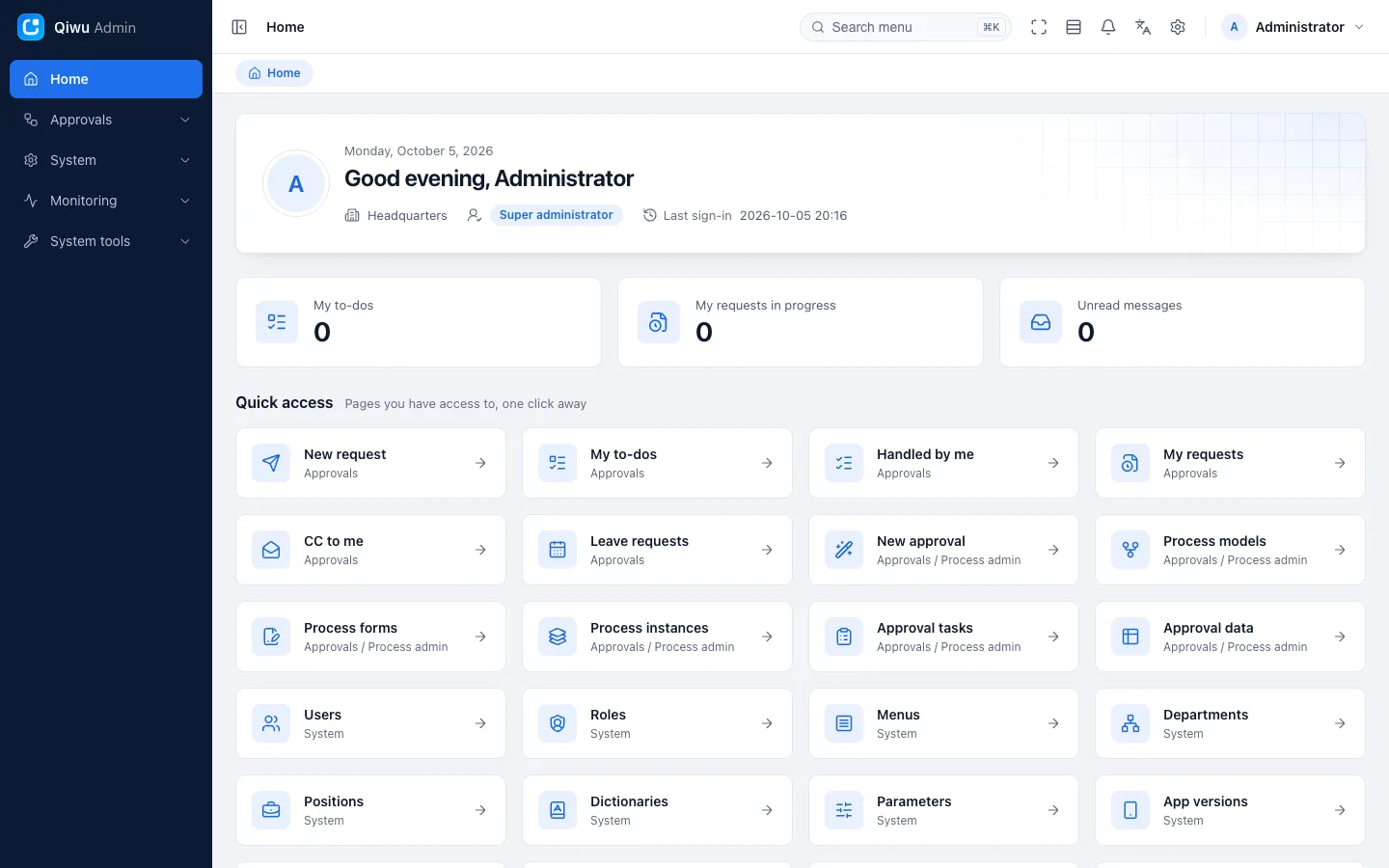
pnpm devThis command starts three processes at once: the shared package watcher, the server (port 3000) and the Vite frontend (port 5173). Open http://localhost:5173 and sign in with admin and the password from the previous step.
Create your own project
The steps above run the template itself (development database qiwu_dev). When you build your own business system on the template, we recommend cloning the template into a new directory and doing the initial setup with the new project script that ships with the repository. The new project then has its own database, Redis database number and secrets, and does not get mixed up with the template.
The script uses only built-in Node features and changes only the 4 files below; it does not change package names, table prefixes or business code:
| File | What it writes |
|---|---|
apps/server/.env | DB_NAME, REDIS_DB (copied from .env.example first if the file does not exist) |
apps/server/.env.local | APP_SECRET and the admin password SEED_ADMIN_PASSWORD if missing (randomly generated, not shown in the terminal) |
apps/web/.env.development, apps/web/.env.production | System name VITE_APP_TITLE |
Preview first, then run it for real:
git clone https://github.com/732124645/qiwu-vue-admin.git my-admin
cd my-admin
node scripts/new-project.mjs --dry-run --name my-admin            # preview only, writes no files
node scripts/new-project.mjs --name my-admin --redis-db 0 --title "My Admin"
You can also run node scripts/new-project.mjs on its own and answer the prompts one by one. Main options:
| Option | Description |
|---|---|
--name | Project name: starts with a lowercase letter and contains only lowercase letters, digits and - |
--db-name | Database name. Default: the project name with - replaced by _, plus _dev (for example my_admin_dev); must end in _dev and cannot be qiwu_dev |
--redis-db | Redis database number; 4 to 15 are reserved for template development and tests and cannot be used. The script does not check whether the database is free, so make sure no other project uses it |
--title | System name, shown in the browser tab, the sidebar and the sign-in page; defaults to the project name |
--dry-run | Preview only, writes no files |
The script does not create the database, configure Redis accounts or start the service. After it runs, you still need to:
Create the database the script configured (for example
my_admin_dev) as in step 2, and grant the database account access to it;Add
DB_USER,DB_PASSWORD,REDIS_USERNAMEandREDIS_PASSWORDtoapps/server/.env.local;Run these in the repository root, in order:
bashpnpm i pnpm --filter @qiwu/shared build pnpm db:migrate pnpm db:seed pnpm dev
The username is admin and the password is the value of SEED_ADMIN_PASSWORD in .env.local; signing in with it does not ask you to change the password. You can run the script again with the same options: existing secrets are kept, not replaced.
Running alongside the template
The script does not change ports. If the template is also running on the same computer, set a free PORT (for example 3310) in the new project's apps/server/.env, and change CORS_ORIGIN to the new frontend address (for example http://localhost:5190). Then start it in two terminals: in the first, run pnpm --filter @qiwu/shared --filter @qiwu/server --parallel dev; in the second, first set the environment variable API_PROXY_TARGET to http://127.0.0.1:3310, then run pnpm --filter @qiwu/web dev --port 5190 --strictPort. Do not use pnpm dev --port 5190: the option is passed to every package and startup fails.
Optional: IP geolocation data
The Location column in the sign-in log and online users needs an IP data file of about 11 MB, which is not included in the repository:
node scripts/fetch-ip2region.mjsThe download is checked against its sha256; restart the server and it takes effect. Without it everything still works; the Location column just stays empty.
Troubleshooting
APP_SECRET error at startup It is not set in .env.local, or it is shorter than 32 characters. Also check whether .env has an APP_SECRET= line; if it does, delete it (see step 3 above).
db:reset refused The database name does not end in _dev, _test or _e2e, or NODE_ENV=production is set.
pnpm i reports ERR_PNPM_IGNORED_BUILDS A newly added dependency has an install script. Register it under allowBuilds in pnpm-workspace.yaml, set to true (allow it to run) or false (do not run it).