
Internationalization
Internationalization (often written as i18n) means one system can be displayed in different languages. The project has two languages built in, Simplified Chinese (zh-CN) and English (en-US), and you can switch between them at any time.
Switching changes more than buttons and menus: error messages from the backend, form validation messages, dictionaries, names of built-in data, notifications and exported Excel files all follow the language.
This rule has been followed since the first line of code: no Chinese is written directly in the code. Every piece of text users see maps to a translation key (a fixed name, such as crud.action.save), and the Chinese and English texts live in their own translation files. Automated checks make sure that neither language is missing a single entry.
Coverage
| Content | After switching languages |
|---|---|
| UI text | Menus, buttons, table column names and message boxes all switch |
| Error messages from the backend | The server translates them into the request's language before returning them, for example "This record already exists" |
| Form validation messages | Messages in the browser and messages from the server share the same texts, and the field names in them are translated too |
| Menu names | Built-in menus switch; menus created by admins can have a Chinese name and an English name |
| Dictionary and parameter names | Every dictionary entry and every parameter can have its own text per language |
| Names of built-in data | Built-in roles, departments, positions, approval processes, message templates, scheduled tasks and so on switch names |
| Notifications | One template is stored separately for each language and sent in the recipient's language |
| Sign-in log | The Message column is shown in the viewer's language |
| Excel import and export | Headers and dictionary values are output in the current language; imports recognize both Chinese and English headers |
| Third-party components | The UI text of Element Plus components, dates, charts, the rich text editor, the cron editor, captchas and the form designer switches too |
| Mobile app | Supports Chinese and English as well; switch on the sign-in page and the Me page |
What is not translated
- Content that users enter themselves is stored only in the language it was entered in: roles, departments and positions created by admins, approval processes and nodes you design yourself, business data and so on stay as they are when you switch languages. Form field titles are the exception: in the form designer's Language settings, add an entry with a Chinese and an English text, then bind the field title to that entry, and the title switches with the language. The forms of the built-in process templates work this way.
- Bulletins are articles that authors write for readers. Authors write them in their readers' language; the system does not keep several language versions.
- Error messages recorded when a scheduled task fails are the program's raw errors and are not translated.
- In the form designer's Region component, region names are in Chinese only.
Switching languages
There are three places to switch:
- the language icon at the top right of the header (Change language);
- the language menu at the top right of the sign-in, sign-up, password reset, change password and lock screen pages;
- Language under Preferences in My profile.
The switch takes effect immediately, without reloading the page: values already entered in forms are kept, validation messages already shown change to the new language, and so does the page title on the browser tab.
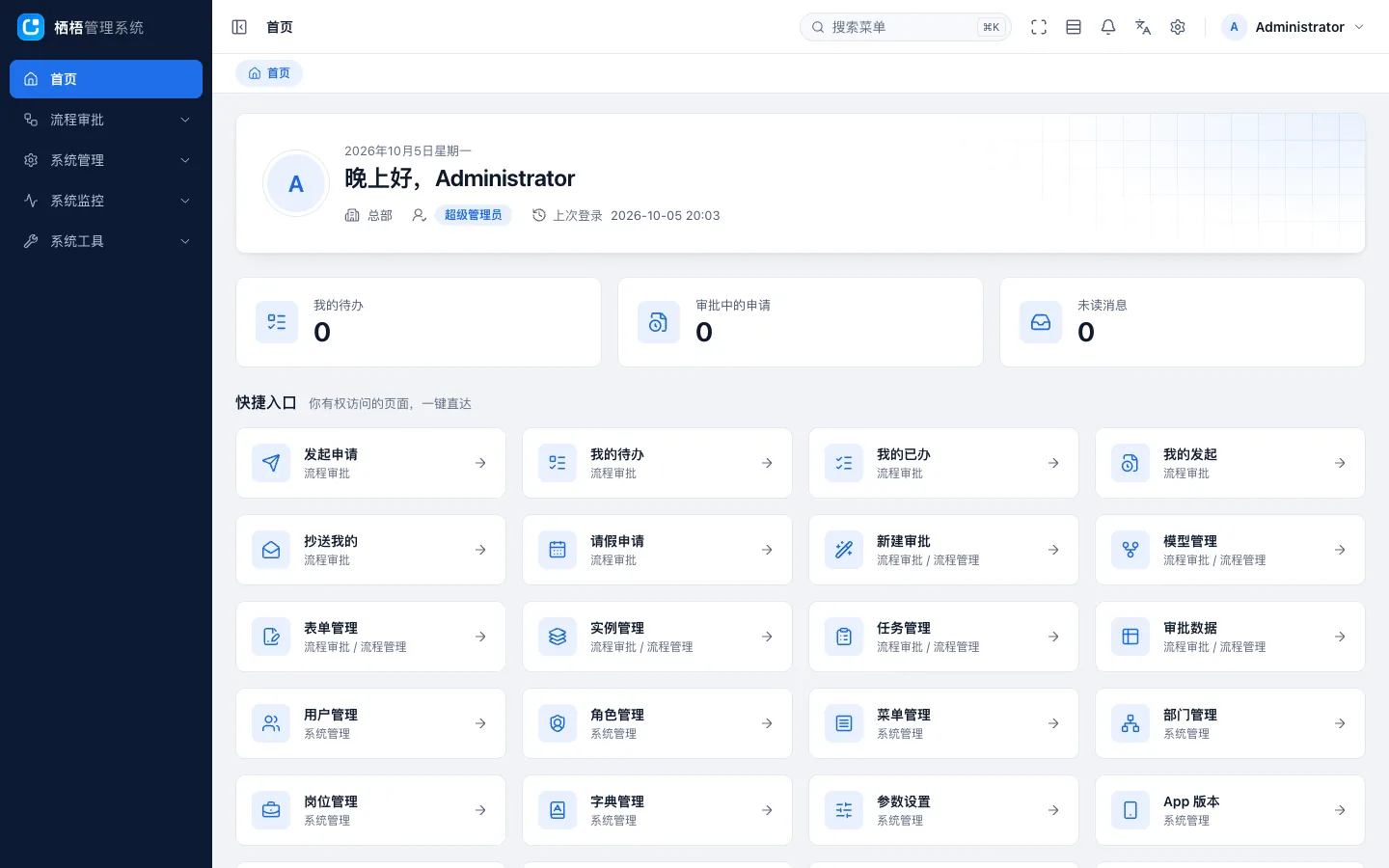
- The browser remembers your choice. On your first visit, the browser's language decides: browsers set to English show English; everything else shows Simplified Chinese.
- Switching after you sign in also saves the language to your account. From then on, the inbox messages, emails and SMS notifications the system sends you use this language (except SMS codes, which follow the page language at the moment you requested the code). A language switched on the sign-in page is remembered only in the current browser.
- When users sign up on the sign-up page themselves, the sign-up page's language is saved as their account language.
- Users with no language saved on their account (for example, accounts created by an admin that never switched language) receive notifications in Simplified Chinese.
How the server picks the language
For each request, the server checks the sources below in order and stops at the first supported language:
| Order | Source | Notes |
|---|---|---|
| 1 | The lang parameter in the URL | For example ?lang=en-US |
| 2 | The Accept-Language request header | Every request the page sends carries the current UI language automatically |
| 3 | The language saved on the account | Only when signed in |
| 4 | Simplified Chinese | The default |
Only the language part counts: British English en-GB is treated as English, and Traditional Chinese zh-TW as Simplified Chinese.
Time zones
Times also take the user's location into account:
- Excel exports output times in the browser's time zone.
- Times in notifications are shown in the recipient's time zone, that is, the browser time zone of their most recent sign-in.
- When neither is known, the parameter
core.default_timezone(Default time zone, defaultAsia/Shanghai) is used. You can change it in System → Parameters.
Translating database content
Content in the database is handled in two ways.
Menus
- The names of built-in menus switch with the language.
- When you add a menu in System → Menus, Name is required, and below it are two more fields, Chinese name and English name.
The displayed name is picked in this order: the name in the current language → Name (if it holds a translation key, such as menu.iam.user, its translation is shown) → Name as is. So if you only want one language, filling in Name is enough.
Dictionaries and parameters
- System → Dictionaries: dictionaries have Name per language, and dictionary entries have Label per language, with one input box per language.
- System → Parameters: parameters have Name per language.
A dictionary entry shows its label in the current language; if the input box for that language is empty, it shows Label. If a value in the data is not found in the dictionary, the value itself is shown. Parameter names work the same way: the name in the current language first, and Name if that is empty.
Names of built-in data
Roles, departments, positions, approval processes, message templates, scheduled tasks, storage configs and other data written when the project is initialized all switch names with the language. Data that admins create themselves is plain text and is shown as is.
- When editing: the edit form of built-in data shows the name in the current language. If you save without changing the name, it keeps switching with the language; if you change the name, it becomes plain text and no longer changes with the language.
- When searching: when you search these lists by name, built-in data is found whether you type Chinese or English. For example, searching for "engineer" in System → Positions also finds the position 开发工程师 (Software engineer).
Message templates
In Inbox templates, Mail templates and SMS templates under System → Message center, every template has a Language field: one template code is stored once for each language (one code and one language allow only one template).
- In the inbox template list, More → Add translation on a row opens the add form with the code, name and content copied from that row and the language changed to the other one. Translate the content and save.
- When sending, the template is chosen by the language saved on the recipient's account. If there is no template in that language, the Simplified Chinese one is used, and failing that, any enabled one.
- SMS codes (SMS sign-in, password reset, changing the mobile number in My profile) do not use the language saved on the account. They pick the template by the language of the request that asked for the code (see How the server picks the language above; usually it is the language of the current page).
- Parameters in a template, such as process names, node names and dictionary values, are also shown in the recipient's language.
Excel
- Export: headers, dictionary columns and names of built-in data are output in the current UI language, and times in the browser's time zone.
- Import template: headers and dictionary dropdowns are generated in the current language.
- Import: headers in Chinese or English are both recognized; dictionary columns accept a label in either language or the dictionary value.
- When an import fails, the error report it produces also outputs the Row and Errors columns in the current language.
Automated checks
pnpm verify includes an i18n check (pnpm i18n:check) that must pass before you commit:
| Check | Notes |
|---|---|
| The two languages match one to one | Every translation file has a counterpart in the other language with exactly the same keys; the same key may not be defined in two files |
| Every key used exists | Translation keys written in the frontend, backend, shared package and mobile code must exist in both languages |
| No Chinese in code | .ts and .vue files (outside comments) must not contain Chinese characters or full-width punctuation. Translation files, seed data, database migrations and tests are exempt |
| Seed data is complete | Translation keys of menu names and built-in names referenced in seeds must exist. Dictionary labels and parameter names must be filled in both Chinese and English. Every message template must have non-empty content in both languages (title and body of inbox messages, subject and body of emails, body of SMS messages) |
| To translate | Keys whose English text is not translated yet and left empty are counted as "to translate". This is only reported, not an error; with the environment variable I18N_TODO_STRICT=1 it becomes an error. The template's own translations have no keys left to translate; the English slogan on the mobile sign-in page is left empty on purpose and does not count |
There is also a test that checks that every error code has a Chinese and an English error message.
Adding a language
Chinese and English are built in. Adding a third language (such as Japanese, ja-JP) takes code changes; it cannot be added from the admin console. The rough steps:
- Add the new language's code to the list of languages.
- Copy the English translation files of the frontend, backend, shared package and mobile app, and translate the copies into the new language.
- Give Element Plus, dates, charts and the other third-party components their language packs for the new language, and add its name to the language menu.
- A few places hard-code the two languages and need changing too: Chinese name/English name in the menu form, the validation rules of the multilingual input boxes, the automated check scripts and so on.
- Add an entry to the Language dictionary (
core.locale) in System → Dictionaries, and add the new language to the dictionary labels, parameter names and message templates in the seeds. - Run
pnpm verifyand add the missing translations it reports.
For the files each step touches, see Internationalization (developer guide) · Adding a language (Chinese).
Developer guide
- Internationalization (developer guide) (Chinese): where translation files live, how the backend translates, database content, automated checks, and the details of adding a language
- Permissions and translations (Chinese): using translations in frontend pages
- Validation (Chinese): translating validation messages and field names
- Error handling (Chinese): writing Chinese and English messages for new error codes
- Dictionaries (developer guide) (Chinese), Parameters (developer guide) (Chinese), Seeds and menus (Chinese): seeding multilingual data
- Notifications (Chinese): sending notifications in the recipient's language
- Excel import and export (Chinese): translating headers and dictionary columns
- Code generator: generated modules come with Chinese and English translation files