
System management
System is the most basic group of menus in the admin console. It covers accounts, roles, menus and the organization structure; settings such as dictionaries and parameters that you can adjust "without changing code"; and mobile app versions, plus the third-party apps that can sign in with accounts of this system. This page walks through what each page can do, in menu order.
For how permissions work (feature permissions, data scope, the privilege escalation guard), see Permissions and data scope. This page only covers the actions on the pages.
Menu overview
| Menu | Purpose |
|---|---|
| Users | Accounts in the system: add, disable, reset passwords, assign roles, import and export |
| Roles | A set of permissions: menu permissions, data scope, assigned users |
| Menus | The groups and pages of the sidebar, and the button permissions inside pages |
| Departments | The organization structure (a tree) |
| Positions | Job titles, such as "Software engineer" |
| Dictionaries | Dropdown options and tag colors |
| Parameters | Configuration administrators can change online; takes effect as soon as it is saved |
| App versions | Publish new versions of the mobile app; the app prompts for updates when it starts |
| Regions | Province, city and district data, and IP geolocation lookup |
| Message center | Bulletins, Inbox templates, Inbox messages; Mail accounts, Mail templates, Mail records; SMS channels, SMS templates, SMS records. See Message center (Chinese). This page only briefly covers Bulletins |
| Logs | Action log, Sign-in log, API access log, API error log. See Action log (developer guide) (Chinese) |
| Files | Storage configs, Files. See File management (Chinese) |
| OAuth2 clients | Third-party apps that can sign in with accounts of this system. See Single sign-on (OAuth2) |
In addition, My profile in the avatar menu at the top right is available to every signed-in user, with no grant needed.
Who can see these menus
After initialization, only the super administrator (the admin account) can see System. The initial data also has two regular roles, Registered member and Staff. By default they only see Home and some pages under Approvals, such as New request and My to-dos. To let someone manage a page, tick the matching menus and actions for their role in Roles.
What all list pages share
These pages use the same list and dialogs, and work the same way:
- A search bar at the top, with Search and Reset;
- At the top right of the table you can show or hide the search bar, refresh the list, and open Columns (change the order of columns and which ones are shown; saved on your account, so they follow you to another browser);
- When you first open a page and the data has not loaded yet, the table shows a few gray placeholder rows (a "skeleton screen"). It draws only the columns you show in Columns, in the order you set. Later searches, page changes and refreshes keep the existing table and only cover it with a Loading overlay;
- Delete selected appears after you tick some rows;
- The Edit button in the list needs both the Edit (
modify) and View (view) permissions, because the edit dialog first reads the record; - Deleting is a soft delete: the data stays in the database but no longer shows on the page, and it cannot be restored from the page;
- Every add, edit, delete, import and export is recorded in System → Logs → Action log.
When you re-run the seeds
Seed data is the initial data written when the database is initialized (menus, dictionaries, parameters, roles…). When you re-run the seeds, the following goes back to the seeded values: for built-in menus, the name, icon, sort order, parent menu, route path, component and component name, Visible and Keep alive; for built-in parameters, the name and group. For example, if you move a built-in page to another group, re-running the seeds moves it back. Parameter values, the enabled state, the Always show switch of menus and role grants are not affected, and data deleted by an administrator is not restored. See Seeds and menus (Chinese).
Dictionaries are not changed back: re-running the seeds only inserts missing dictionaries and dictionary entries, and adds missing languages to existing ones. The names, texts, order, tag styles and defaults you changed in Dictionaries are all kept. See Dictionaries (developer guide) · Re-running the seeds (Chinese).
Users
System → Users
On the left of the page is the department tree. Click a department and the list shows only the users of that department and all departments below it; click it again to clear the filter. You can drag the edge of the tree to resize it, or collapse it.
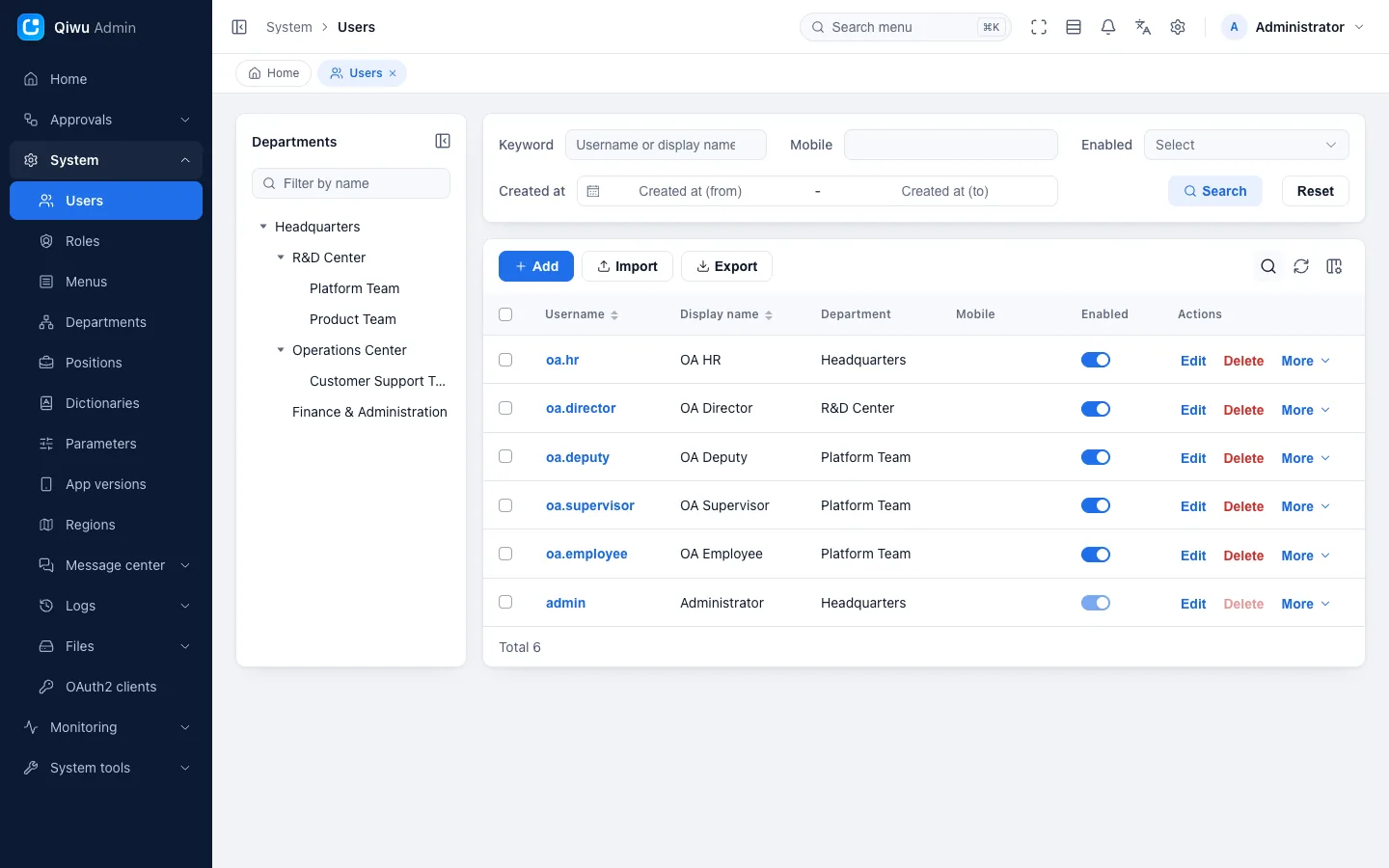
| Action | Description |
|---|---|
| Search | Keyword (username or display name), mobile, enabled state, created at (a date range; you can click Today, Last 7 days or Last 30 days) |
| Add, Edit | Username, display name, password (only when adding), department, mobile, email, gender, roles, positions, enabled state, note |
| User details | Click a username to open the details on the right: department, contact details, roles, positions, last sign-in time and more |
| Enabled | Switch it directly in the list. Once a user is disabled, all of their sessions end at once |
| More → Reset password | See below |
| More → Assign roles | See below |
| Import, Export | Excel files, see below |
| Delete, Delete selected | After deletion, all of the user's sessions end at once |
Rules:
- Usernames may only use letters, digits and
_ . @ -, up to 64 characters. Username, mobile number and email must all be unique; - When adding a user you can leave the password empty; the parameter
iam.user.initial_password(Initial password of new users) is then used. Its value is generated randomly when the database is initialized and shown once in the terminal; you can change it later in Parameters. Whether or not you fill in a password, a new user must change the password at the first sign-in; - Passwords must follow the password policy (minimum length, character types). You adjust the policy in Parameters;
- People without the Edit permission see masked mobile numbers and emails (such as
138****5678), and the search bar has no Mobile field; - You cannot disable or delete your own account;
- The super administrator's account cannot be disabled or deleted, and its Super administrator role cannot be removed. Only the super administrator can edit it or reset its password;
- You change your own mobile number in My profile (it needs your password and an SMS code). Changing someone else's mobile number also needs the Reset password permission, and afterwards all of that user's sessions end;
- You can only see and manage users within your data scope, and Department only offers departments within your scope.
Reset password
In More → Reset password you set a new password for the user (it must also follow the password policy). After a reset:
- All of the user's sessions end at once;
- The user must change the password again at the next sign-in;
- The user's WeChat mini program link is removed (see Security baseline).
Assign roles
More → Assign roles opens a separate page (not shown in the sidebar) that lists all enabled roles (the Super administrator role is listed only to the super administrator). Tick the roles and save.
- Disabled roles the user already holds are not listed. Saving keeps them as they are, and the page tells you how many there are;
- The list is not filtered by your permissions: newly ticked roles must not go beyond your own permissions and data scope, or saving fails. See Privilege escalation guard. Roles the user already had and that stay ticked are not subject to this check;
- Changes take effect on the user's next request. The user does not need to sign in again.
The same rules apply when you pick roles in the user's add and edit dialogs.
Import and export
- Export: exports all users that match the current filters (not paged). Mobile numbers and emails are masked by the same rules as the list. The department column reads "department ID - department path";
- Import: first click Download the template, fill it in, then upload the
.xlsxfile. In the template, department, gender and enabled state are dropdowns, and departments list only the enabled departments within your scope; - Import mode: Add new only, or Add new and update existing (matched by username, only against users within your data scope; a user with the same username outside your scope makes the row fail as a duplicate);
- Roles, positions and passwords are not imported: new users get the initial password, and you assign roles on the page after importing;
- A failed row does not affect other rows. For the failed rows you can Download the error report;
- By default a single file may be at most 10 MB, with at most 5000 rows and 100 columns. You can change this in Parameters (
excel.import_max_mb,excel.import_max_rows,excel.import_max_columns).
Roles
System → Roles
A role is a set of permissions, such as "Finance" or "Customer service". Assign a role to a user, and the user gets those permissions.
| Action | Description |
|---|---|
| Search | Role name, role code, enabled state |
| Add, Edit | Role name, role code, sort order, enabled state, note. Name and code must both be unique |
| Enabled | Switch it directly in the list |
| More → Menu permissions | Tick the menus and actions this role can use |
| More → Data scope | Set this role's data scope |
| More → Assign users | Manage which users have this role |
| Export | Excel file |
| Delete, Delete selected | Built-in roles cannot be deleted. A role assigned to users cannot be deleted until you remove the users from it |
A new role has no menus at all, and its data scope defaults to Own department. Set its menu permissions and data scope after saving.
Menu permissions
The dialog shows the full menu tree (including disabled menus). At the top there is a Link parents and children switch, plus Expand all, Collapse all, Select all and Select none.
- Link on: ticking a parent brings all its children. When you tick only an action, its page and group are saved with it in a half-checked state;
- Link off: each node is ticked on its own. Even if you tick only an action and not its page, people with this role can still see that page and its group (the system adds the parents of granted menus automatically);
- The switch state is stored on the role, so it is the same the next time you open the dialog.
Assign roles under Users, Role members under Roles and Dictionary entries under Dictionaries are hidden pages. Their actions sit under the matching hidden page; expand it to see them.
Data scope
The data scope decides which departments' data a person can see. There are five: All data, Selected departments, Own department, Own department and below and Own records only (for their meaning, see Permissions · Data scope).
- When you pick Selected departments, a department tree appears below, also with a Link parents and children switch;
- Only the super administrator can set All data. For everyone else the option is not in the dropdown;
- The department tree lists only the departments you can see. Departments the role already has but you cannot see stay unchanged when you save, and the page tells you how many there are.
Assign users
More → Assign users opens a separate page (Role members). The top shows the role name, code and data scope; below are two tabs, Assigned users and Other users.
- You can search by username or name;
- Each row has Assign or Remove. After ticking several rows you can use Assign selected and Remove selected;
- Only users within your data scope are listed.
Initial roles and protection rules
| Role | Code | Description |
|---|---|---|
| Super administrator | root | Built-in role with all permissions, not limited by data scope. It cannot be deleted or disabled, its code cannot be changed, and it has no Menu permissions or Data scope to set. Only the super administrator can edit it |
| Registered member | member | Users who sign up themselves get this role by default (parameter auth.signup.default_role_id). Data scope Own records only |
| Staff | staff | Sample role for regular employees. Data scope Own records only; can use Home and the approval center |
Registered member and Staff are not built-in roles: you can edit them and delete them. Note, however, that Registered member is the default sign-up role out of the box; see the rules below.
- Roles with Built-in set to Yes in the list cannot be deleted, and their code cannot be changed;
- Privilege escalation guard: every grant a non-super-administrator makes on this page (menu permissions, data scope, assigning users, and re-enabling a disabled role) must stay within their own permissions and data scope. Otherwise saving fails with "You cannot grant a role beyond your own permissions or data scope";
- Only the super administrator can edit or delete the current default sign-up role (the role the parameter
auth.signup.default_role_idpoints to, Registered member by default), set its menu permissions and data scope, or assign users to it; - After a role changes, users with that role get the updated permissions on their next request. They do not need to sign in again.
Menus
System → Menus
Menus form a tree. It decides what the sidebar shows and which button permissions each page has. When you grant permissions to a role, these are the menus you tick.
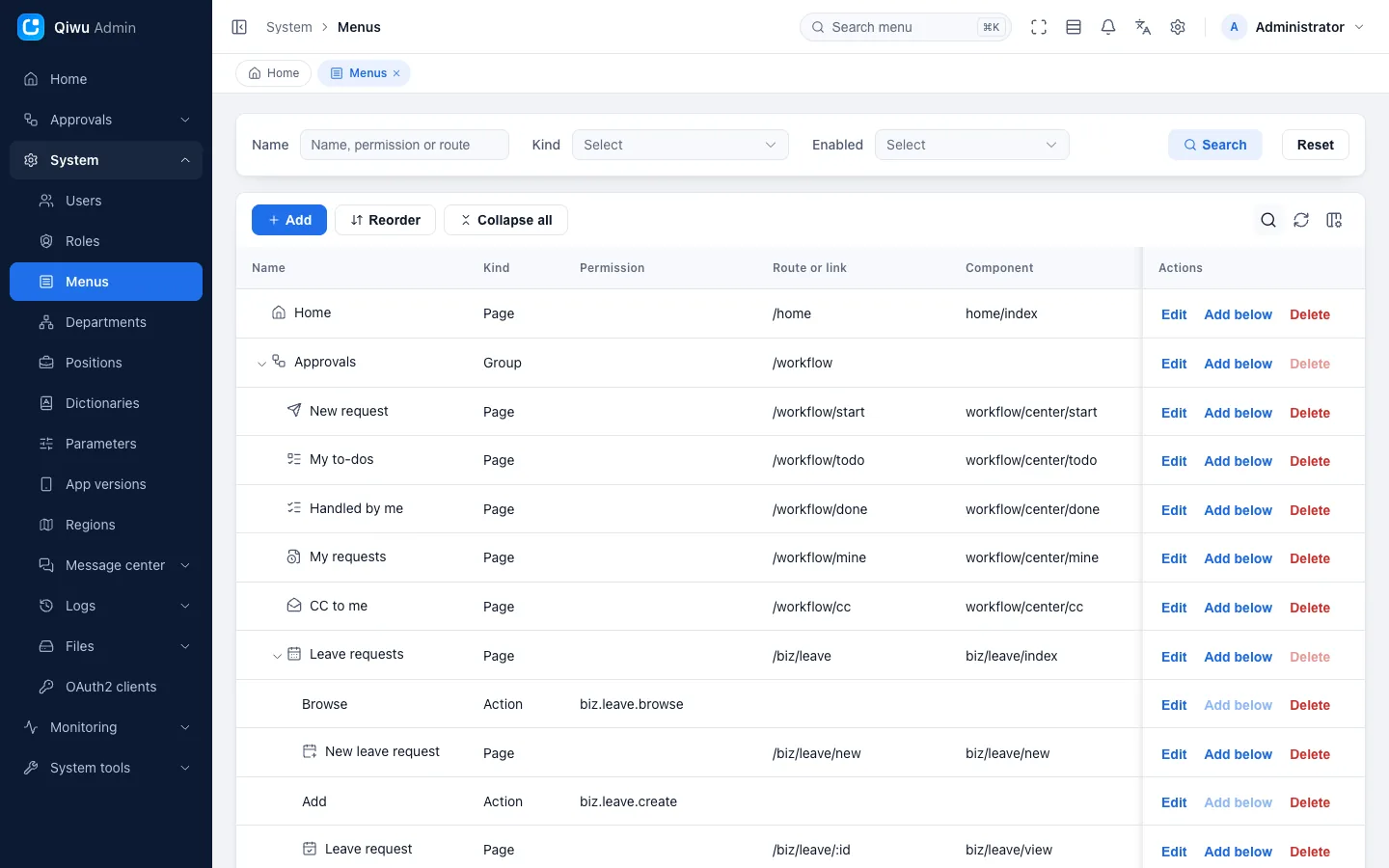
Three menu kinds
| Kind | Purpose | Where it can go |
|---|---|---|
| Group | A group of menus in the sidebar; not a page itself. A group with nothing visible below it does not appear in the sidebar. When it has only one visible child, by default the group level is skipped and that child is shown directly (see Always show below) | Top level, or under a group |
| Page | A page. Placed under another page, it is a hidden page: not shown in the sidebar, and only reachable from its parent page (for example Assign roles under Users) | Top level, under a group or under a page |
| Action | A permission code (such as iam.user.create) that controls buttons and the matching APIs; these are the "button permissions" | Only under a page |
The menu kind cannot be changed after adding. The dialog shows only the fields the current kind uses.
Three ways to link a page
| Link type | Effect | Example in the project |
|---|---|---|
| Route | Opens a page of the project | Most pages |
| Embedded page | Shows the Link URL in an iframe (another web page embedded in the page) inside an admin console tab | System tools → API docs |
| External link | Opens the Link URL in a new browser tab; it does not take an admin console tab | System tools → Element Plus docs |
The link URL must start with http:// or https://, or be a path on this site (such as /api/docs).
Main fields
| Field | Description |
|---|---|
| Parent menu | Only enabled menus that can hold this kind can be picked |
| Name | The name shown. It can also be a translation key (such as menu.iam.user). You can also fill in a Chinese name and an English name separately; when filled in, they take priority |
| Icon | Pick one from the icon picker |
| Route path | The path in the browser's address bar. Starting with / it is a full path; otherwise it is appended to the parent menu's path |
| Component | The path of the page file under the frontend src/views directory, such as platform/iam/user/index |
| Component name | Needed for page caching. It must match the name declared in the page code |
| Route name | Unique per menu. Required for groups; only lowercase letters, digits and hyphens; filled in automatically from the route path. It cannot be changed after saving, because seeds and the code generator find the group by it |
| Permission | Required for actions. Format: <domain>.<resource>.<verb> |
| Visible | When off, the menu is not shown in the sidebar, but the page can still be opened |
| Keep alive | Keeps the page state (such as search conditions and page number) when you switch between tabs. See Routing and menus · Page caching (Chinese) |
| Always show | Only groups have this switch; it is off by default. When off, if a person can see only one menu under the group, the sidebar skips the group level and shows that menu directly (using the group's icon if the menu has none); with two or more visible menus, the group is shown as usual. When on, the group stays even with only one child |
| Sort order | Menus on the same level are sorted by it, smallest first |
| Enabled | When disabled, this menu and every menu below it stop taking effect |
List actions
- Filter by name (which also matches permission codes and routes), kind and enabled state;
- Expand all, Collapse all;
- Reorder: sort orders become input boxes. When you are done, click Save order to submit them all at once;
- Each row has Edit, Add below (under a group it adds a page by default, under a page an action) and Delete;
- You cannot add under a disabled menu. A menu with children cannot be deleted. A menu granted to a role cannot be deleted either, until you remove the grant from the role;
- The tree cannot be infinitely deep. The system joins the IDs of every level, from the top down to the menu itself, into a "tree path" that records the menu's place in the tree, and this path is at most 512 characters. If adding or moving would exceed it (when moving, deleted children count too), saving fails with "The tree path is too long. Choose a parent closer to the root.";
- After you add, edit (even just the name or icon), enable or disable, reorder or delete menus, all online users reload their menus and permissions on their next request;
- Privilege escalation guard: a non-super-administrator can only enter permission codes they hold. Changes such as enabling or moving a menu, which make a permission take effect for some role, are checked as grants too.
New pages are usually not created here by hand
When the code generator generates a page, it also generates the page's menu seed. For hand-written modules we also recommend creating menus with seeds, so the menus are there when you deploy to another environment. See Seeds and menus (Chinese).
Departments
System → Departments
A tree table. The initial data is a fictional company: Headquarters, with R&D Center (Platform Team, Product Team), Operations Center (Customer Support Team) and Finance & Administration below it.
| Action | Description |
|---|---|
| Search | Department name, enabled state |
| Add, Add below, Edit | Parent department, department name, sort order, head, phone, email, enabled state |
| Expand all, Collapse all | |
| Enabled | Switch it directly in the list |
| Delete | A department with sub-departments cannot be deleted |
Rules:
- Department names must be unique under the same parent;
- Changing the parent department moves the department together with everything below it. You cannot move it under itself or under one of its sub-departments;
- Depth is limited, by the same rule as for menus: if the tree path exceeds 512 characters after adding or moving, saving fails with "The tree path is too long. Choose a parent closer to the root.";
- You cannot add or move departments under a disabled department. A department with enabled sub-departments cannot be disabled. Enabling a department also enables its disabled parents;
- A department that still has users cannot be deleted;
- The Head is picked from users within your data scope. Workflow approvers such as Department heads use the head set here (see Workflow · Approvers);
- You can only see and manage departments within your data scope, and new or moved departments must still be within your scope;
- After departments move, the users in them get an updated data scope on their next request.
Positions
System → Positions
A position is a job title. A user can have several positions, picked in the user's add and edit dialogs. The initial data has Engineering lead, Software engineer, Product designer and Support specialist.
| Action | Description |
|---|---|
| Search | Position code, position name, enabled state |
| Add, Edit | Position code, position name, sort order, enabled state, note |
| Enabled | Switch it directly in the list |
| Export | Excel file |
| Delete, Delete selected | A position assigned to users cannot be deleted |
- Code and name must both be unique;
- Disabled positions do not appear in the position dropdown of the user dialog;
- Workflow approvers can be specified by position.
The generator's sample
The frontend and backend code of Positions is generated entirely by the Single table template of the Code generator, with no hand edits. It is a good reference for studying generated code.
Dictionaries
System → Dictionaries
A dictionary is an option list for dropdowns: the database stores only the value (such as male), and the page shows the text (Male). For the concept and developer usage, see Dictionaries (developer guide) (Chinese). There are two levels here: dictionaries, and the dictionary entries in each dictionary.
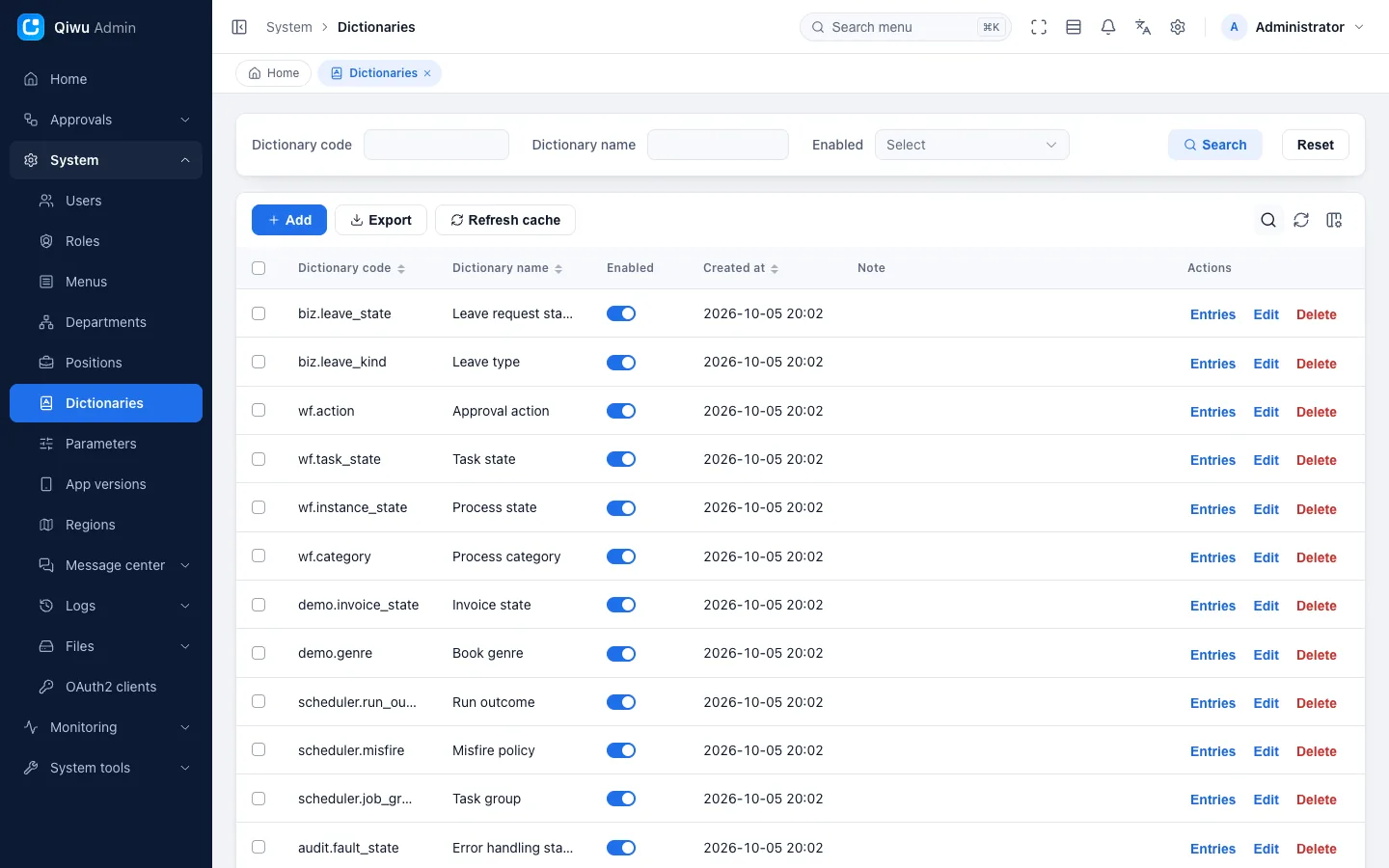
Dictionary list
| Action | Description |
|---|---|
| Search | Dictionary code, dictionary name, enabled state |
| Add, Edit | Dictionary code, dictionary name, name per language, enabled state, note |
| Entries | Opens the option list of this dictionary |
| Refresh cache | See below |
| Export | Excel file |
| Delete, Delete selected | A dictionary that still has entries cannot be deleted |
- Dictionary codes are dot-separated, may only contain lowercase letters, digits, underscores and dots, and start with a letter, such as
iam.gender. They cannot be changed after adding, because code refers to dictionaries by their code; - Once a dictionary is disabled, its options disappear from the dropdowns on the pages, and tags show the raw value.
Dictionary entries
Click Entries on a dictionary's row to open its option list (a hidden page with Back to dictionaries at the top).
| Field | Description |
|---|---|
| Value | The value stored in the database. Unique within a dictionary |
| Label | The text shown. Label per language lets you fill it in per language, and takes priority |
| Sort order | The order in dropdowns |
| Tag style | The color of the tag shown in lists: Primary, Success, Info, Warning, Danger. Leave it empty to show plain text |
| CSS class | Adds a custom CSS class to the tag |
| Default | Marks this entry as the default. Each dictionary has at most one default entry; see below |
| Enabled | Disabled entries do not appear in dropdowns or radio buttons. Data that already stores the value shows only the raw value (such as male) in lists, details and exported Excel files, instead of the dictionary label |
Each dictionary can have only one default entry
The database ensures that at most one entry in a dictionary has Default turned on:
- If there is already a default entry and you set another entry as the default (when adding or editing), saving fails with "This record already exists", and the original default stays. To change the default, first edit the old entry, turn off Default and save, then turn it on for the new entry;
- A disabled entry that is the default still holds the spot. It frees the spot only once it is deleted;
- If several people set a default at the same time, only one of them succeeds.
Default is only a marker: dropdowns do not preselect the default entry.
Built-in dictionaries are safe to change
You can also change the names, texts, order, tag styles and defaults of the dictionaries that come with initialization (such as gender and enabled state). Re-running the seeds does not change them back, and entries you deleted do not come back. On the other hand, if a future version corrects the text or style of an existing built-in entry, it needs a data migration to reach systems that are already deployed; without one, change it here yourself when needed.
Cache
Dictionaries are cached when read (frequently used data is kept in Redis, an in-memory database, so reads are faster):
- After you change a dictionary or its entries on the page, the server cache is invalidated at once, and your own browser uses the new data right away. Other people who already have the admin console open see the new content after refreshing the page;
- If you changed the database directly, ran a data migration, or re-ran the seeds, click Refresh cache so that all dictionaries are read again.
Parameters
System → Parameters
Parameters are configuration that administrators can change online, such as how many failed sign-ins lead to a lockout, or the upload size limit. Changes take effect immediately after saving, with no service restart. For the difference between parameters and environment variables, see Parameters (developer guide) (Chinese).
| Action | Description |
|---|---|
| Search | Key, name, group, built-in |
| Add, Edit | Key, value, name, name per language, group, secret, public, note |
| Refresh cache | After changing the database directly or re-running the seeds, click it to make the new values take effect at once |
| Export | Excel file |
| Delete, Delete selected | Built-in parameters cannot be deleted, nor ticked in the list |
- Keys may only use lowercase letters, digits, underscores and dots, and start with a letter, such as
storage.max_size_mb. They cannot be changed after adding; - Values are all text, at most 16383 characters, and may be empty. If a numeric parameter holds something that is not a number or is out of range, the system uses the default value;
- Parameter values are not written to the action log (whether the parameter is secret or not);
- The sign-up parameters (
auth.signup.enabled,auth.signup.default_role_id,auth.signup.default_dept_id) and the WeChat mini program sign-in switchauth.wx_mp.enabledcan only be changed by the super administrator. See Permissions · What only the super administrator can do.
Parameter flags
| Flag | Meaning |
|---|---|
| Built-in | Created at initialization and read by code. It cannot be deleted, and its Public flag cannot be changed |
| Secret | The value only shows as ******, in the list, details and exports alike. When editing, leave it unchanged to keep the old value, or enter a new value to replace it. Can only be set when adding; a secret parameter cannot be public |
| Public | Readable without signing in. For example, the sign-in page needs to know the captcha mode and whether sign-up is open before anyone signs in |
| Group | For categorizing and filtering. The group of a built-in parameter is usually the first segment of its key, such as auth |
Built-in parameters
These parameters come with initialization (grouped by purpose; see each feature page for the keys and defaults in detail):
| Purpose | Parameters | Default | Details |
|---|---|---|---|
| Sign-in, captcha, sign-up, password policy, SMS codes | captcha.*, auth.*, iam.password_*, sms.otp.*, 18 in total | Slider captcha, 10-minute lock after 5 failures, passwords of at least 8 characters… | Sign-in and accounts · Related parameters (Chinese) |
| Initial password of new users | iam.user.initial_password (secret) | Generated randomly at initialization | Users |
| Default time zone | core.default_timezone | Asia/Shanghai | |
| Excel import limits | excel.import_max_mb, excel.import_max_rows, excel.import_max_columns | 10 MB, 5000 rows, 100 columns | Excel import and export · Import limits (Chinese) |
| Logs | audit.retention_days (days to keep), audit.http_trace.mode (which requests the API access log records), audit.http_trace.exclude_paths (paths not recorded) | 180 days, write (write operations only) | Action log (developer guide) (Chinese) |
| File uploads | storage.max_size_mb, storage.allowed_exts | 20 MB, common file types | File management (Chinese) |
| Remember consent (days) | oauth.consent_ttl_days (0 means always ask) | 30 days | Single sign-on · Remembered consent |
| WeChat subscribe messages (notifications sent through WeChat) | notify.wx_subscribe.enabled (switch), notify.wx_subscribe.templates (templates configured per notification code) | Off; a template config for new to-do reminders is preset, with an empty template ID | Message center · WeChat subscribe messages (Chinese) |
| App updates | app.update.enabled (switch), app.update.review_version (native version in store review) | Off, empty | App versions |
App versions
System → App versions
Here you publish new versions of the employee mobile app (Android, iOS). Every time the app starts, it asks the server once whether there is a new version, and if so it shows an update prompt. This feature is off by default: first turn on the parameter app.update.enabled, see below.
| Action | Description |
|---|---|
| Search | Platform, package kind, version, forced, published, created at |
| Add, Edit | See the table below |
| Published | Switch it directly in the list. Turning it off withdraws the version, and apps no longer receive it |
| Delete, Delete selected |
| Field | Description |
|---|---|
| Platform | Android or iOS |
| Package kind | Resource package (hot update) (wgt): updates only pages and scripts; the app downloads and installs it, then restarts automatically. Full package: for Android, enter the link to the installer or the app store page; for iOS, the App Store link; the app opens it in the browser or the store |
| Version | 1–4 dot-separated numbers, such as 1.2.0. Each platform can have only one record per version |
| Min native version | Only applies to resource packages (hot updates): phones whose installed full-package version is lower than this do not receive the hot update. Empty means no limit |
| Download URL | Only https:// URLs are accepted |
| Forced | When on, the prompt has no Later button |
| Release notes | The body of the prompt. If empty, it shows "A new version has been released. Update now?" |
| Published | On by default when adding: if the parameter is on, the app receives the version at its next start after you save |
Versions are compared segment by segment as numbers: 1.2 equals 1.2.0, and 1.10 is newer than 1.9. The platform and package kind options come from two dictionaries: App platform (settings.app_platform) and App package kind (settings.app_package_kind).
The Add and Edit permissions amount to publishing code
People with the Add or Edit permission (settings.appVersion.create, settings.appVersion.modify) can push code (hot updates) to every phone that has the app installed. Give these two permissions only to the people responsible for releases.
How the app checks for updates
- Only the Android and iOS apps check, once at each start. The mobile browser version (H5) does not check; WeChat mini programs are updated by WeChat itself at cold start;
- The app sends the server its platform, its current resource version (the version of the installed hot update if there is one, otherwise the full-package version) and its native version (the full-package version). This is a public endpoint that needs no sign-in,
GET /api/settings/app-versions/latest, limited to 60 requests per minute per IP; - Among the published versions for the platform, the server finds those newer than the current resource version and takes the highest. A hot update must also meet two conditions: the phone's native version is not lower than Min native version, and the phone's native version is not the one currently in store review;
- If any of the matching versions is forced, this prompt is forced: skipping over a forced version does not get around it;
- The prompt title reads like "Version 1.2.0 is available", with the buttons Update now and Later. A hot update shows "Downloading the update…", and the app restarts automatically after installing it. For a full package, Android downloads the installer in the browser, and iOS opens the App Store;
- For a forced update, the prompt appears again if downloading or installing fails ("Update failed. Please try again later.") or after you return to the app from the browser or store;
- The phone refuses to install a hot update that is not newer than the current version, or that does not belong to this app;
- If the check fails (for example, without a network), nothing is shown and the app works as usual.
The two app update parameters
Both are changed in Parameters and take effect immediately:
| Key | Name | Default | Description |
|---|---|---|---|
app.update.enabled | App update prompts | false | When off, the server always answers "no new version", and the app shows no prompt |
app.update.review_version | Native version in store review | Empty | Before you submit a new full package for app store review, enter its version here. During the review, that version receives no hot updates; other versions update as usual, and full packages are still prompted. Clear it after the review passes. If the value is not a valid version, the server ignores it |
When you must publish a full package
Changes to the native layer (such as adding modules or permissions, or upgrading uni-app or HBuilderX) require a full package. Later hot updates must set Min native version to this full package's version; otherwise old full packages that install the new resources will break.
Regions
System → Regions
One page with three sections:
| Section | Description |
|---|---|
| Divisions | A three-level tree of China's administrative divisions (provinces, cities, districts and counties). Each node shows its name and 6-digit division code, and the tree expands one level at a time. The data ships with the project (from an open-source dataset), is read-only, and the names are in Chinese only |
| IP lookup | Enter an IPv4 or IPv6 address to look up the country, province, city and ISP. Needs the Browse permission geo.area.browse |
| Region picker | The province/city/district picker used in demo forms. After you pick a region, it shows the value it stores (the path of division codes). The Region component of the Form designer uses it |
IP data is downloaded separately
The data file for IP geolocation (about 11 MB) is not in the repository; you download it once, see Getting started · Optional: IP geolocation data. Without the file, or for IPv6 or private network addresses, the result shows Unknown. The Location column of the online users list, and the Location in sign-in log and action log details, use the same data.
Bulletins
System → Message center → Bulletins
Administrators write bulletins, and every signed-in user sees them in the notification bell at the top right.
| Action | Description |
|---|---|
| Search | Title, kind, published, created at |
| Add, Edit | Title (up to 200 characters), kind (Notice, Announcement), body (rich text editor) |
| Published | A switch in the list: on publishes the bulletin, off withdraws it. Needs the Publish permission. New bulletins are drafts |
| Readers | Who read the bulletin and when (only users within your data scope are listed) |
| Delete, Delete selected | Read records are deleted along with the bulletin |
For how the bell refreshes after publishing or withdrawing, and what readers see, see Message center · Bulletins (Chinese) and Message center · Notification bell (Chinese).
OAuth2 clients
System → OAuth2 clients
This system can act as a single sign-on (OAuth2) provider. Another system (a third-party app) sends the user to this system's authorization page; after the user signs in and agrees, the third-party app gets a token and can read the user's basic profile. Each third-party app that wants to connect is first registered here as a client. For the flow users see, read Single sign-on (OAuth2); developers of third-party apps should read the OAuth2 integration guide (Chinese).
| Action | Description |
|---|---|
| Search | Client ID, client name, enabled |
| Add, Edit | See the table below |
| Enabled | Switch it directly in the list. Disabling ends all sessions of the client at once; see Disabling and deleting |
| Reset secret | Generates a new client secret; see Client secret |
| Delete, Delete selected | Also ends all sessions at once |
The list shows client ID, client name, grant types, built-in, enabled and created at.
| Field | Description |
|---|---|
| Client ID | The third-party app's client_id. 3–64 characters; only lowercase letters, digits and . _ -; starts with a letter or digit; must not match an existing client. It cannot be changed after adding. console and mobile are reserved by the system and cannot be used |
| Client name | Shown on the consent page; up to 64 characters |
| Logo | Optional. Upload an image to show on the consent page |
| Grant types | Multiple choice: Authorization code, Refresh token, Client credentials; pick at least one. New clients default to authorization code and refresh token. If you pick refresh token, you must also pick authorization code |
| Redirect URIs | The addresses the user returns to in the third-party app after allowing or denying. Type an address and press Enter to add it; up to 10; at least one when authorization code is picked. They must be https:// addresses; for local debugging you can use http://localhost or http://127.0.0.1 (a port is allowed). They may not contain #, *, whitespace, backslashes or a user name and password, and may not repeat. They are compared character by character during authorization: one extra trailing / counts as a different address |
| Scopes | The permissions the third-party app may request. There is currently only one, "Read your basic profile (username, name and avatar)", ticked by default for new clients and required when authorization code is picked. Tick it too when only client credentials is picked, or requesting a token fails |
| Auto-approved scopes | Can only be picked from Scopes. Scopes ticked here need no user consent and do not appear on the consent page. A scope removed from Scopes is removed here too |
| Access token lifetime (s) | 300–86400, default 1800 (30 minutes). The token expires at the end and is not extended by use |
| Refresh token lifetime (s) | 3600–2592000, default 604800 (7 days), at most 30 days. When refresh token is picked, this is also the longest a single authorization can last: it counts from when the third-party app exchanges the authorization code for tokens, and getting new tokens does not extend it. Without refresh token, or for tokens requested with client credentials, the session ends when the access token lifetime runs out |
| Enabled | Enabled by default |
For what grant types, tokens and sessions mean, see Single sign-on · OAuth2 clients and Single sign-on · Sessions and tokens.
Client secret
A third-party app needs its client ID plus a client secret to get tokens. The secret is generated randomly by the server (256 bits), and the server stores only its digest, so the secret is shown only once:
- After you save a new client, the Save the client secret dialog opens with the message "The secret is shown this once only: save it now. If it is lost, reset it." It shows the client ID and the client secret, each with a copy icon button on the right. Pressing Esc does not close it; once you have saved the secret, click I have saved it;
- After that, the secret is not visible anywhere on the pages, in the APIs or in the logs;
- If the secret is lost, or you suspect a leak, click Reset secret in the list and confirm to generate a new one, which is also shown only once. The old secret stops working at once, and apps using it must switch to the new one; tokens already issued are not affected. Repeating a reset within 3 seconds is rejected;
- A reset is also recorded in the action log, with the action Reset secret.
Disabling and deleting
- Disabling or deleting a client (including Delete selected) ends all its sessions at once: both those authorized by users and those requested with client credentials. Every token the third-party app holds stops working. Re-enabling the client does not restore them; users have to authorize again;
- Deleting also voids the users' remembered consent for the client. After deleting, you can register the same client ID again; the newly registered client does not inherit the old sessions or consents;
- The list has one built-in client,
console, named Admin console, which represents the admin console itself. It is read-only: it cannot be ticked, and edit, reset secret, delete and the enabled switch are all unavailable.
Third-party app sessions also appear in Monitoring → Online users, where you can end them one by one; see Monitoring and logs · Third-party app sessions (Chinese). After a user has agreed once, the number of days before they are asked again is set by the parameter oauth.consent_ttl_days (default 30 days; 0 means always ask); see Single sign-on · Remembered consent.
My profile
Click your avatar at the top right → My profile. Every signed-in user can use it; it needs no grant in a role.
The left side shows your avatar, display name and username, plus your department, roles and positions (read-only). The right side has several tabs:
| Tab | What you can do |
|---|---|
| Profile | Change your display name, mobile number, email and gender, and change your avatar (cropped to a square first). The username cannot be changed. Changing the mobile number requires your current password and an SMS code sent to the new number |
| Password | Enter the old password and the new password twice. After the change, your sessions on other devices and browsers all end, and your WeChat mini program link is removed |
| Preferences | Interface language. It is saved on your account; notifications the system sends you and files you export also use this language |
| Linked accounts | View and unlink the WeChat mini program. Shown only when WeChat mini program sign-in is enabled, or when the account still has a link |
For details on each item (the steps to verify a mobile number, avatar formats, the effects of unlinking), see Sign-in and accounts · My profile (Chinese).
Permission codes
In System → Roles → Menu permissions, these are the actions you can tick under each page (for what a permission code is, see Permissions · Permission codes):
| Page | Permission code prefix | Actions |
|---|---|---|
| Users | iam.user | Browse browse, View view, Add create, Edit modify, Delete remove, Export export, Import import, Reset password reset-password, Assign roles assign-roles |
| Roles | iam.role | Browse, View, Add, Edit, Delete, Export; Grant grant (menu permissions and data scope), Assign users assign-users |
| Menus | iam.menu | Browse, View, Add, Edit, Delete |
| Departments | iam.dept | Browse, View, Add, Edit, Delete |
| Positions | iam.position | Browse, View, Add, Edit, Delete, Export |
| Dictionaries | settings.dict | Browse, View, Add, Edit, Delete, Export |
| Dictionary entries | settings.dictEntry | Browse, View, Add, Edit, Delete, Export |
| Parameters | settings.param | Browse, View, Add, Edit, Delete, Export |
| Regions | geo.area | Browse (IP lookup) |
| Bulletins | messaging.bulletin | Browse, View, Add, Edit, Delete; Publish publish |
| App versions | settings.appVersion | Browse, View, Add, Edit, Delete |
| OAuth2 clients | oauth.client | Browse, View, Add, Edit, Delete; Reset secret reset-secret |
A few points that are easy to miss:
- The Edit button needs both Edit and View;
- Refresh cache for dictionaries and parameters needs Edit;
- The Published switch of App versions and the Enabled switch of OAuth2 clients need Edit; without it, only the state is shown;
- Readers of a bulletin needs View;
- Assign roles for a user needs Assign roles and View;
- Add and Edit on App versions can push code to every phone; see App versions.
Developer guide
- Permissions and data scope (developer guide) (Chinese): permission constants, protecting endpoints, adding data scope to entities
- Seeds and menus (Chinese): presetting menus, button permissions and hidden pages with seeds
- Routing and menus (Chinese): how menus become frontend routes; page caching, embedded pages, external links
- Dictionaries (developer guide) (Chinese), Parameters (developer guide) (Chinese): defining and reading dictionaries and parameters in code
- Excel import and export (Chinese): import templates, import modes and limits
- List pages (Chinese), Form dialogs (Chinese): the list and dialogs these pages share
- Rich text (Chinese), Action log (developer guide) (Chinese)
Related features: Permissions and data scope, Sign-in and accounts (Chinese), Message center (Chinese), File management (Chinese), Workflow, Form designer, Code generator, Security baseline, Internationalization, Realtime push (Chinese). If you are new to admin consoles, you can first follow the admin console tour (Chinese) and try out permissions hands-on.