
Permissions and data scope
Permissions have two layers:
- Feature permissions: whether you can do something, such as "add a user" or "export books". Granted by menus and buttons;
- Data scope: which data you can see and change, such as "only users of my own department". Granted by department.
Both layers are checked by the server. Hiding buttons in the UI is only for convenience: even if someone bypasses the UI and calls the API directly, the server stops them.
Both layers are configured on roles: an administrator grants permissions to roles, then assigns the roles to users.
Feature permissions
Permission codes
A permission code is the code of one specific operation, in the format domain.resource.verb. For example, iam.user.create means "add a user". Each button in the menus maps to a permission code.
Common verbs:
| Verb | Button name | Purpose |
|---|---|---|
browse | Browse | Open the list |
view | View | See details; also needed to open the edit dialog |
create | Add | |
modify | Edit | Includes enabling and disabling |
remove | Delete | Includes Delete selected |
export | Export | Export to Excel |
import | Import | Import from Excel |
Some modules have verbs of their own, such as Reset password in Users (iam.user.reset-password) and Grant in Roles (iam.role.grant).
Granting permissions to a role
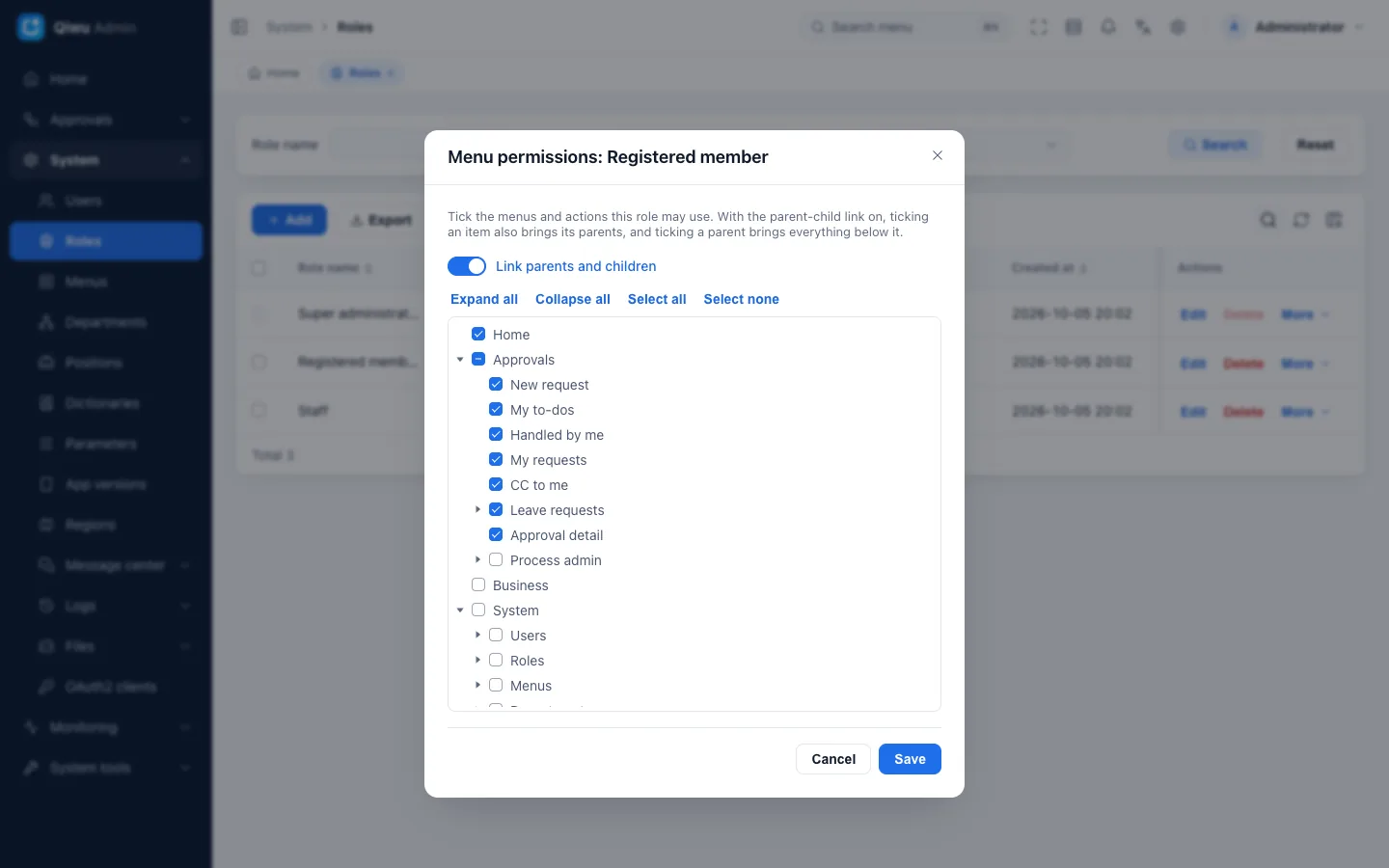
In System → Roles, click More → Menu permissions on the role's row:
- The dialog shows a tree of all menus, with each button's permission code next to it;
- Disabled menus are shown too (with a Disabled tag) and can be ticked, but they grant no permission while disabled;
- With Link parents and children on, ticking a child brings its parents, and ticking a parent brings all its children. Turn it off when you need precise control;
- If you tick only a button, its page and group also appear in the sidebar. When a group has only this one visible page, the sidebar by default shows the page directly, without the group level; see Always show in Menus · Main fields.
Assigning roles to users
There are three places to assign roles:
- System → Users: pick roles directly when adding or editing a user;
- System → Users → More → Assign roles;
- System → Roles → More → Assign users: assign several users at once, or remove them.
A user's effective permissions
A user's permissions = the permission codes on enabled menus that the user's enabled roles grant, combined.
- When a role is disabled, its permissions stop working at once;
- When a menu (or any group above it) is disabled, the buttons below it no longer grant permissions, and the page disappears from the sidebar.
Without a permission:
| Where | What happens |
|---|---|
| Buttons | Not shown |
| Sidebar | The page is not there |
| Typing the page address into the address bar | The 404 page is shown |
| Calling the API directly | Returns 403 with "You do not have permission to do this" |
When changes take effect
After you change any of the following, the affected user does not need to sign in again. Their next request notices that the permissions changed, the server reloads their permissions, and the menus and buttons in the UI update automatically:
- A role's menu permissions, data scope or enabled state;
- A user's roles or department;
- Any change in Menus;
- Moving departments within the hierarchy.
When a user is disabled or deleted, all of their sessions end at once.
New modules are not granted automatically
Pages created with the code generator are visible right away only to the super administrator. Others can use them only after the pages are ticked in Roles; see Adding a business module (Chinese).
Data scope
Feature permissions decide "can you browse users"; data scope decides "which users you see when you browse".
Set it in System → Roles with More → Data scope. There are five scopes:
| Data scope | Code | Data visible |
|---|---|---|
| All data | all | All data |
| Selected departments | picked_depts | The departments ticked in the department tree below |
| Own department | own_dept | The user's own department |
| Own department and below | own_dept_tree | The user's department and all departments below it |
| Own records only | own_rows | Data the user created |
- New roles default to Own department;
- When you pick Selected departments, the department tree shows only the departments you yourself can see. For departments the role picked earlier that you cannot see, the dialog tells you how many there are, and they stay unchanged when you save;
- If the user has no department, Own department and Own department and below both show no data at all.
What data scope covers
| Page | Based on | With Own records only |
|---|---|---|
| System → Users | The user's department | Only yourself |
| System → Departments | The department itself | No departments at all |
| Monitoring → Online users | The department of the signed-in user | Only your own sessions |
| Approvals → Process admin: Process instances, Approval tasks, Approval data, and approval details viewed by an administrator | The initiating department (the initiator's department when the request was started; it does not change if the initiator moves to another department later) | Only requests you started |
| Generator samples → Books | The book's department | Books you created |
| Modules generated by the code generator that have a department column | The record's department | Records you created |
User picker dialogs and department dropdown trees in the admin pages also list only the users and departments within scope by default (the User and Department components in approval forms are not limited; see Form designer).
Roles are not limited by data scope: a role belongs to no department, and who can manage roles depends only on the iam.role.* permissions. The risk this brings is covered by the privilege escalation guard below.
Users with several roles
A role's data scope counts only if that role gives you the permission in question. When several roles qualify, their scopes are combined (union). Places that need no permission (user picker dialogs, department dropdown trees) use the combined scope of all your enabled roles.
For example, Zhang San has two roles:
| Role | Has "Users → Browse"? | Data scope |
|---|---|---|
| HR specialist | Yes | Own department |
| Report viewer | No | All data |
When Zhang San browses users, only "HR specialist" counts, so he only sees the users of his own department. The All data of "Report viewer" does not count, because that role does not let him browse users.
This way, giving someone a role with "a wide scope but few permissions" does not accidentally widen the scope of their other operations.
Out-of-scope requests
- Lists, exports and dropdown options do not include out-of-scope data;
- Opening, editing or deleting an out-of-scope record returns 404 with "The requested resource does not exist", exactly as if the record did not exist;
- In a batch operation, if even one record is out of scope, the whole request fails and nothing is changed;
- After adding or editing, the record must still be within your scope, or you get 404. For example, a role with Own department cannot save a record after changing its department to another department. Own records only ignores the department: in Books and in generated modules, records you created can be saved with any department; in Users, a role with Own records only can only edit your own account, and adding a user always returns 404. When no department is filled in, only roles with All data or Own records only can save (except in Users);
- When an Excel import uses Add new and update existing, only records within scope are matched. If an out-of-scope record has the same unique value (for example, a book with the same ISBN), the row fails with "This record already exists" and that record is not overwritten.
Why 404 and not 403
Returning 403 tells the caller "this record exists, you just lack permission". Always returning 404 does not reveal whether a record exists.
Privilege escalation guard
People who can manage roles and users cannot hand others more than they have themselves, and cannot give it to themselves either. Otherwise "I can manage roles, so I'll create a super role for myself" would be possible.
These rules apply to everyone except the super administrator. A violation returns 403 with "You cannot grant a role beyond your own permissions or data scope":
- Menu permissions: you must have every button you newly tick for a role. Also, the role's data scope cannot be wider than your own scope for that permission: you cannot use a role with a wider scope to deliver "the same permission" to departments you do not manage. A role with All data cannot get any permission from you;
- Data scope: you cannot set All data (the option is not in the dropdown). Newly covered departments must be within your own scope, checked separately for each permission of the role. Narrowing the scope is not checked;
- Assigning roles (adding and editing users, Assign roles, Assign users):
- You cannot assign the Super administrator role, or a role with All data;
- You must hold every permission code on the role yourself (including those on disabled menus);
- The departments the role covers must be within your own scope. Roles scoped to Own department or Own department and below are computed from the department of the user who receives the role;
- Moving a user to another department changes what their existing roles scoped to Own department or Own department and below cover, so this is checked again too.
- Indirect grants are checked the same way:
- When filling in a menu's permission code in System → Menus, you can only enter codes you have;
- Menu changes (changing a permission code, enabling a menu or a group above it, moving a menu out of a disabled group) that give some roles new permission codes are checked by rule 1;
- Re-enabling a disabled role hands out all its permissions again, so it is checked by rules 1 and 2 (disabling is not checked).
Only additions are checked. Keeping or removing existing grants never gives anyone more, so it is always allowed.
Example: let a department manager view approval data
Feature permissions, data scope and the business's own rules work together. Take Approval data as an example:
- In System → Roles, open More → Menu permissions for the "Department manager" role, and under Approvals → Process admin → Approval data tick Browse (
wf.data.browse); if exports are needed, also tick Export (wf.data.export); - Which requests the manager sees is decided by the role's data scope, computed by the initiating department (the initiator's department when the request was started). For example, with Own department and below, the manager only sees requests started in those departments;
- If the manager has other roles without
wf.data.browse, the scopes of those roles do not count here (see Users with several roles); - If the person making this grant is not the super administrator, they must have these two permissions themselves, and the "Department manager" role's scope cannot go beyond their own scope for these two permissions (see Privilege escalation guard);
- The manager cannot see fields set to Hidden at any step of the process, and the top of the page shows how many fields are hidden. For people who need to see sensitive fields such as salaries (HR, for example), edit this approval in Approvals → Process admin → Process models and add them to Process managers; they can then see and export all fields. Changing the process managers needs the Appoint process managers permission under Process models (
wf.model.managers), which by default only the super administrator has; for people without it, Process managers is read-only. The super administrator always sees all fields. See Workflow · Field access in approval data.
Super administrator
The built-in role Super administrator (code root) has all permissions, and is limited by neither data scope nor the privilege escalation guard. The admin user created at initialization is a super administrator.
Whether a user is a super administrator depends only on whether they have this built-in role. A role you create yourself is never a super administrator, however many menus it has ticked.
Demo mode applies to everyone
With demo mode on (environment variable APP_DEMO_MODE, see Environment variables · Features (Chinese)), everyone, the super administrator included, can only browse: write requests all return 403 with "This action is unavailable in demo mode." Only a few operations work as usual, such as signing in, signing out, unlocking the lock screen, switching the interface language, saving column settings, and marking bulletins and messages as read.
Protected roles and accounts
| Object | Protection rules |
|---|---|
| The Super administrator role | Cannot be deleted or disabled, and its code cannot be changed. It already has all permissions, so menu permissions and data scope cannot be set. Only the super administrator can edit it |
| Assignments of the Super administrator role | Other people do not see it when picking roles, and cannot assign it. Nobody can remove it from a user |
| Users with this role | Nobody can delete or disable them. People who are not super administrators cannot edit them, reset their password, change their roles or force them to sign out |
| Your own account | You cannot delete or disable yourself |
A violation shows "Built-in roles are protected against this action" or "The super administrator account is protected against this action".
Also, a role held by users cannot be deleted: "The role is assigned to users. Remove them from it before deleting it".
What only the super administrator can do
| Action | Reason |
|---|---|
Change the sign-up parameters: auth.signup.enabled (whether sign-up is open), auth.signup.default_role_id (default sign-up role), auth.signup.default_dept_id (default sign-up department) | They decide what permissions strangers get after signing up |
| Change the default sign-up role itself and its menu permissions and data scope, and add or remove its members in System → Roles → More → Assign users (assigning or removing this role for a user in Users is not limited by this; it is only checked by the privilege escalation guard) | Same as above |
Change auth.wx_mp.enabled (the WeChat mini program sign-in switch) | Decides whether people can sign in with WeChat |
Add, edit, delete and test-send SMS templates whose code starts with auth.; edit and delete the SMS channels these templates use | Verification codes for sign-in and password reset are sent through them; changing them could send those codes through someone else's SMS account |
| Choose All data in a role's data scope | See Privilege escalation guard |
Anyone else who tries gets 403.
Don't use the super administrator for daily work
The super administrator has no limits at all, so a mistake has the biggest impact. Use it only for the initial setup, and leave daily administration to regular roles, granted only the permissions and data scope they need.
Developer guide
- Permissions and data scope (developer guide) (Chinese): permission constants, protecting endpoints, adding data scope to entities, how to write updates by id
- Permissions and translations (Chinese): showing buttons by permission in the frontend
- Seeds and menus (Chinese): adding menus and button permissions in seeds
- Services · The standard way to update by id (Chinese)
- Routing and menus (Chinese): how menus become frontend routes
Related features:
- Security baseline
- Workflow · Approval data
- Code generator: tables with a department column get data scope automatically