
Single sign-on (OAuth2)
Qiwu can act as an OAuth2 authorization server that other systems connect to:
- Third-party websites or apps can put a "Sign in with Qiwu" button on their sign-in page. Users who click it come to Qiwu's authorization page; once they agree, the third party can read the user's basic profile (username, name, avatar, interface language) to sign them in or link the user to its own account;
- Machine clients (such as the backend service of another system) can request tokens directly with the client ID and secret, without representing any user.
If the user is already signed in to Qiwu, authorizing takes just one click on Allow. With remembered consent, even that step is skipped, so signing in to the third party is almost seamless.
For third-party developers
For the full integration steps and request and response examples, see the OAuth2 integration guide (Chinese). This page only covers what administrators and users see.
OAuth2 clients
Every system that wants to connect must first be registered as a client. Add it in System → OAuth2 clients, mainly filling in:
- Client ID: the ID the third party uses to connect, such as
crm. Entered by the administrator; only lowercase letters, digits and._-, 3 to 64 characters; it cannot be changed after creation.consoleandmobileare reserved by this system and cannot be used; - Client name and Logo: shown on the authorization page, so users know who is asking;
- Grant types: Authorization code (the user authorizes), Refresh token (when the access token expires, exchange it for a new pair of tokens without the user authorizing again), Client credentials (machine clients); pick at least one. Refresh token requires authorization code as well;
- Redirect URIs: the addresses the user returns to in the third party after allowing or denying; up to 10. They must be
https://; for local debugging you can usehttp://localhostorhttp://127.0.0.1; - Scopes and Auto-approved scopes: there is currently only one scope,
user.read(read the basic profile). Scopes put in Auto-approved scopes are not asked of the user and do not appear on the authorization page; - Access token lifetime and Refresh token lifetime: set per client; see Sessions and tokens.
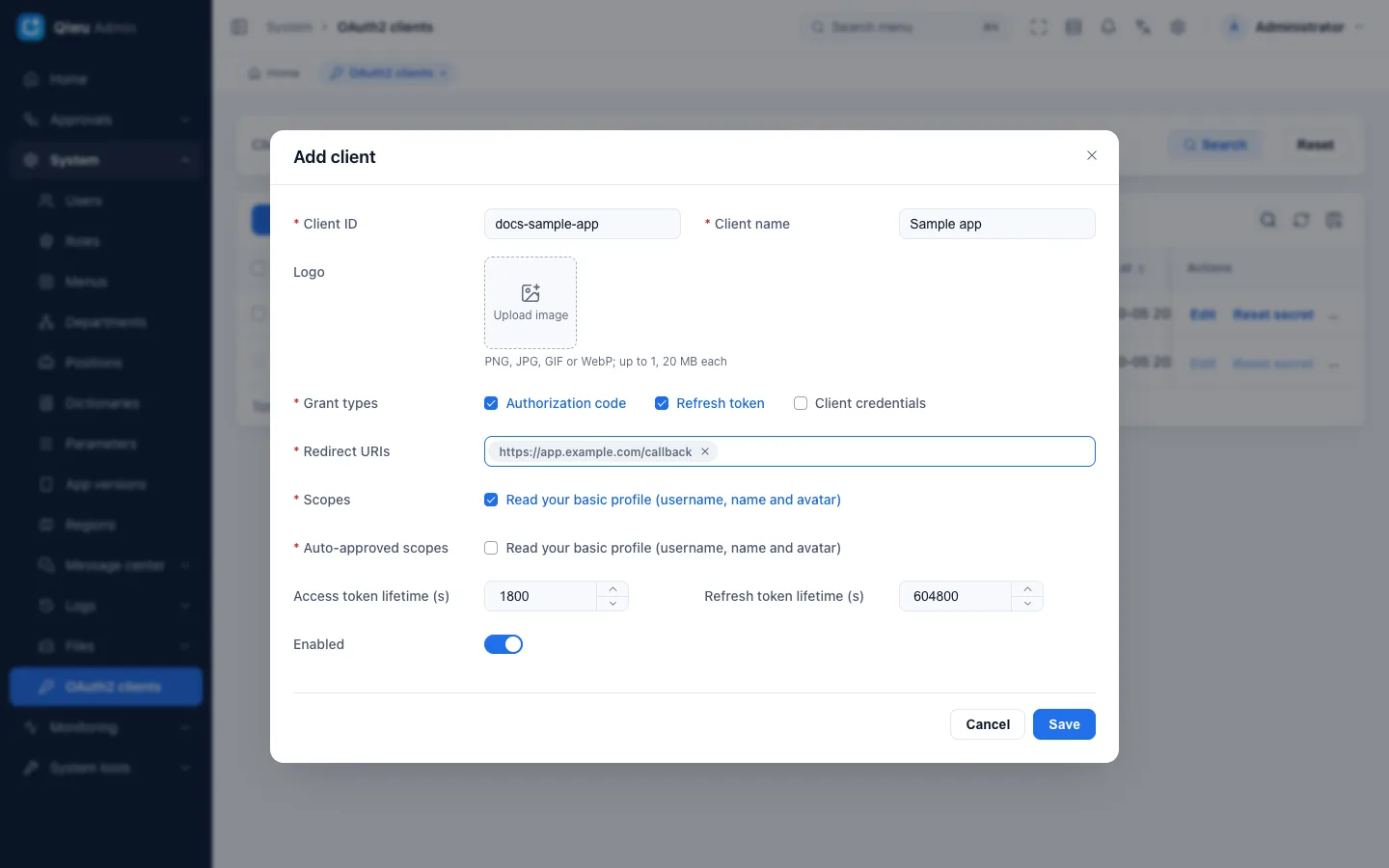
For the detailed field rules and the list actions, see System management · OAuth2 clients. Only a few points need special attention here:
- The secret is shown only once. After you save a new client, the Save the client secret dialog shows the secret; copy and store it, then click I have saved it. After that it is not visible anywhere on the pages, in the APIs or in the logs. If it is lost, the only way out is Reset secret. After a reset the old secret stops working at once, while tokens already issued are not affected;
- The built-in client
console(the admin console itself) is read-only in the list: it cannot be edited, disabled or deleted, and its secret cannot be reset; - Disabling or deleting a client (including Delete selected) ends all its sessions at once, both those authorized by users and those from client credentials. After deleting, the same client ID can be registered again, but it is a new client: old sessions, unredeemed authorization codes and users' remembered consent do not carry over to it.
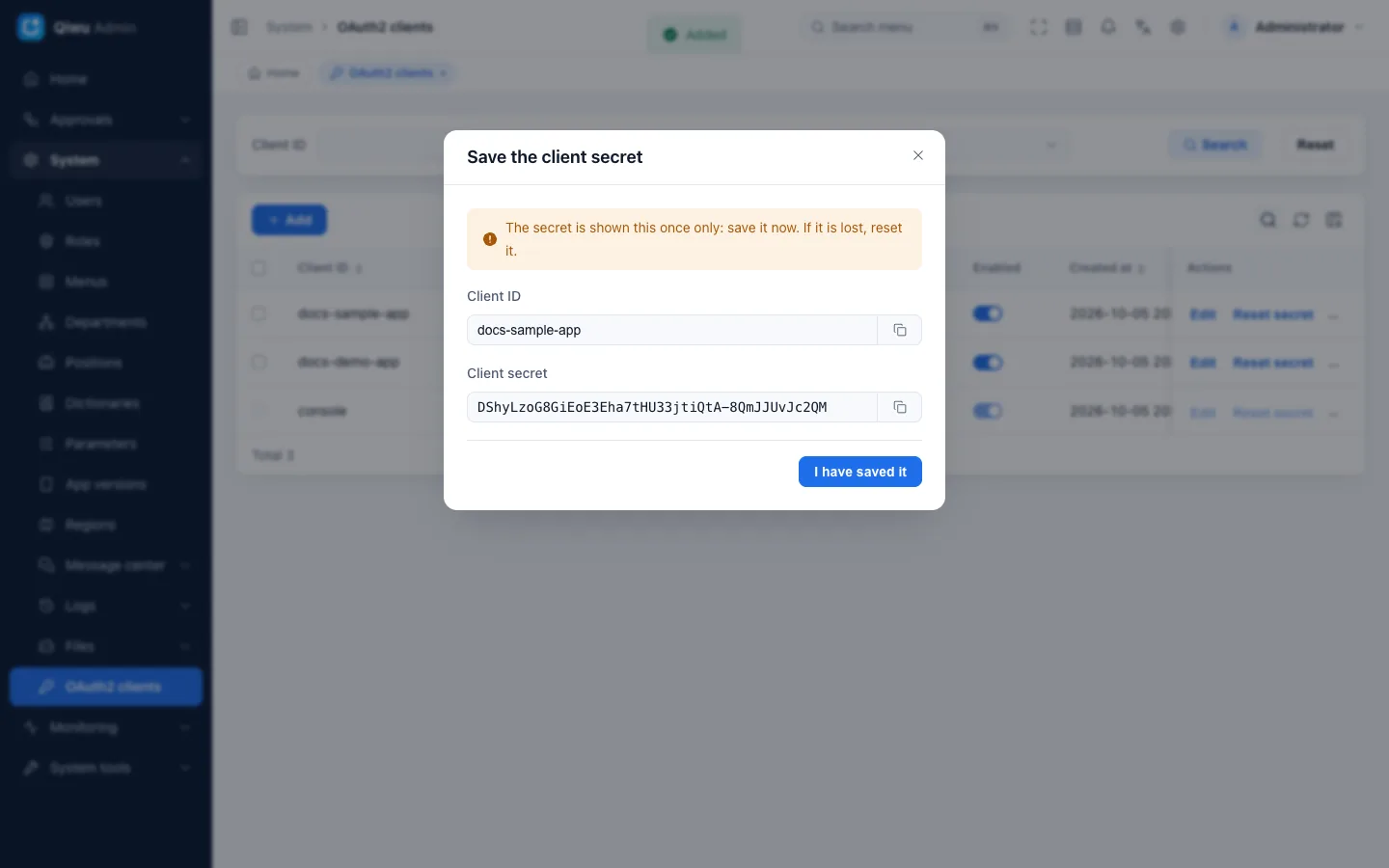
Permissions: oauth.client.browse (Browse), oauth.client.view (View), oauth.client.create (Add), oauth.client.modify (Edit), oauth.client.remove (Delete), oauth.client.reset-secret (Reset secret).
Consent page
The third party sends the user's browser to this site's /sso page (with the authorization request parameters in the URL), where the user decides whether to authorize:
- The title is Authorize access, with the line "Continue as (your display name)" below it, showing the display name of the signed-in user;
- It shows the client's logo (or the first character of the client name if there is no logo), name and ID, followed by "(client name) wants to access your account:" and the list of requested permissions, such as "Read your basic profile (username, name and avatar)";
- The next line, "After authorization, you will be redirected to …", shows the host name of the redirect URI. This helps users spot apps pretending to be someone else;
- Three buttons: Allow, Deny, Use another account. Allow returns to the third party with an authorization code. Deny also returns to the third party, but only with a "user denied" result. Use another account first signs out the current account; after signing in with another account, the user comes back to this authorization page.
A few special cases:
- Not signed in yet: the user is first sent to the sign-in page, and automatically comes back to the same authorization page after signing in. The same happens if the session expires during authorization;
- Invalid request: the client does not exist or is disabled, the redirect URI is not registered, PKCE parameters are missing, the requested scope exceeds the registered scopes, and so on. The page stays on
/ssoand shows the reason given by the server and Back to home. It does not redirect anywhere, so users are not sent to a site that has not been verified; - No need to ask: if all requested scopes are auto-approved or already remembered, the page shows "Redirecting…" and goes straight back to the third party.
Both allowing and denying are recorded in the action log. Authorization codes never appear in the log.
Remembered consent
After a user agrees once, they do not see the consent page again for a while when authorizing the same client.
- The number of days is set by the parameter
oauth.consent_ttl_days(Remember consent (days, 0 = always ask)), 30 days by default. Change it in System → Parameters. Values from 0 to 3650 are allowed; an invalid value is treated as 30 days; - Set to 0, nothing is remembered and existing remembered consent no longer applies: the user must click Allow every time;
- The consent page has no "remember" checkbox: on agreeing, all scopes of this request are remembered together. Each agreement restarts the full period, and each client is remembered separately;
- Auto-approved scopes never need user consent, so there is nothing to remember, and they never appear on the authorization page.
There is currently no page where users can revoke consent themselves. When revocation is needed, an administrator can disable or delete the client, or set the parameter to 0. When a user or a client is deleted, the related consent records are voided too.
Sessions and tokens
The token a third party gets is an ordinary session in this system, only with limited use:
- Visible in online users: in Monitoring → Online users, the Client column of a third-party session shows its client ID, and you can also type a client ID directly to filter. Ending the session invalidates the token at once. Sessions requested with client credentials belong to no user; only the super administrator can see and end them;
- Cannot call admin APIs: third-party tokens can only read user info. Calling any other admin API returns 401, and they cannot click Allow on the consent page on the user's behalf;
- Ended when the account changes: when the user changes their password or mobile number, has their password reset by an administrator or through an SMS code, is disabled, is deleted, or is signed out by an administrator with End all sessions, or enters the wrong current password too many times in a row while unlocking the lock screen, changing the password or changing the mobile number, all of their third-party sessions and unredeemed authorization codes stop working together. Ending a single session ends only that one;
- Lifetimes are set per client: the access token lifetime is 300 to 86400 seconds, 1800 seconds (30 minutes) by default. It is not renewed automatically when it expires; use the refresh token to get a new one. The refresh token lifetime is 3600 to 2592000 seconds, 604800 seconds (7 days) by default, and it is also the longest this authorization lasts, counted from when the third-party app exchanges the authorization code for tokens; refreshing does not extend it. After it expires, the user must authorize again (with remembered consent, this is just a redirect).
Limitations
- Confidential clients only: requesting, introspecting and revoking tokens all require the client secret, so the integrating party must have its own backend. Pure frontend web apps and mobile apps must connect through their own backend, and must not put the secret in the browser or the app package;
- The authorization code flow requires PKCE, and only
S256is accepted. Authorization codes are valid for 300 seconds and can be used only once; - No OIDC: there is no
id_token, no discovery endpoint and no public key endpoint (JWKS). User info is read from a dedicated user info endpoint; - The password grant (
password) and the implicit grant (implicit) are not supported; - The only scope is
user.read. User info contains only the user ID, username, name, avatar and interface language, not the mobile number, email, department or roles; - Rate limits by IP: per IP per minute, the authorization page allows 120 requests, the token endpoint 600, and the introspection and revocation endpoints 1200 each; beyond that they return 429. The counters are stored in Redis, so multiple service instances share the same quota (see Deployment · Multi-instance deployment (Chinese));
- Not available in demo mode: with demo mode on (
APP_DEMO_MODE=true), granting consent, requesting tokens, and introspecting and revoking tokens are all rejected (403). To try single sign-on, use an installation without demo mode.
Developer guide
- OAuth2 integration guide (Chinese): the full flow for third-party developers (curl examples), endpoints, error codes and an integration checklist
- Deployment · OAuth2 and single sign-on (Chinese): requirements for the reverse proxy and
TRUST_PROXY
Related features: System management · OAuth2 clients, Sign-in and accounts · Online users and force sign-out (Chinese), Security baseline.