
Mobile app
Qiwu includes a client for employees' phones, called the mobile app below. On their phones, employees can sign in, check their to-dos, handle approvals, and read messages and bulletins.
The mobile app is built with uni-app, a framework for writing pages in Vue that compiles the same code into a WeChat mini program and into phone apps. So the mobile app has a single codebase that supports the WeChat mini program (mini programs are apps that run inside WeChat), the Android app and the iOS app. It talks to the same server as the desktop admin console: accounts, permissions, processes and messages are all the same data.
The mobile app is for employees only. A mobile client for members or customers is not part of the template.
The mobile app is optional: all its code lives in the mobile/ directory at the repository root, and you can delete the whole directory if you don't need it; see Desktop only.
Current status
Done: sign-in, Workbench, approvals (including dynamic forms), messages, the Me page, Chinese and English, light and dark themes, realtime push, new to-do WeChat alerts, app update checks, and mobile pages produced by the code generator.
Automated tests: unit tests, 45 end-to-end tests that run against the H5 pages, and build and package size checks for the mini program.
Still in progress: item-by-item checks on real devices, sending WeChat subscribe messages with a real AppID and real templates, app store listings, and the mini program release. Building the app and uploading the mini program on Windows have not been verified either. Before going live, work through the Mobile development · Release checklist (Chinese) item by item.
Supported platforms
| Platform | Purpose | Differences from the other platforms |
|---|---|---|
| WeChat mini program | Production release | WeChat sign-in is available; New to-do WeChat alerts can be turned on; the appearance always follows the system; attachments are picked from WeChat chat history |
| Android app, iOS app | Production release | Checks for updates once at each start; the appearance can be changed on the Me page; attachments can only be images (take a photo or choose from the album) |
| H5 | Only for development, debugging and automated tests; not a production release target | No update checks; attachments use the browser's file picker |
H5 is the web version opened in a browser. During development you can debug in a desktop browser first, then check the result in WeChat DevTools and on phones; see Mobile development · Debugging in the browser (H5) (Chinese).
Sign-in
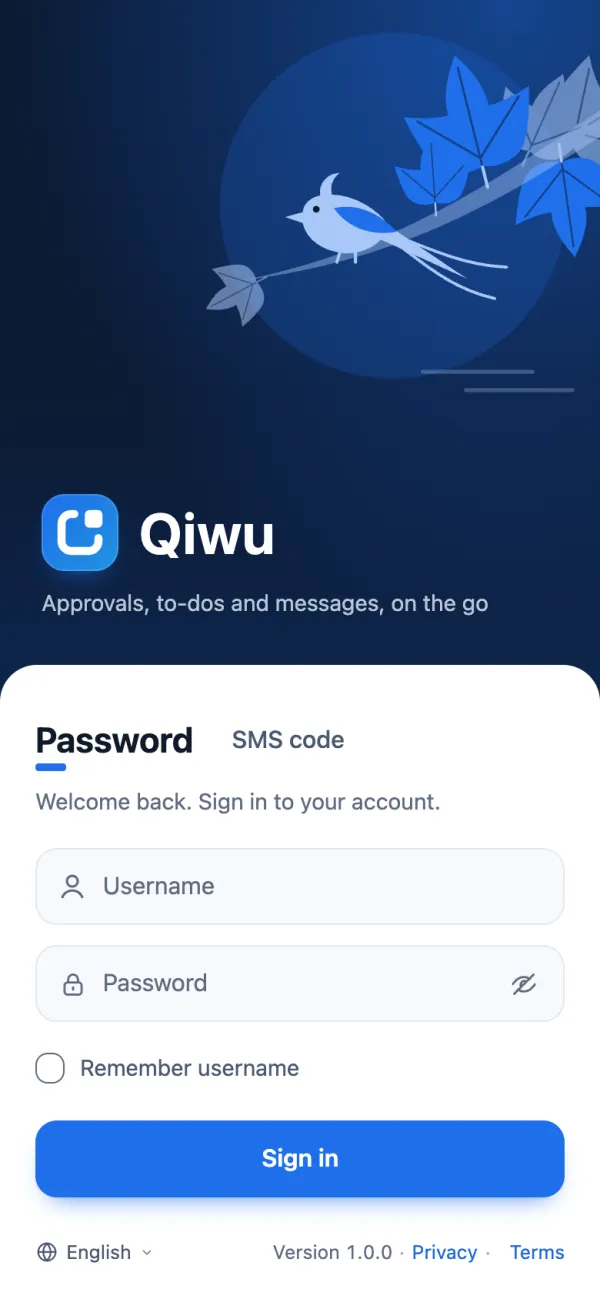
The mobile app opens on the sign-in page. If you have already signed in on this phone and the sign-in has not expired, it goes straight to the Workbench.
- Two methods: the Password and SMS code tabs, with the same rules as on desktop; see Sign-in and accounts · Sign-in methods (Chinese).
- Captcha: as on desktop, the parameter
captcha.modedecides whether a slider or an image captcha appears; when it is off, none appears. See Sign-in and accounts · Captcha (Chinese). Tapping Get code to send an SMS goes through the same check first. Once the code is sent, the button counts down ("Resend in Ns"). - Remember username: remembers only the username, only on this phone. The password is never saved.
- Staying signed in: sign-ins on mobile always keep you signed in, for at most 7 days from sign-in; after that you sign in again. In Monitoring → Online users, the client of these sessions shows as "Phone".
- Password change required: if the account still uses its initial password or the password has expired, after sign-in you can only stay on the Change password page. The page explains why, and you can also Sign out. You reach the Workbench only after changing the password.
- No sign-up or password reset: use the desktop for those.
- Footer: the language switcher on the left; the version, Privacy and Terms on the right.
Replace Privacy and Terms before release
On the sign-in page, Privacy and Terms currently open the About page. Before release, point them to the privacy policy and terms of service on your own website. App store and mini program reviews check them.
WeChat mini program sign-in
This is available only in the WeChat mini program and is off by default:
- When the mini program opens and you are not signed in, it first signs you in with WeChat in the background, with nothing for you to do.
- If this WeChat account is already linked to an employee account, you go straight to the Workbench.
- If not, the Link WeChat page opens. Sign in once with your password or an SMS code (the button is Link and sign in) to link it. After that, opening the mini program takes you straight in.
After you sign out, WeChat sign-in does not run automatically again while the mini program stays open; it waits until the next time you open the mini program. For how to enable it and the linking rules, see Sign-in and accounts · WeChat mini program sign-in (Chinese).
The four tabs at the bottom
After sign-in, the bottom of the screen has four tabs: Workbench, Approvals, Messages and Me.
Approvals and Messages carry badges with the number of to-dos and of unread messages; above 99 they show "99+". The numbers on the Workbench and these two badges come from the same data. They are read again each time you switch tabs, come back from another page, or the app returns to the foreground.
Workbench
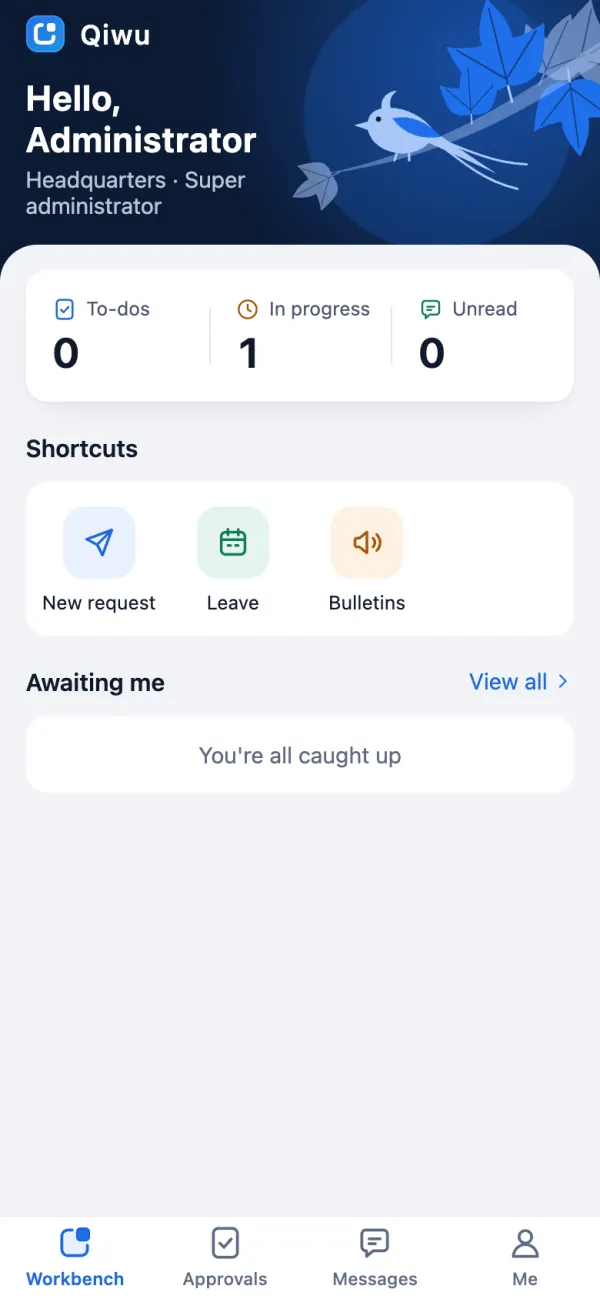
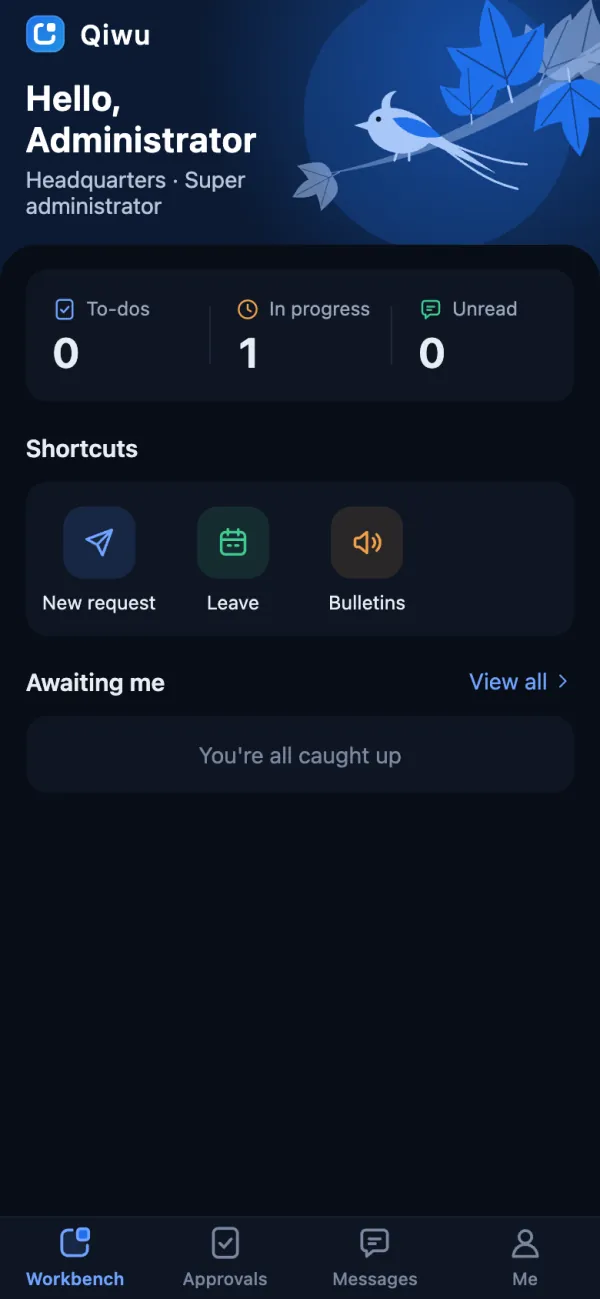
- Top: the greeting "Hello, display name", with "department · role" below it.
- Three numbers: To-dos, In progress (processes you started that have not ended yet) and Unread. Tap one of the first two to open the Approvals tab, and Unread to open the Messages tab.
- Shortcuts: New request, Leave and Bulletins. Leave shows only for people with the Add permission of leave requests (
biz.leave.create). - Awaiting me: the 3 latest to-dos. Tap one to open its approval detail, or tap View all to open the Approvals tab. With no to-dos, it shows "You're all caught up".
You can add shortcuts for your project; see Mobile development · Adding an entry (Chinese).
Approvals
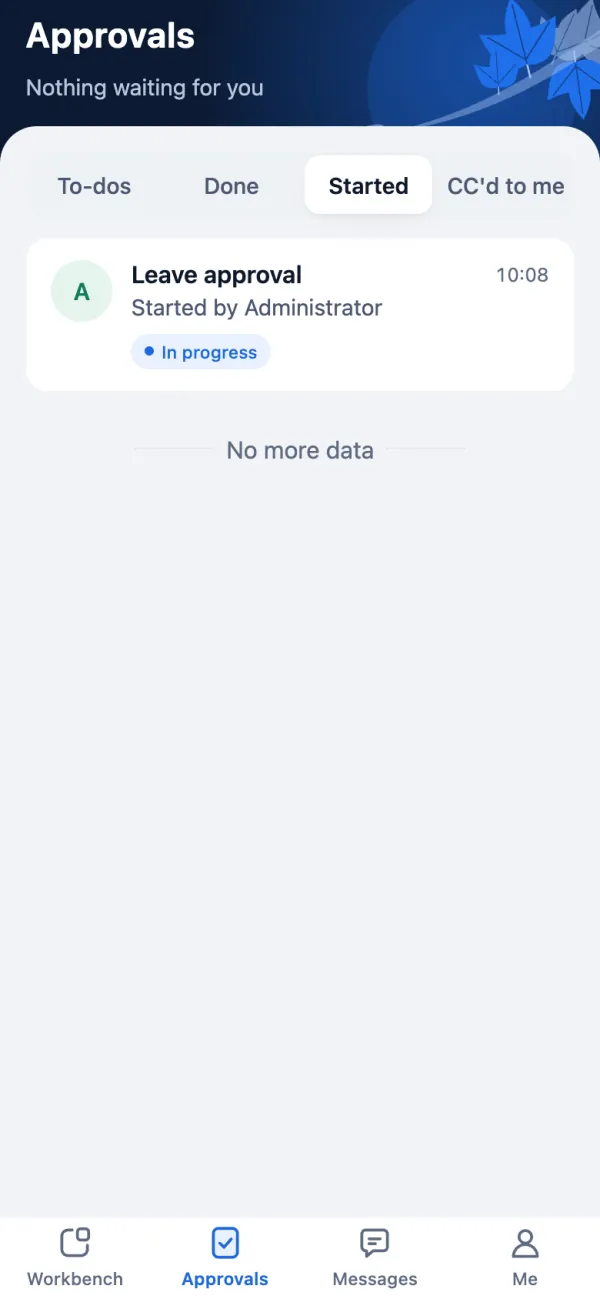
Approvals on the phone use the same processes as on desktop: processes designed and published on desktop can be started, handled and viewed on the phone. For what each approval action means, see Workflow · Approval actions.
Approval lists
At the top of the Approvals tab you can switch between four lists: To-dos, Done, Started and CC'd to me.
- Only records that concern you are listed.
- Pull down to refresh; scroll to the bottom to load the next page.
- There are no filters besides these four lists.
- When there are no to-dos, it shows "You're all caught up" and a View done button.
Approval detail
Tap a record to open Approval detail:
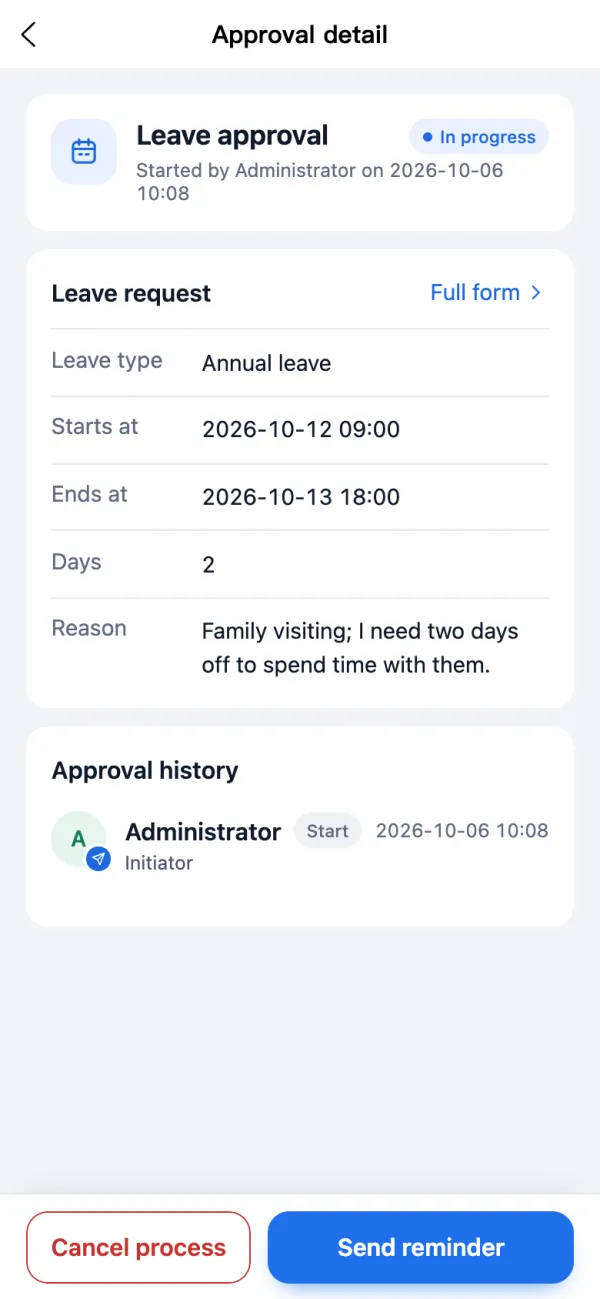
- Top: the process name, the process state, and "Started by (name) on (time)". When it is your turn, it also shows "Your turn · step name".
- Form: the content of the request. Dynamic forms show right here; see Dynamic forms on mobile.
- Approval history: who did what at each step, and when.
The phone does not show the process progress (no progress tree and no diagram). The people who can open the details are the same as on desktop: the initiator, the assignees, the CC recipients, and admins with permission. Nobody else can open them. Opening an unread CC marks it as read automatically.
Approval actions
When it is your turn, Approve and Reject show at the bottom; the other actions are under More:
- Send back, Transfer, Delegate, Add signers (Before me and After me), Copy to, Comment.
- Depending on the situation, these also appear: Remove signers, Withdraw, Send reminder, Resubmit, Cancel process.
- On a task someone delegated to you, or one you were added to as a signer, you can only approve, copy to others and comment.
A few rules:
- Send back lets you pick one of the steps already passed; the last option is the initiator.
- When the step requires a comment, both approving and rejecting need one. Comments are at most 1000 characters.
- Send reminder works at most once an hour. Trying again too soon shows "You can send a reminder once per hour. Please try again later."
- While a request is being submitted, the button shows a loading state and cannot be tapped again.
Starting a request
Workbench → New request lists the processes you may start, grouped by the "Process category" dictionary.
- Processes with a dynamic form: with a bound form, you fill it in on a form page and then start the process; without one, you start it in a bottom sheet (a panel that slides up from the bottom of the screen). If the process has steps set to Picked by the initiator, pick at least one person (approver or CC recipient) for each of those steps.
- Processes with a business form: you can start and view them on the phone only if they have their own mobile page. The template has a mobile page only for leave. For other business-form processes, starting shows "Start this process on a computer", and the form in their details shows "View it on a computer", but you can still approve or reject them.
For the difference between dynamic and business forms, see Workflow · Two kinds of forms. To build mobile pages for other business forms, see Mobile development · Starting and viewing a process on the phone (Chinese).
Leave
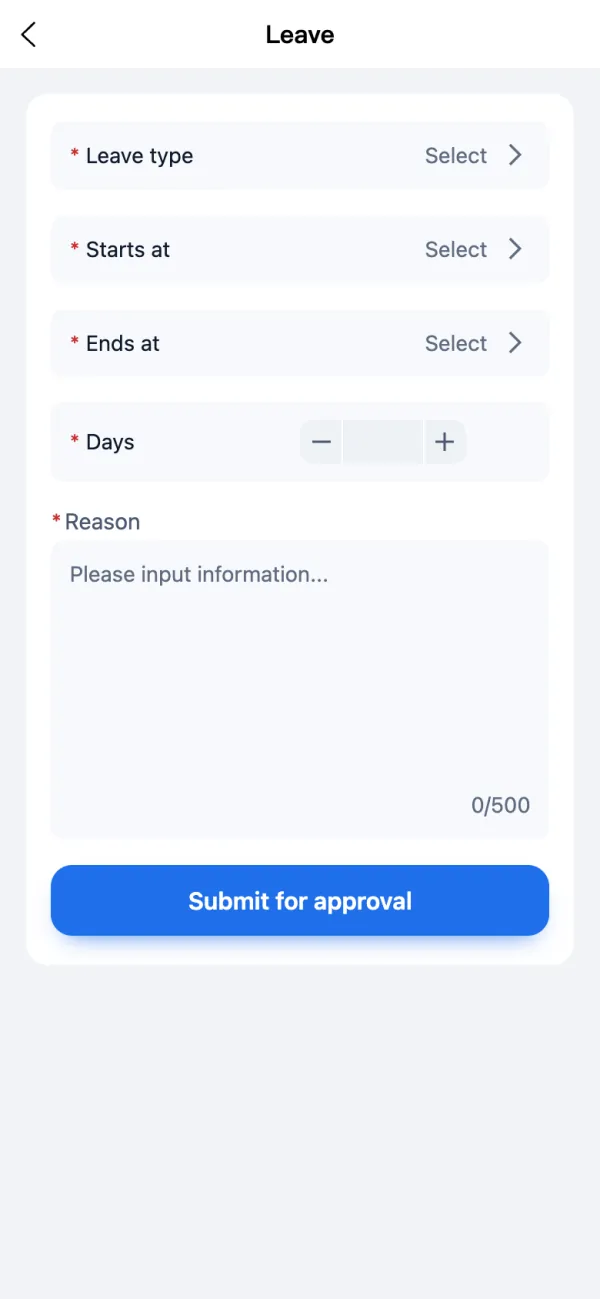
Workbench → Leave opens the leave request form. Fill in Leave type, Starts at, Ends at, Days (half days allowed) and Reason; the checks are the same as on desktop. Submit for approval saves the request and starts the process.
When the request is sent back to you, tap Resubmit in the approval detail. People with the Edit permission of leave requests (biz.leave.modify) get the leave form to edit and submit again; people without it resubmit directly, with no changes. You can also tap Cancel process to end the request.
Dynamic forms on mobile
Dynamic forms (forms designed in the form designer and bound to a process) can also be filled in and viewed on the phone:
- Every component available in the form designer can be shown on the phone, including the business components (User, Department, Dictionary, Attachments, Region) and the calculated components (Days (calculated), Detail table); see Form designer · Available components.
- Fields follow the access settings of your step: hidden fields are not shown, Editable fields can be changed, and the rest are read-only. Approving and resubmitting submit only the Editable fields.
- Calculated values (days, detail totals) are for display only; the server's recalculated result is what counts.
- A few components cannot be filled in on a phone. Those fields are read-only and show "Fill this in on a computer". When a whole form cannot be shown, the page says "This form can't be shown on a phone; start it on a computer".
For which components are read-only and which validation rules the phone does not check, see Workflow · Dynamic forms on mobile.
Attachments
- Files are uploaded to the server one at a time. The size limit follows this field's setting in the form, or the parameter
storage.max_size_mbwhen the field sets none. The phone checks the number and size of the files first, before anything is uploaded. - How you pick files depends on the platform: the WeChat mini program picks from WeChat chat history, the app can only pick images (take a photo or choose from the album), and H5 uses the browser's file picker.
- Uploaded attachments show only their file name and size. They cannot be opened or downloaded on the phone; view them on desktop.
Picking people and departments
Picking people for transfers, delegation, adding signers, copying to others and starting a process always opens a people picker in a bottom sheet. It lists all enabled users, you can search by name, and with multiple selection the confirm button shows how many people are selected. Picking a department also uses a bottom sheet, and you can pick a department at any level.
Messages
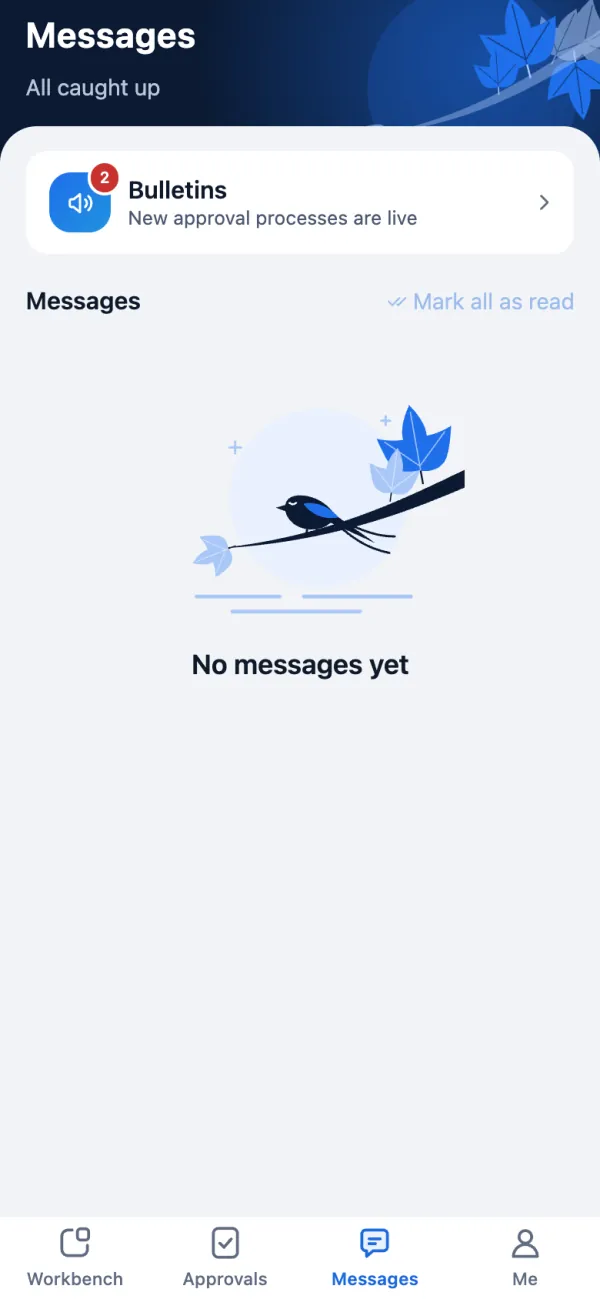
The Messages tab:
- Top: how many messages are unread, for example "3 unread".
- Bulletins: an entry at the very top, with the title of the latest bulletin and an unread badge. It opens the bulletin list, which lists only the 5 latest, like the bell in the desktop top bar.
- Messages: below are the inbox messages sent to you. The icon in front of each one shows which of the two categories it belongs to, "Business" or "System". Pull down to refresh, scroll to the bottom to load more, or tap Mark all as read.
- Tap an inbox message to open the Message page, which also marks it as read. Inbox messages are plain text with their line breaks kept; bulletin details show rich text that was sanitized when it was saved.
Bulletins are published on desktop in System → Message center → Bulletins; inbox messages are sent by the system's various features. See Message center (Chinese).
Me
The Me tab:
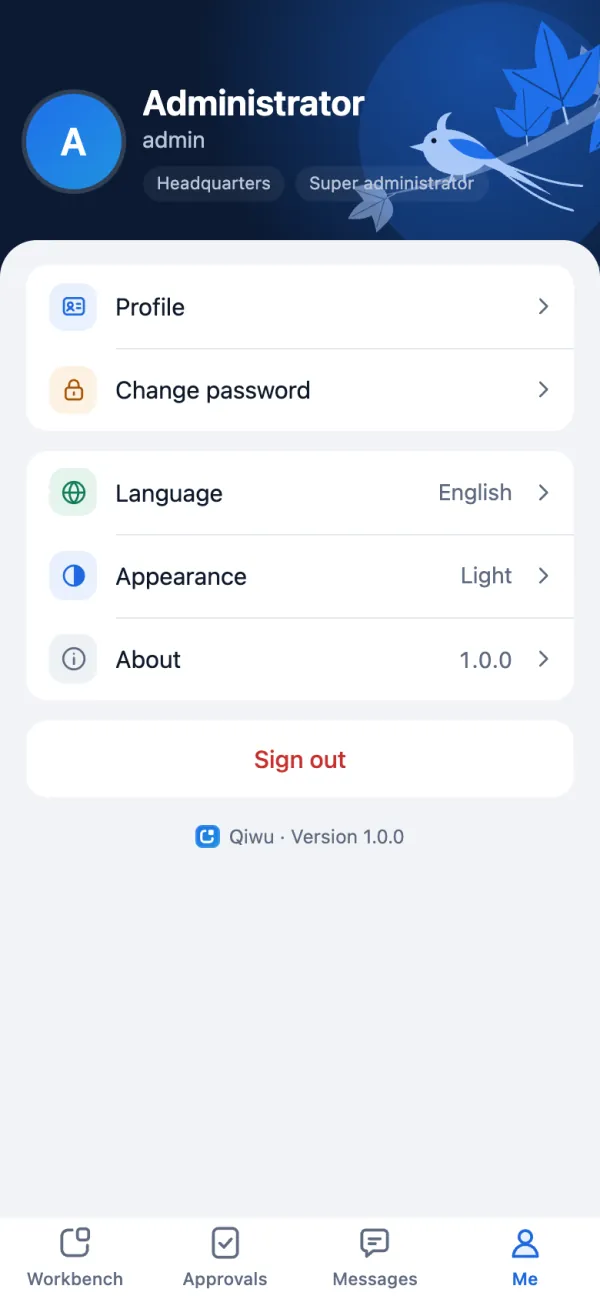
- Top: avatar, display name, username, plus department and roles. Tap it to open Profile.
- Profile: you can change Display name, Email and Gender; Username, Mobile, Department, Roles and Positions are read-only. Change the mobile number on desktop. Tap Avatar to take a photo or choose one from the album; the server crops it to 256×256.
- Change password: enter the old password, the new password and the new password again; the rules follow the server's password policy. After the change, your sessions on other devices and browsers end immediately, while this phone stays signed in. The WeChat mini program link is removed too, so the next time you open the mini program you link it again.
- New to-do WeChat alerts: only in the WeChat mini program, and only when the conditions are met; see New to-do WeChat alerts.
- Language and Appearance (app and H5 only); see Theme and language.
- About: logo, app name, version, introduction and license (MIT).
- Sign out: signs you out after you confirm "Sign out of this account?".
- The bottom line shows "Qiwu · Version x.y.z".
Realtime push
While the mobile app is in the foreground, it keeps a realtime connection to the server, with the same rules as on desktop:
- When a new approval to-do or a new inbox message arrives, the badges and the numbers on the Workbench update at once.
- When an administrator forces you to sign out, you return to the sign-in page with "An administrator signed you out. Please sign in again."
- It connects when the app returns to the foreground or any bottom tab opens, and reads the to-do and unread counts once more. It disconnects when the app goes to the background, and on sign-in and sign-out.
- If it cannot connect (for example, the mini program has no allowed socket domain configured), it polls every 60 seconds while a bottom tab is showing, so the badges update within 60 seconds at most.
No system-level offline push
The connection closes as soon as the app goes to the background, so when the app is closed or in the background, nothing shows up in the phone's notification bar. New to-do reminders you can still receive then: email (a mail template for new to-dos is preset; a mail account must be configured and the employee must have an email address), SMS (add your own SMS template for new to-dos), and New to-do WeChat alerts in the WeChat mini program. See Message center · Which events send messages (Chinese).
For connection details, see Realtime push · Mobile (Chinese).
New to-do WeChat alerts
In the WeChat mini program, when a new approval to-do arrives, the approver can be reminded with a WeChat one-time subscribe message: the reminder appears under "Service Notifications" in WeChat, and tapping it opens the approval detail. This feature is off by default.
- Each employee has to agree: on the Me page of the mini program, tap New to-do WeChat alerts and allow it in the WeChat pop-up. If allowed, it shows "On: your next new to-do will be sent to WeChat"; otherwise "WeChat alerts not enabled".
- One tap covers only one future reminder; tap again to keep receiving them.
- The item shows only in the WeChat mini program, and only when WeChat is linked, an administrator has turned on the switch, and a subscribe template is configured.
For how to enable it and configure the templates, see Message center · WeChat subscribe messages (Chinese).
App updates
Only the Android and iOS apps check for a new version, once at each start. H5 does not check; the WeChat mini program is updated by WeChat itself.
- When there is a new version, a prompt such as "Version 1.2.0 is available" appears, with the release notes as its body and the buttons Update now and Later. A forced update has no Later.
- Resource package (hot update) (updates only pages and scripts): downloaded inside the app, which shows "Downloading the update…" and restarts automatically after installing it.
- Full package (the complete installer): Android opens the download URL in the browser (an installer or an app store link); iOS opens the App Store.
- For a forced update, the prompt appears again if downloading or installing fails, if you close the prompt, or after you return from the browser or the store.
- If the check fails (for example, without a network), nothing is shown and the app works as usual.
New versions are registered in System → App versions; see System management · App versions.
Theme and language
Theme: by default, it follows the phone's light or dark setting. In the app and H5, you can choose System, Light or Dark in Me → Appearance. It takes effect at once and is saved only on this phone. The WeChat mini program always follows the system and has no Appearance item.
Language: Simplified Chinese and English are supported.
- On first launch, the app uses English if the phone's system language is English, and Simplified Chinese otherwise. After that, it uses your last choice.
- Switching changes the interface text, the text inside components and the system dialogs (such as confirm boxes and pickers) together.
- Switching in Me → Language also saves the language to your account, so the messages and notifications the server sends you change too. Switching on the sign-in page only changes this phone.
For more, see Internationalization.
What to configure in the admin console
Most mobile features work out of the box. The following need configuration by an administrator in the desktop admin console, or specific permissions:
| What you want | Where to configure it | Notes |
|---|---|---|
| SMS sign-in | System → Message center → SMS channels, SMS templates | Shared with desktop; see Sign-in and accounts · SMS sign-in (Chinese) |
| Choosing the captcha type | System → Parameters: captcha.mode | Shared with desktop |
| WeChat mini program sign-in | WX_MP_APPID and WX_MP_SECRET on the server, plus System → Parameters: auth.wx_mp.enabled | Only the super administrator can change this switch; see Sign-in and accounts · WeChat mini program sign-in (Chinese) |
| New to-do WeChat alerts | System → Parameters: notify.wx_subscribe.enabled, notify.wx_subscribe.templates | WeChat mini program sign-in must work first; see Message center · WeChat subscribe messages (Chinese) |
| App update prompts | System → App versions, plus System → Parameters: app.update.enabled, app.update.review_version | See System management · App versions |
| Which processes can be started on the phone | Approvals → Process admin → Process models | Every published process you may start is listed; see Workflow |
| Leave on the Workbench | System → Roles: the Add permission of leave requests (biz.leave.create) | People without it do not see this shortcut |
| Bulletins | System → Message center → Bulletins | See Message center (Chinese) |
| Attachment size limit | System → Parameters: storage.max_size_mb | Shared with desktop. The mobile app reads it once at each start, so a change applies after the app is reopened |
| Forcing a phone to sign out | Monitoring → Online users | The row whose client shows "Phone" |
| Mobile pages for your own business modules | Mobile pages on the Generation tab of System tools → Code generator | See Code generator · Mobile pages |
What to prepare beyond the admin console
For the mini program and the app to reach the server, you also need: an HTTPS domain with an ICP filing (the registration required for websites hosted in mainland China), the server domains registered on the WeChat Official Accounts Platform, and the server address set at build time. These are development and release tasks; see Mobile development · Release checklist (Chinese).
Also, the code generator's 9 sample pages are registered in the mobile app. They have no entry point, but they ship with the mini program and the app, so remove them before your first release; see Code generator · Mobile pages.
Desktop only
If you don't need the mobile app, deleting the whole mobile/ directory is enough. A few root scripts and checks still mention it; they skip it automatically when the directory is missing, and you can delete those mentions too if you want a clean tree. The root lockfile needs no change, because the mobile app was never in it. After the deletion, the code generator no longer generates mobile pages. For the steps, see Mobile development · Desktop only: deleting the mobile app (Chinese).
Developer guide
- Mobile development (Chinese): running and debugging locally, building, the release checklist, deleting the mobile app
- Pushing realtime messages in code · Mobile (Chinese): how the server pushes and how the mobile app receives
- Related features: Sign-in and accounts (Chinese), Workflow, Message center (Chinese), Realtime push (Chinese), Code generator, System management