
Multi-tenancy
Multi-tenancy means one deployment serves many companies at once. Each company is called a tenant. All tenants share one MySQL database, but each company's data is isolated, and no tenant can see another's. This suits using Qiwu for SaaS, selling the same admin console to many customers.
The system always has a built-in default tenant (code default). It is the platform, that is, you, the one who deploys and runs the system. People in the default tenant are called platform staff; the super administrator admin is one of them.
Off by default
Multi-tenancy is off by default. While it is off, the system is the usual single-tenant system: all data belongs to the default tenant, and the sign-in page, the sidebar and the logs show no change at all. Projects that don't need multi-tenancy can skip this page.
The switch
The switch is the server environment variable APP_MULTI_TENANT (set in apps/server/.env; it is not a secret), false by default. There is no switch in the UI. It is read only at startup, so after changing it you must restart every server instance before the switch is complete.
| Where | Off (default) | On |
|---|---|---|
| Usable tenants | The default tenant only | Every enabled tenant that has not expired |
| Sign-in page | No tenant code | An extra Tenant code field (hidden when the domain you visit is bound to a tenant) |
| System → Tenants, Tenant packages | Not in the sidebar, and their APIs cannot be used (still listed in Menus) | Platform staff use them according to their permissions |
| Log pages | Unchanged | An extra tenant column; see Tenants in the logs |
| Monitoring → Server | Unchanged | An extra Multi-tenancy row showing that it is on |
- Try it on your machine: change
APP_MULTI_TENANTinapps/server/.envtotrue, runpnpm db:migrate, then restartpnpm dev. - Production: a new installation can turn it on from the start; a database that already has data turns it on over two deployments. For the steps, see Deployment · Turning multi-tenancy on or off (Chinese).
- Acceptance before going live: the repository has a manual acceptance checklist with two tenants; see Two-tenant acceptance (Chinese).
No going back to older versions once it is on
A database that has had the switch on can never go back to any version before 1.1.0. Before turning the switch off, disable the tenants you no longer serve; otherwise they become usable again at once the next time you turn it on.
For the full description of the switch, see the repository's multi-tenancy docs · The switch (Chinese).
How users sign in
Before sign-in, the server decides which tenant the user belongs to, in this order:
- The domain being visited. If it is bound to a tenant, that is the tenant, and the sign-in page does not show the tenant code;
- If the domain is not bound to a tenant, the tenant code entered on the sign-in page;
- If the tenant code is empty, the default tenant. Platform staff just leave it empty.
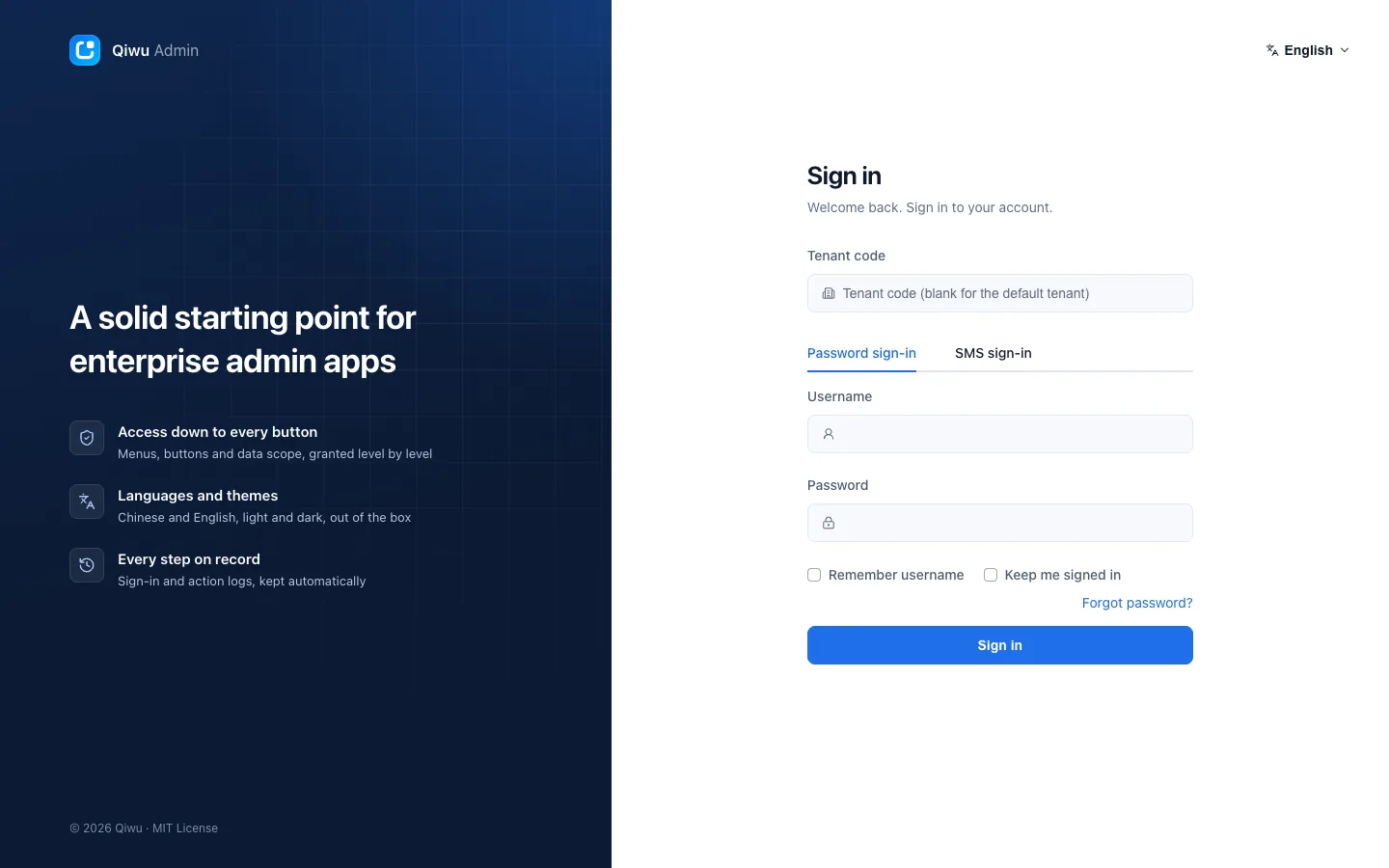
- Tenant code sits above the Password sign-in and SMS sign-in tabs. After an SMS sign-in, or with Remember username ticked, this code is filled in automatically next time. The Reset password page has this field too;
- When the tenant code is wrong, or the tenant is disabled or has expired, the message is exactly the same as for a wrong password ("Wrong tenant code, username or password"), so nobody can use it to guess which tenants exist;
- After sign-in, the server keeps track of which tenant the user belongs to. No request header or parameter can switch the tenant;
- If the tenant is disabled or expires while the user is working, the user's sign-in ends at once, and the sign-in page shows "Your tenant is disabled or has expired. Please contact your administrator";
- On phones (the app and the WeChat mini program), users can sign in only with the tenant code; see Mobile app · Tenant code;
- Sign-up is open only for the default tenant.
Lockout after failed sign-ins is counted per tenant, so users with the same username in different tenants do not affect each other; the SMS send limits are counted by mobile number and IP, regardless of tenant. See Sign-in and accounts · The tenant code with multi-tenancy (Chinese). For the detailed rules, see the repository's Where the tenant comes from (Chinese).
Tenants
Open and manage tenants in System → Tenants. This is a platform page that only people in the default tenant can use. Its permission codes are iam.tenant.*: Browse, View, Add, Edit, Enter tenant (enter) and Reset initial password (reset-password).
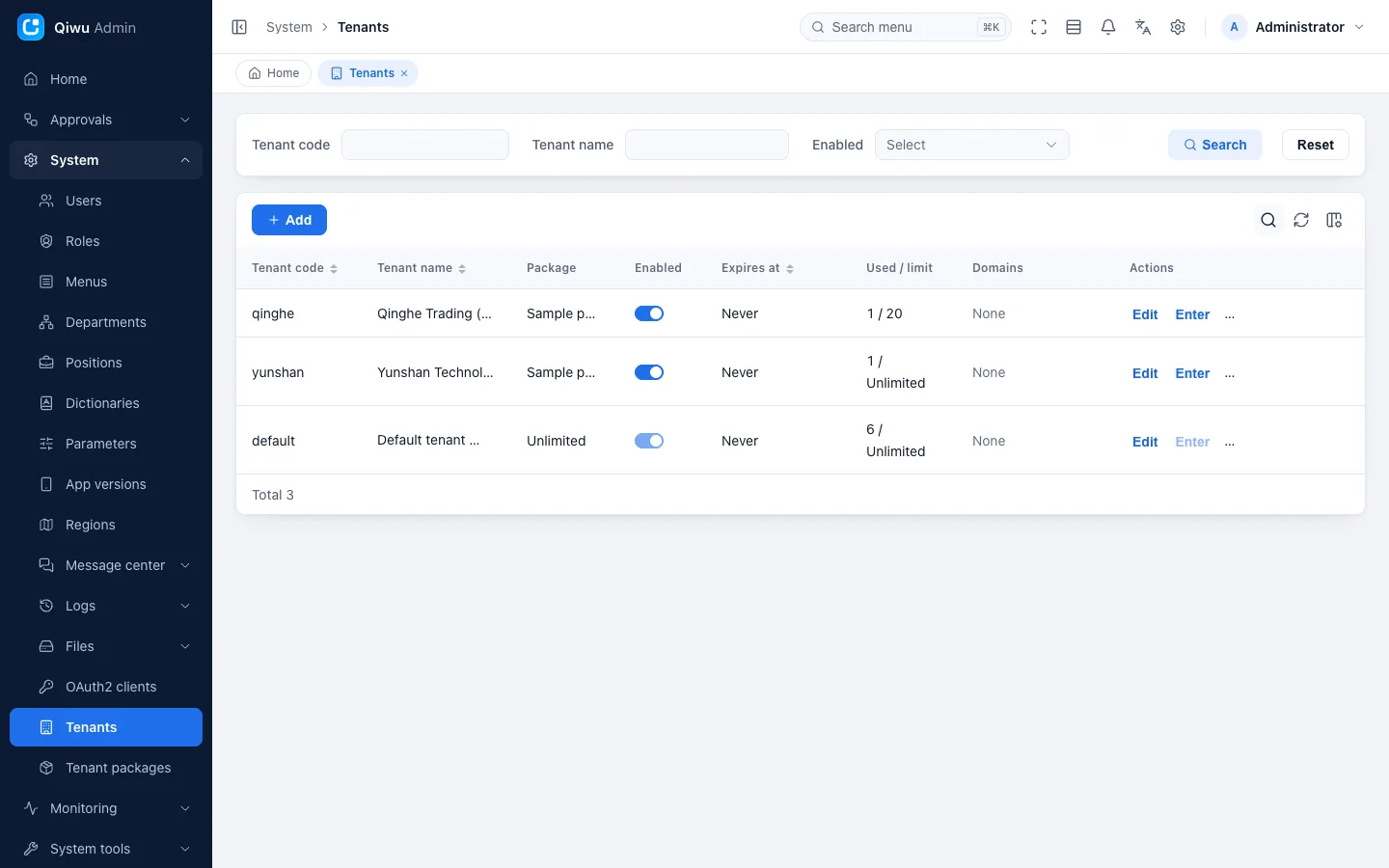
The default tenant in the list carries the Default tenant tag. It cannot be disabled, and it cannot be entered.
Opening a tenant
Click Add and fill in the Add Tenant form:
| Field | Description |
|---|---|
| Tenant code | Entered by users at sign-in. 3 to 32 lowercase letters, digits or hyphens (-, only in the middle), starting with a letter; reserved words such as default, www, api and admin cannot be used. It cannot be changed after the tenant is opened, and it is never given to another tenant |
| Tenant name | The name shown in the list and on the banner |
| Package | Required; decides which features this tenant can use. See Tenant packages |
| Expires at | Leave empty for no end |
| User quota | Leave empty for no limit; the tenant administrator counts |
| Domains | See Domains |
| Brand name, Brand logo | See Brand |
| Administrator username, Administrator display name, Administrator mobile, Administrator email | The tenant administrator created together with the tenant |
Saving does all of the following in one go; if any step fails, everything is undone:
- Creates the tenant;
- Prepares the tenant's base data: a root department named after the tenant, the built-in role Tenant administrator (
tenant_admin), process templates and so on; - Creates the tenant administrator, who holds the Tenant administrator role and must change the initial password at the first sign-in.
After the tenant is opened, the Tenant opened dialog shows the administrator username and the Initial password. The initial password is shown this once only: click Copy to keep it, then click I have saved it. Later, users created or imported in this tenant without a password also get this initial password. If it is lost, click Reset initial password in the list to generate a new one; existing users' passwords are not affected.
Disabling, expiry and user quota
- Disabling: turn off the Enabled switch in the list. The tenant's users are signed out at once and cannot sign in afterwards; the data is kept. Enabling it again restores it;
- Expiry: when the expiry time comes, the effect is the same as disabling. Renewing restores it;
- User quota: checked when users are created or imported; beyond it, the message is "The tenant's user quota is reached". The Used / limit column shows the current usage.
Tenants are never deleted
There is no way to delete a tenant. For a tenant you no longer serve, disable it or let it expire. Its data stays as it is, its users cannot sign in, and background tasks no longer process it.
Domains
Once a tenant has its own domains bound, its users sign in on those domains without entering a tenant code, and sign-ins of other tenants do not work on those domains. Platform staff keep using the main domain.
- Up to 20 per tenant, lowercase, without a port or wildcards;
- The platform's own domain cannot be bound; a domain can be bound to only one tenant;
- Changes take effect within 60 seconds;
- For deployment, DNS, nginx and the HTTPS certificates all need these domains added; see Deployment · Turning multi-tenancy on or off (Chinese).
Brand
Each tenant can set its own Brand name and Brand logo, shown in the sidebar, on the sign-in page, on the lock screen and in the browser title. Left empty, the system's name and logo are used. The default tenant can set a brand too.
For the full description of the fields and the effect of changes, see the repository's Tenant management (Chinese).
Tenant packages
A tenant package decides which menus and buttons a tenant can use. Manage packages in System → Tenant packages; the permission codes are iam.tenantPackage.*.
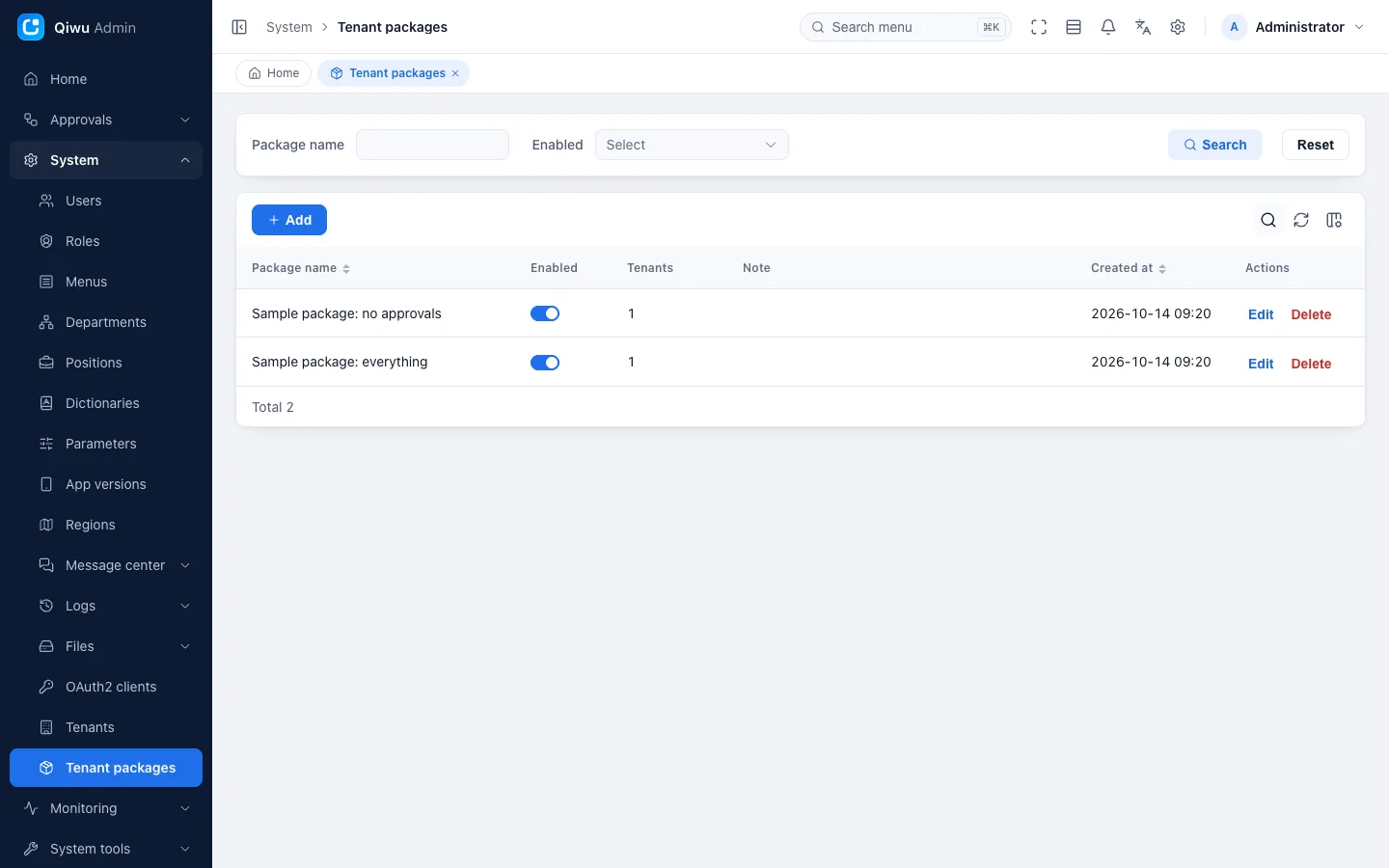
- When editing a package, tick items in the Menus tree. Platform-only menus (see below) are not in it;
- Modules created with the code generator and menus created in Menus are in no package by default. To let tenants use them, tick them into a package;
- Packages are checked by the server. A tenant user's permissions = their role grants intersected with the package. Calling an API outside the package directly, bypassing the UI, is rejected just the same;
- The tenant administrator (
tenant_admin) automatically has every feature in the package; - When a tenant grants permissions in System → Roles, it sees only the menus in its package. When the package shrinks, existing grants are kept but have no effect, and they come back automatically when the package grows again;
- After a package is changed, or a tenant gets another package, signed-in users get the updated permissions on their next action, without signing in again;
- A tenant without a package, or whose package is disabled, can use nothing. A package that tenants are using cannot be deleted;
- The mobile app hides features by package too; for example, when the package has no approvals, the Approvals tab is not shown;
- The default tenant is not limited by packages.
Platform-only pages
The following pages are maintained centrally by the platform and shared by all tenants; they cannot be put into a package:
- Monitoring: Server, Database monitor, Cache monitor, Cache keys, Queue monitor, Scheduled tasks, Job log;
- System tools: Code generator, Form builder, API docs, Element Plus docs;
- System: Menus, Dictionaries, Dictionary entries, Parameters, App versions, OAuth2 clients, Tenants, Tenant packages;
- System → Files: Storage configs;
- System → Message center: Mail accounts, SMS channels, Inbox templates, Mail templates, SMS templates;
- System → Logs: API access log, API error log.
With the switch on, API access log, API error log, Cache keys and Queue monitor hold data of all tenants, so only the super administrator can see them. Roles in the default tenant with the matching permissions use the other platform pages as usual.
For the detailed rules, see the repository's Tenant packages (Chinese).
Platform staff entering a tenant
When a tenant runs into a problem, platform staff can enter the tenant to investigate or act on its behalf. This is the only way to work across tenants.
Who can enter
- You need the Enter tenant permission (
iam.tenant.enter); the super administrator has it already; - Inside, your data scope is still computed from your own roles. So give the person a role with the data scope All data, or they see no data in the tenant. See Permissions and data scope.
Entering and leaving
- In the tenant list, click Enter on that row;
- In the dialog, fill in Reason (required, at most 200 characters), then click Enter tenant;
- The whole page reloads. The top of the page keeps showing the banner "You are working inside tenant (name) as platform staff; everything you do is audited", with a Leave tenant button next to it. The lock screen shows a reminder too.
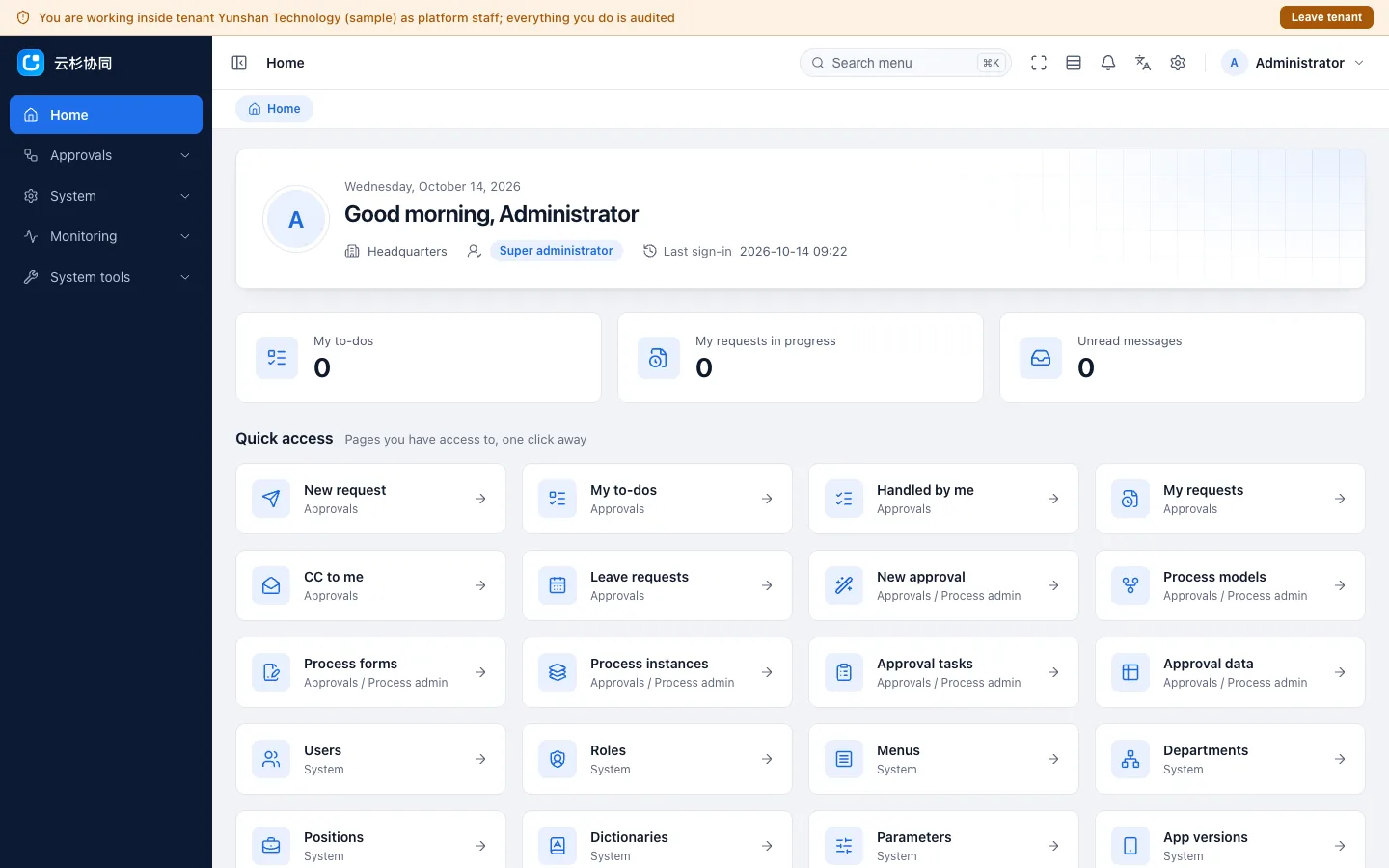
- Click Leave tenant on the banner to leave. After 2 hours, when the switch is turned off, or when your permission to enter is revoked, you leave automatically on your next action;
- You can enter only from the desktop admin console, not from the mobile app. Disabled and expired tenants can be entered too, which helps with investigating;
- People who are not the super administrator cannot enter another tenant while inside one; they must leave first;
- With several tabs open, after another tab enters or leaves a tenant, the old tab shows "The tenant of this tab has changed. Please reload the page" and reloads automatically, so no data is written to the wrong tenant.
What you can do inside
- You work with your own permissions, not limited by the tenant's package; but the permissions of platform features are removed, and only the super administrator can still open platform pages while inside;
- Entering does not make you the tenant's administrator: the tenant's owner and its tenant administrators can still be changed only by the platform's super administrator;
- While inside, your profile, password change, table column settings, your own inbox messages and bulletins, and My to-dos, Handled by me, My requests and CC to me under Approvals still belong to your own tenant. Platform pages also keep running in the platform, so what they write never lands in the tenant.
Full audit trail
- Entering and leaving each add one action log entry (actions Enter tenant and Leave tenant) in the default tenant, together with the reason for entering;
- Actions taken while inside are recorded in the tenant's own action log. Its administrators can see them: Actor tenant shows Platform, the source details such as IP and location are masked, and the entries cannot be deleted;
- Every request while inside, including ones that only view data, is written to the API access log. The full source details are kept only there, and only the platform's super administrator can see them.
For the detailed rules, see the repository's Platform staff entering a tenant (Chinese).
Tenants in the logs
With the switch on, the log pages show tenant information:
| Page | Change |
|---|---|
| System → Logs → Action log | An extra Actor tenant column: Platform for actions of platform staff, otherwise the tenant name |
| System → Logs → Sign-in log | An extra Tenant column: Platform, the tenant name, or Unresolved tenant (the tenant code entered at sign-in does not exist). The super administrator's search bar gets an extra Unresolved tenant switch |
| System → Logs → API access log, API error log | Only the super administrator can see them; they get a tenant filter and a Tenant column |
Each tenant sees only its own action log and sign-in log. Platform staff who want to see another tenant's logs must enter that tenant first. For how to use each log, see Monitoring and logs (Chinese).
Known limits
- A WeChat account can be linked to only one account in one tenant. To release it for another tenant, see the repository's Releasing globally unique values (Chinese);
- On the main domain, one browser can be signed in to only one tenant at a time;
- Changes to bound domains take effect within 60 seconds;
- Changing any package makes every signed-in user reload their permissions once;
- Platform staff can see another tenant's logs only by entering that tenant first;
- A brand is only a name and a logo. The browser tab icon, the page's initial title and the app icon do not change.
For the full list, see the repository's Known limits (Chinese).
Try it on the live demo
The live demo has multi-tenancy on. On the sign-in page, enter yunshan or qinghe as the tenant code, with the username admin and the password KnjUB2fTabw2wnxL, to see what a company sees after signing in: the two sample companies each have their own brand name, and the package of qinghe has no approvals. Leave the tenant code empty and sign in with the platform account (admin / admin@123); then in System → Tenants click Enter to try entering a tenant and see the banner. In demo mode, tenants cannot be opened or edited, but entering and leaving work as usual.
Developer guide
- New tables are isolated by tenant by default: add a
tenant_idcolumn when creating the table, map this column in the entity, and add the tenant condition yourself in hand-written SQL. See Writing tenant-aware code (Chinese) and the repository's Writing tenant-aware project code (Chinese); - After generating a new module with the code generator, remember to tick its menus into a tenant package;
- For the full steps to deploy and switch it on, see Deployment (Chinese) and the repository's Turning on the multi-tenancy switch (Chinese).
Related features:
- Sign-in and accounts (Chinese)
- Permissions and data scope
- Monitoring and logs (Chinese)
- Mobile app